Approvals you can see: WPVibe puts the panel in the chat
The scariest moment with any AI on your live site isn’t the typo it might write. It’s the thing it can’t undo. Deleting a user. Dropping a row. Uninstalling a plugin. That’s the moment you want to slow down and look before anything happens.
Until now, WPVibe handled that moment with a link. The agent would pause, hand you a URL, and you’d open it in another tab to approve the action. It worked, and it kept you safe, but it asked you to leave the conversation and read raw details to feel sure.
Today that moment happens right where you’re already working.
The approval panel
When WPVibe is about to run something irreversible, it now renders an approval panel directly in the chat. You see exactly what’s about to happen: the operation, the full payload, and a plain warning that this one can’t be taken back. Two buttons, Approve and Decline. Nothing runs until you choose.
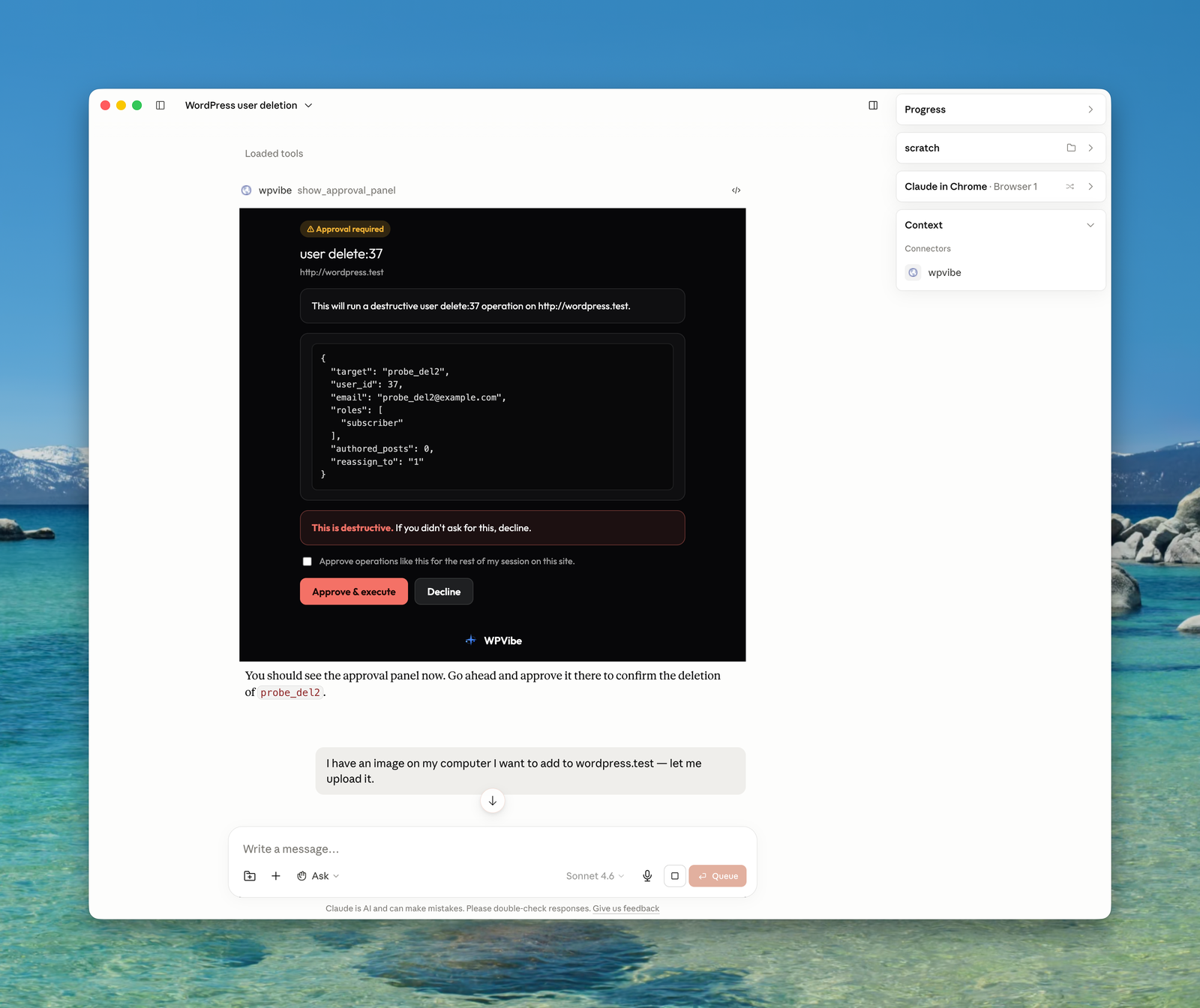
There’s also a checkbox to approve operations like this for the rest of your session on that site, so a long cleanup job doesn’t make you click for every single step. You decide once, with the details in front of you, instead of either clicking blindly or babysitting a wall of confirmations. Reversible work like drafts, trashing, and revisioned edits still just runs. The panel is reserved for the things that actually deserve a second look.
This is the rule we keep coming back to: see the work before it ships, and keep the ability to take the keys back. Now you can see it without leaving the chat.
Drag and drop your images, too
The same idea fixes a smaller, more frequent annoyance. Adding a local image to your site used to mean hosting it somewhere and pasting a URL, because a chat window can’t read a file off your computer. Now WPVibe shows an upload panel in the conversation. Drag your image in, or pick it from your machine, and the agent adds it to your media library once it lands.
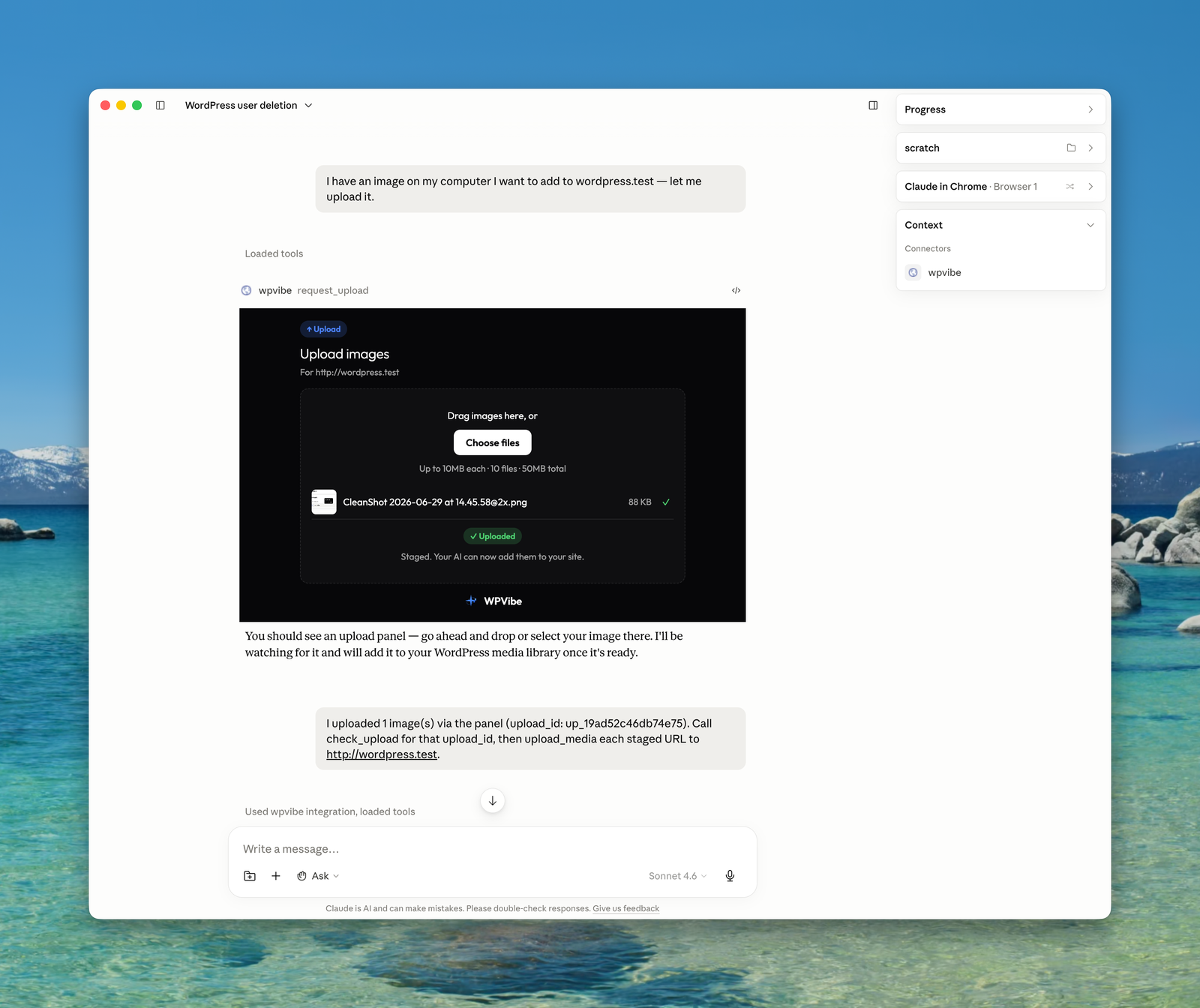
No more saving it to an image host first. The file goes from your desktop to your WordPress media library without a detour.
How it works, and what you need
Both panels are built on the open MCP Apps extension, the first official add-on to the Model Context Protocol, developed by the MCP maintainers at Anthropic and OpenAI together with the MCP-UI community. It lets a tool render a real interface inside the chat instead of returning plain text.
If your AI client supports MCP Apps, the panels appear automatically. There’s nothing to turn on. If your client doesn’t support them yet, WPVibe falls back to the way it worked before: a link you open to approve, or to upload. Same safety, same outcome, just without the inline panel. Nothing breaks either way.
Try it
WPVibe is a free plugin that connects the Claude or ChatGPT you already pay for to your self-hosted WordPress site. Connect a site at wpvibe.ai/start, then ask your agent to do something reversible first, like audit your site. When you eventually ask for something it can’t undo, you’ll see exactly what we mean.