WPVibe Now Speaks Elementor, v4 Included
Ask a general-purpose AI to “build me an Elementor page” and you’ll get one of two things: a wall of HTML that has nothing to do with your builder, or a confident explanation of steps you’ll have to click through yourself. Neither one is a page.
That gap always bothered us. Elementor powers millions of sites. The people running them shouldn’t be locked out of AI site work just because their pages live in a builder instead of the block editor.
So we did the unglamorous work. WPVibe now builds real Elementor pages, and as of this release it speaks the new Elementor v4 too.
What “real Elementor pages” means
When WPVibe builds a page, the result is a native Elementor document. Open it in the builder and it’s all there: sections, columns, widgets, styling, each piece individually editable, exactly as if you’d dragged it in by hand. Your AI isn’t pasting HTML at Elementor. It’s working with the same structure the builder itself saves.
Here’s what that unlocks:
- Full pages from a conversation. “Build a pricing page with three tiers and an FAQ” comes back as a draft you can preview, then fine-tune in chat or in the builder. Your choice.
- Elementor v4 support. Elementor’s new v4 widgets work differently under the hood, and WPVibe handles both generations. If you’re trying v4, your AI already knows its way around.
- Edits to existing pages. Change a headline, swap a section, restyle a button. WPVibe updates the page in place without disturbing the rest of it.
- Theme builder templates. On Elementor Pro, WPVibe can build headers, footers, and other site-wide templates, display conditions included.
The page title problem, solved
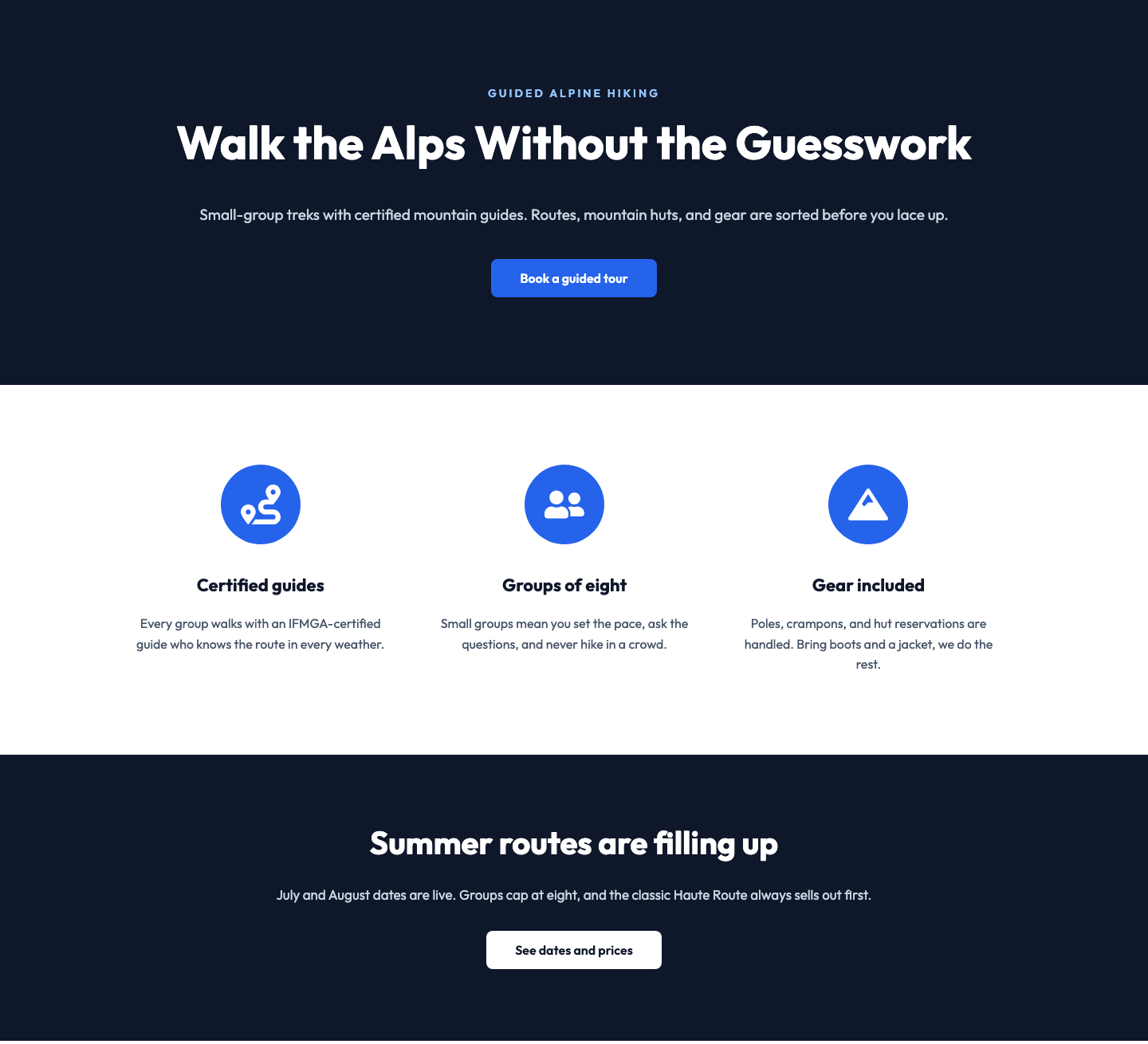
Small thing, big difference. Most themes print the page title above your content, which is fine for a blog post and terrible for a landing page. Every AI-built page used to land with that raw title sitting on top of the design.
Pages can now choose their template at save time: Elementor Canvas for a clean standalone landing page, or the header-and-footer template when you want your theme’s navigation but not its title block. Ask for “a landing page with no header” and that’s what renders. No detour into the page settings afterward.
It also un-sticks the stuck styling
If you’ve used Elementor long enough, you’ve probably met the bug where a page’s styling goes stale: the design is right in the builder but wrong on the live site. It comes from Elementor’s generated CSS falling out of sync, and it’s miserable to diagnose by hand.
WPVibe knows this failure mode. When styling looks stuck, your AI can detect it and regenerate the CSS, which is the actual fix, instead of the usual ritual of random cache clearing.
How to get started
Step 1: Connect your site. About 30 seconds at wpvibe.ai/start, on any host.
Step 2: Ask for a page. Be as specific or as vague as you like. “A webinar signup page in Elementor, dark theme, one form” works. So does “make me something for my dog grooming service.”
Step 3: Preview the draft. WPVibe builds drafts first, so nothing touches your live site until you’ve seen it.
Step 4: Polish wherever you prefer. Keep iterating in chat, or open the builder and adjust by hand. It’s a normal Elementor page either way.
Tested against the real thing
Builder integrations rot fast, so we don’t trust ours on faith. This one runs against a live Elementor install on every release, building and verifying real pages end to end, v3 and v4 both. When Elementor ships changes, we find out before you do.
If you run an Elementor site, this is a good week to try WPVibe. Start with a page you’ve been putting off building. Everyone has one.
Thanks for building with us.
John and the WPVibe team
P.S. Elementor support is free, like every WPVibe feature. Connect at wpvibe.ai/start, or install the plugin from WordPress.org (listed there as “Vibe AI,” same plugin).