Your AI Just Learned Pagelayer
A landing page in Pagelayer is an afternoon of clicking. You pick a row layout, drag in a heading, an icon box for each feature, an accordion for the FAQ and a button, and then replace every line of sample text before you get to the words that matter. Then, before launch, somebody has to open every page to look for a button that still links to #, an image with no alt text or a stray line of filler text. It’s easy to skip.
Pagelayer, on 400,000+ sites by WordPress.org’s count, is a drag and drop page builder. Pagelayer 2.2.2 gives AI assistants abilities to build pages from ready-made sections, edit elements, run its own page validator and read its global colors and fonts. WPVibe now has a verified Pagelayer page and two tested recipes, so the AI you already use can build a landing page in Pagelayer from a short brief and check your Pagelayer pages before launch.
What you can ask for
Both are copy-paste prompts built on calls we ran against a live Pagelayer install before publishing them:
- Build a Pagelayer landing page: describe the page and get a Pagelayer draft with a hero, feature cards, an about section, testimonials if you give them, an FAQ and a closing call to action, with your photos in your media library
- Check your Pagelayer pages before launch: a read-only check of your Pagelayer pages for sample text, buttons that go nowhere, missing alt text and heading problems, in one table with the worst pages first
In practice it sounds like this. You paste the landing page recipe with your headline, three features and a few lines about your business. The AI reads Pagelayer’s section formats and your site’s Pagelayer colors and fonts, adds photos it finds or you link to your media library with alt text, and checks that the page your button links to exists. If it wrote the FAQ, it shows you the questions and answers first. Then it builds the whole page in one call as a draft, runs Pagelayer’s validator on it, and gives you a preview link and the Pagelayer editor link. You ask for a shorter headline in the same chat, it changes that one element and reads it back. It publishes only when you say so.
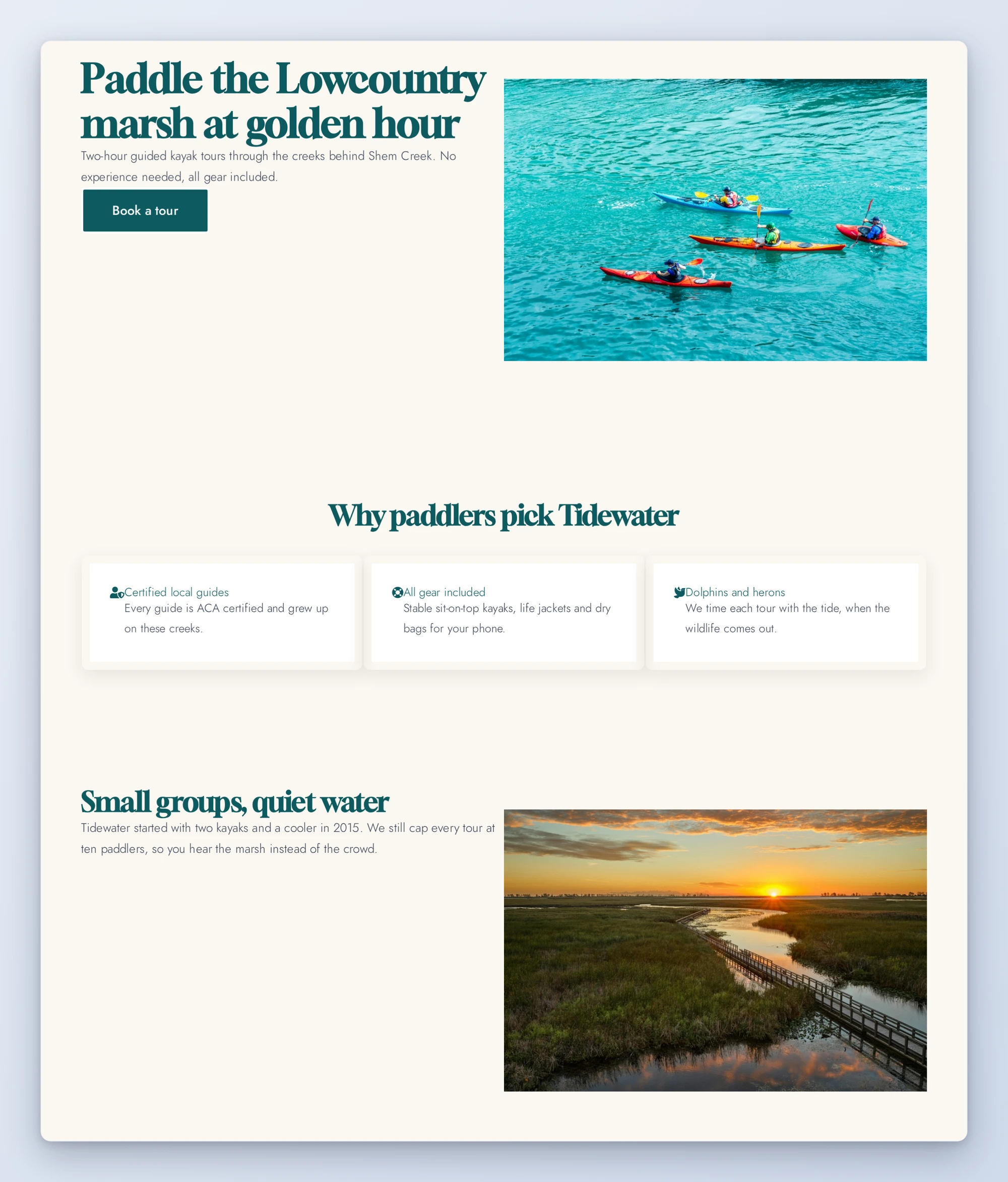
That page came from the recipe’s steps on our test site, inside the test site’s own theme: hero, feature cards, about, FAQ and call to action, colored from the site’s Pagelayer palette, and it passed Pagelayer’s validator with no errors or warnings.
Who this is for
- Small business owners with an offer and no afternoon to spare. Describe the page in plain words and get a Pagelayer draft you can tweak in the editor.
- Anyone about to launch a Pagelayer site. One read-only pass over your published pages, plus Pagelayer’s validator on the rest, for the small things visitors notice first.
- Agencies building on Pagelayer. A first draft of a client landing page in minutes, built from Pagelayer’s own sections so the client can keep editing it.
How to get started
Step 1: Install or update Pagelayer. The recipes need Pagelayer 2.2.2 or newer, the free version is enough, on WordPress 6.9 or newer, with an administrator account. Its abilities are on as soon as the plugin is active. There is no switch to turn on.
Step 2: Install WPVibe and connect the AI you already use. WPVibe is an MCP server that connects the AI you already use to your WordPress site. Install the free WPVibe plugin from WordPress.org. Its settings screen has buttons to add it to Claude or ChatGPT, plus a server address for other AI apps. Sign in with a free WPVibe account when your AI asks, then paste the connect line from the same screen into your AI, open the link it replies with while logged in to your WordPress site, and approve. No passwords ever go in the chat.
Step 3: Start with the pre-launch check if your site is already built. It only reads, so it is safe on a live site. Building something new? Start with the landing page recipe; it saves a draft.
Why these are worth trusting
We installed Pagelayer 2.2.2, the free version, on a test site that already runs WooCommerce, LifterLMS and a custom theme, and built real pages, posts, templates and a menu with it. 58 of its 59 abilities ran through WPVibe; the 59th, Pagelayer’s own image search, needs a Pexels key, so the recipes use WPVibe’s image search instead. We wrote down what would have sent an AI the wrong way:
- A new page goes live by default. Pagelayer’s create page ability publishes unless told otherwise, so the recipe always saves a draft and publishes only on your word.
- Some options change every page. The same call can set Pagelayer’s global colors, fonts and content width, which every Pagelayer page on the site uses. The recipes never send them and never change your global styles.
- An image given by its address shows no alt text. The recipe adds each photo to your media library with alt text and uses that, so the live page has it.
- A straight double quote in text the AI sends can break a widget. In our test, a button whose text held a straight double quote lost its text and its link on the live page, and the validator still passed it. A backslash did the same. The recipe writes curly quotes and leaves out backslashes.
- Pagelayer’s AI abilities keep their own copy of the layout. By Pagelayer’s code, saving in its editor doesn’t update that copy, and in our test the next AI edit after such a save brought the older version back. So the landing page recipe makes changes only in the same chat, checks before each one that nobody saved the page elsewhere, and hands you over to the editor after that.
- The validator only reads pages the AI built. It can’t read a page built in Pagelayer’s editor, so the pre-launch check also looks at each published page as a visitor sees it and checks the validator’s findings there before reporting them.
- No testimonials are made up. If you give none, the section is left out. The recipes delete nothing and don’t build headers or footers, which Pagelayer’s template abilities apply to the whole site.
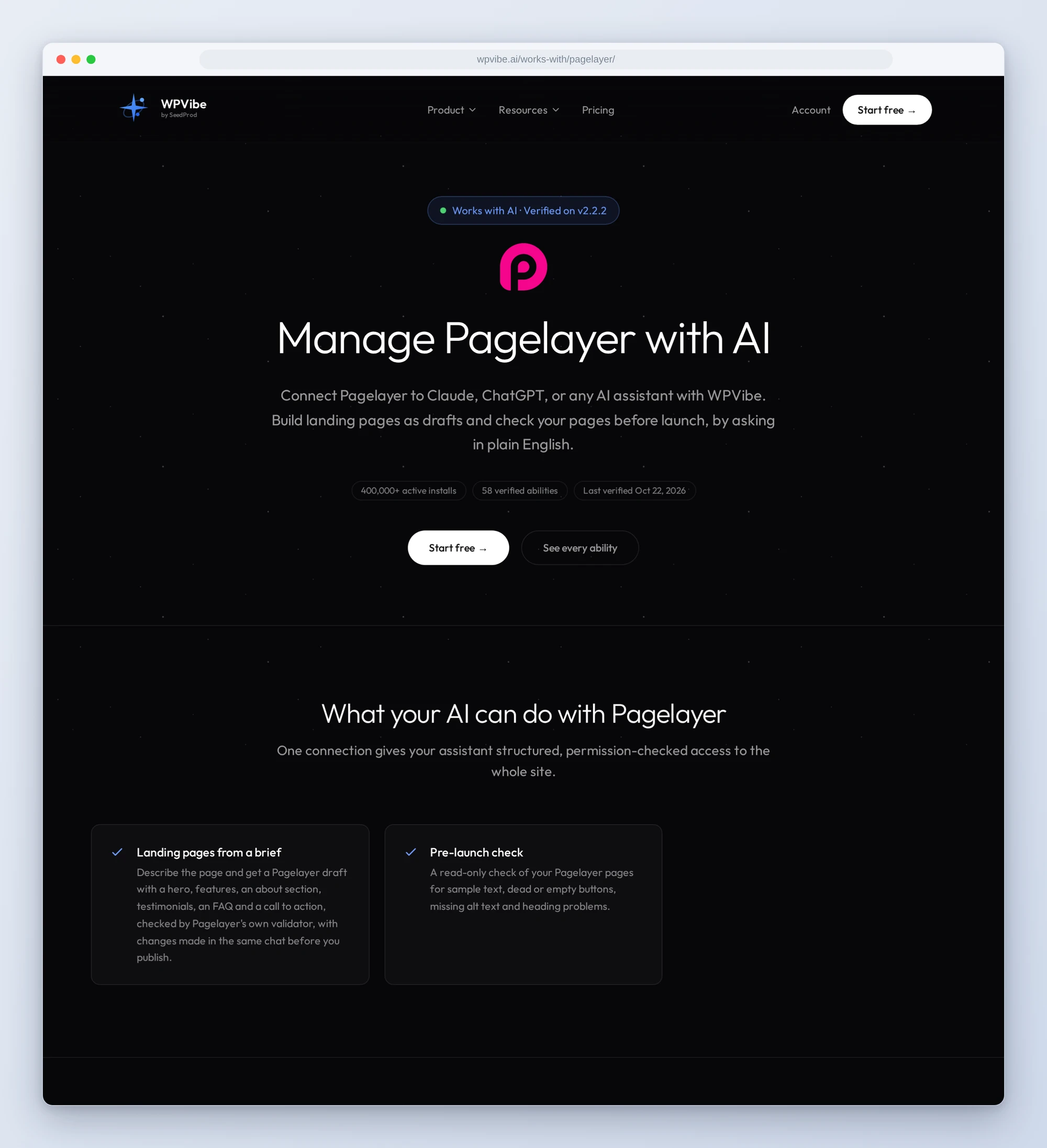
The Pagelayer page has every ability we verified and the gotchas we found. If you only try one, make it the landing page: describe it, look at the draft, then decide.
John and the WPVibe team
P.S. WPVibe is free to start and works with the Claude or ChatGPT account you already have, so there is no second AI subscription to buy. Connect your site and get your afternoon back.