Your AI Just Learned Page Builder by SiteOrigin
Page Builder by SiteOrigin’s prebuilt layouts look finished the moment you import one. Then you read it. Lorem ipsum in the About section, sample headings, a made-up testimonial, a statistic nobody measured and a Contact Us button that links nowhere. Swapping it all out means opening each widget’s settings, one at a time. And when your phone number changes a year later, it’s in the hero, a feature box and the hours block, and you hunt for every copy by hand.
Page Builder by SiteOrigin, on 400,000+ sites by WordPress.org’s count, builds pages from rows, columns and widgets. It gives AI assistants two abilities, one that reads a page’s whole layout and one that writes it back, and the recipes need version 2.38.0 or newer. WPVibe now has a verified Page Builder by SiteOrigin page and four tested recipes, so the AI you already use can replace a layout’s placeholder text, update contact details, make a new page from one you already have and check your pages for leftover sample text.
What you can ask for
All four are copy-paste prompts built on calls we ran against a live Page Builder install before publishing them:
- Replace the placeholder text in a SiteOrigin layout: swap a prebuilt layout’s Lorem ipsum, sample headings and empty button links for your own copy, with the design left as it is
- Update contact details on a SiteOrigin page: find every place an old phone number, email, address or opening hours appear on a page, check the matches with you, and change only those
- Make a new SiteOrigin page from one you already have: copy a page’s design into a new draft and fill it with new text from a short brief
- Check your SiteOrigin pages for leftover placeholder text: a read-only check for Lorem ipsum, sample testimonials, dead buttons and images loaded from another site, in one table with the worst pages first
In practice it sounds like this. You paste the placeholder recipe with your business name, what you do, where you are, how to reach you and a line for each service. The AI checks your Page Builder version, reads the page’s layout, counts the widgets and looks for embed code it would lose. It lists every placeholder and every button with an empty link, plus any photos still loading from SiteOrigin’s layout library. Then it drafts your copy for the same widgets, close to the old length and in the same headings. The recipe tells it never to make up testimonials, statistics or names: slots you gave no facts for are listed for you to fill or remove in the editor. You get a table of every change, before and after, and the recipe waits for your yes in the chat before it writes anything. On a published page it offers to work on a draft copy first and gives you the preview link. When you say apply it, it writes the same layout to the live page, reads it back and trashes the copy. Change your mind? Say undo in the same chat.
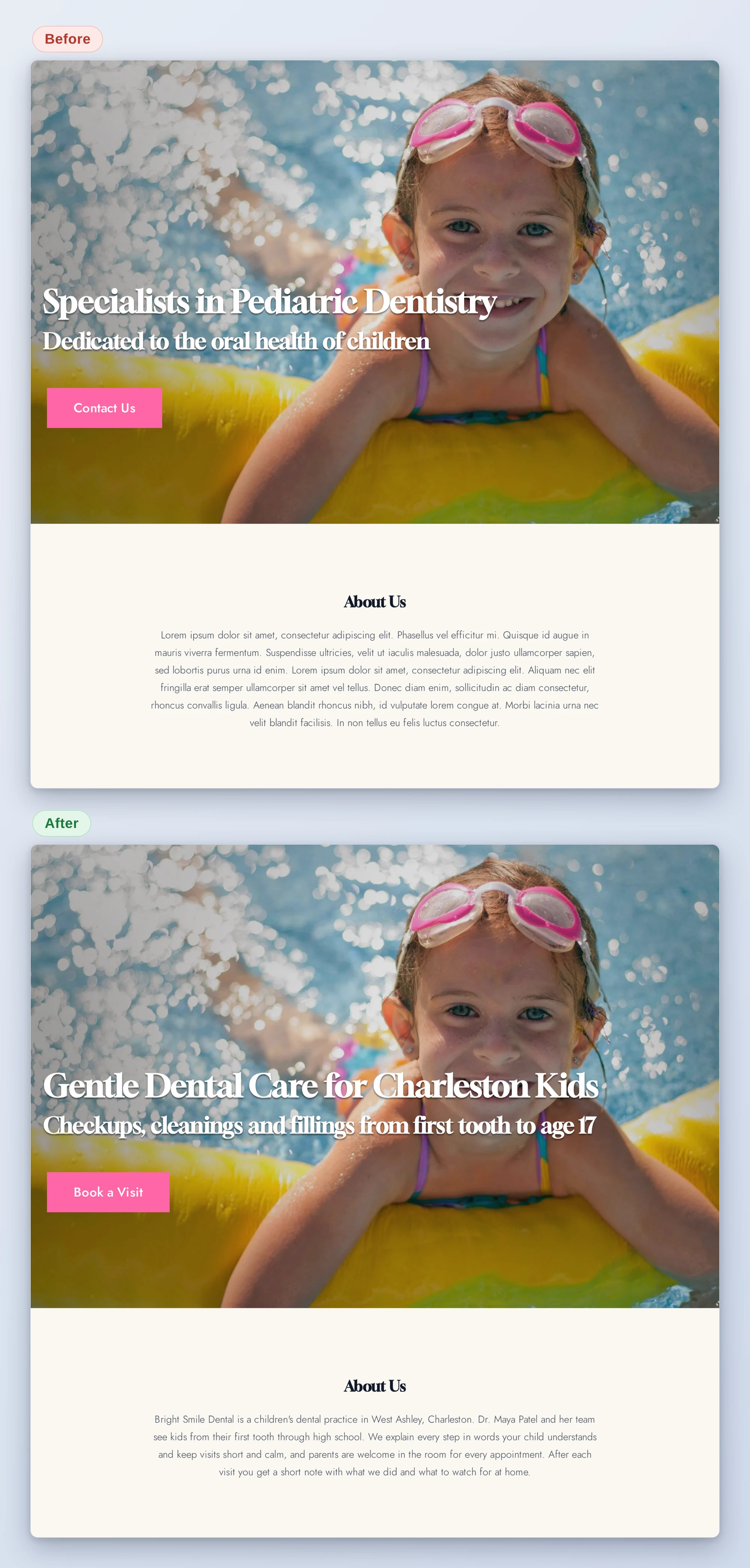
That’s SiteOrigin’s Dentist prebuilt layout on our test site, before and after a write made the way the placeholder recipe makes it, through WPVibe. The headline, button, About text, services, address, hours and map address changed. The rows, colors and design settings stayed as they were. The photo still loads from SiteOrigin’s layout library. That’s one of the things the recipe lists for you to replace in the editor.
Who this is for
- Anyone who started from a prebuilt layout and never finished. Give the AI your details and get your own words in the widgets you already have.
- Small businesses whose details change. A new phone number, address or opening hours, changed everywhere the AI finds it on the page, in the different ways people write it.
- Agencies with a page per service or location. Copy a page that works into a new draft with new text, then finish it in the editor.
- Anyone about to launch. A read-only pass over your Page Builder pages, five at a time, for the sample text and dead buttons visitors notice first.
How to get started
Step 1: Install or update Page Builder by SiteOrigin. The recipes need Page Builder 2.38.0 or newer, the free version is enough, on WordPress 6.9 or newer, with an administrator account. We tested it with the free SiteOrigin Widgets Bundle, which the prebuilt layouts we used are built from. The abilities are on as soon as Page Builder is active. There is no switch to turn on.
Step 2: Install WPVibe and connect the AI you already use. WPVibe is an MCP server that connects the AI you already use to your WordPress site. Install the free WPVibe plugin from WordPress.org. Its settings screen has buttons to add it to Claude or ChatGPT, plus a server address for other AI apps. Sign in with a free WPVibe account when your AI asks, then paste the connect line from the same screen into your AI, open the link it replies with while logged in to your WordPress site, and approve. No passwords ever go in the chat.
Step 3: Start with the placeholder check. It only reads, so it is safe on a live site, and it checks up to five pages a run. Then fix what it finds with the placeholder recipe.
Why these are worth trusting
We installed Page Builder 2.38.0 and the SiteOrigin Widgets Bundle 1.75.0, both free, on a test site that already runs WooCommerce, LifterLMS and a custom theme. We built pages from the Dentist and Consultant prebuilt layouts and ran both abilities through WPVibe, then followed each recipe step by step. We wrote down what would have sent an AI the wrong way:
- Every AI change rewrites the whole layout. There is no edit for one widget: the AI sends the full layout back with only your changes, and on a published page visitors see them at once. So the recipes show you every change first, and the placeholder recipe can work on a draft copy.
- WPVibe’s approval page never shows for it. Page Builder doesn’t mark its layout update as destructive, so the safety here is the before and after table and your yes in the chat, not an Approve button.
- An AI save strips embed code from every widget. In our test, a YouTube embed and a booking script in a widget the AI never touched disappeared. The placeholder and contact details recipes stop on pages with embed code pasted into a widget (iframes, scripts, forms) and send you to the editor, and the new page recipe tells you which embeds won’t come across. Map and video widgets store settings, not embed code, so they pass.
- Undo in the chat, not from Revisions. The revision an AI change creates has no Page Builder layout, and restoring it removed the page’s layout in our test. The recipes keep the before copy and put it back when you say undo.
- Close the page in the editor first. By Page Builder’s code, an editor left open still holds the old layout and saves it over the AI’s change when someone clicks Update. The recipes ask you to close it and check nobody saved the page in between.
- Big layouts get cut off. A 14-widget prebuilt page came back at 54,000 characters, past WPVibe’s limit for ability results. The recipes read layouts through Page Builder’s own read-only route, which returned them whole, and the write recipes stop above 11 widgets, the size our write tests reached.
- A map keeps its old pin. By the widget’s code, the Google Maps widget uses its stored coordinates before the address, so a new address alone would leave the pin where it was. The recipes clear the coordinates when the address changes.
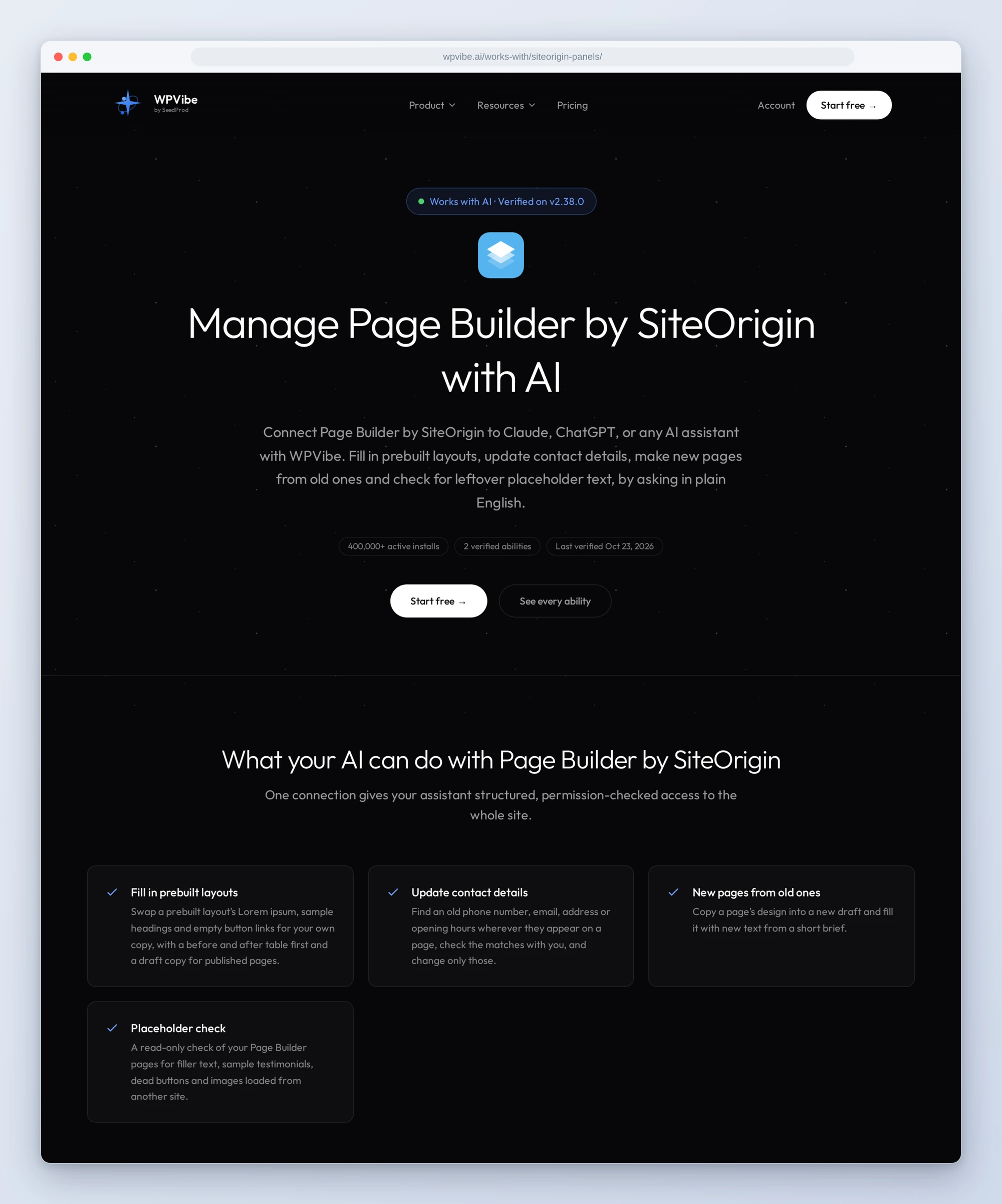
The Page Builder by SiteOrigin page has both abilities and every gotcha we found. If you only try one, make it the placeholder check: it changes nothing, and it shows you what’s still sitting on your pages.
John and the WPVibe team
P.S. WPVibe is free to start and works with the Claude or ChatGPT account you already have, so there is no second AI subscription to buy. Connect your site and let the Lorem ipsum go.