Your AI Just Learned Simple History
Your site worked this morning. Now a page shows an error, and everyone with a login says they didn’t touch anything. Maybe a plugin updated itself, maybe someone changed a setting, maybe a freelancer edited the wrong page. If your site keeps an activity log, the answer is already written down. Finding it among hundreds of small events is the slow part.
Simple History, the free activity log on 300,000+ sites by WordPress.org’s count, records who changed what: posts and pages, plugins and themes, WordPress settings, users and logins. Since version 5.31.0 it gives AI assistants six read-only abilities to read that log (we tested them on 5.36.0): recent events, one event with its details, search, one user’s activity, failed logins and activity totals. WPVibe now has a verified Simple History page and five tested recipes, so the AI you already use can read the log for you and answer in plain words.
What you can ask for
All five are copy-paste prompts built on calls we ran against a real Simple History install on our test site before publishing them. All five only read the log. The one change they can make is ticking Simple History’s experimental features box, and only after you say yes:
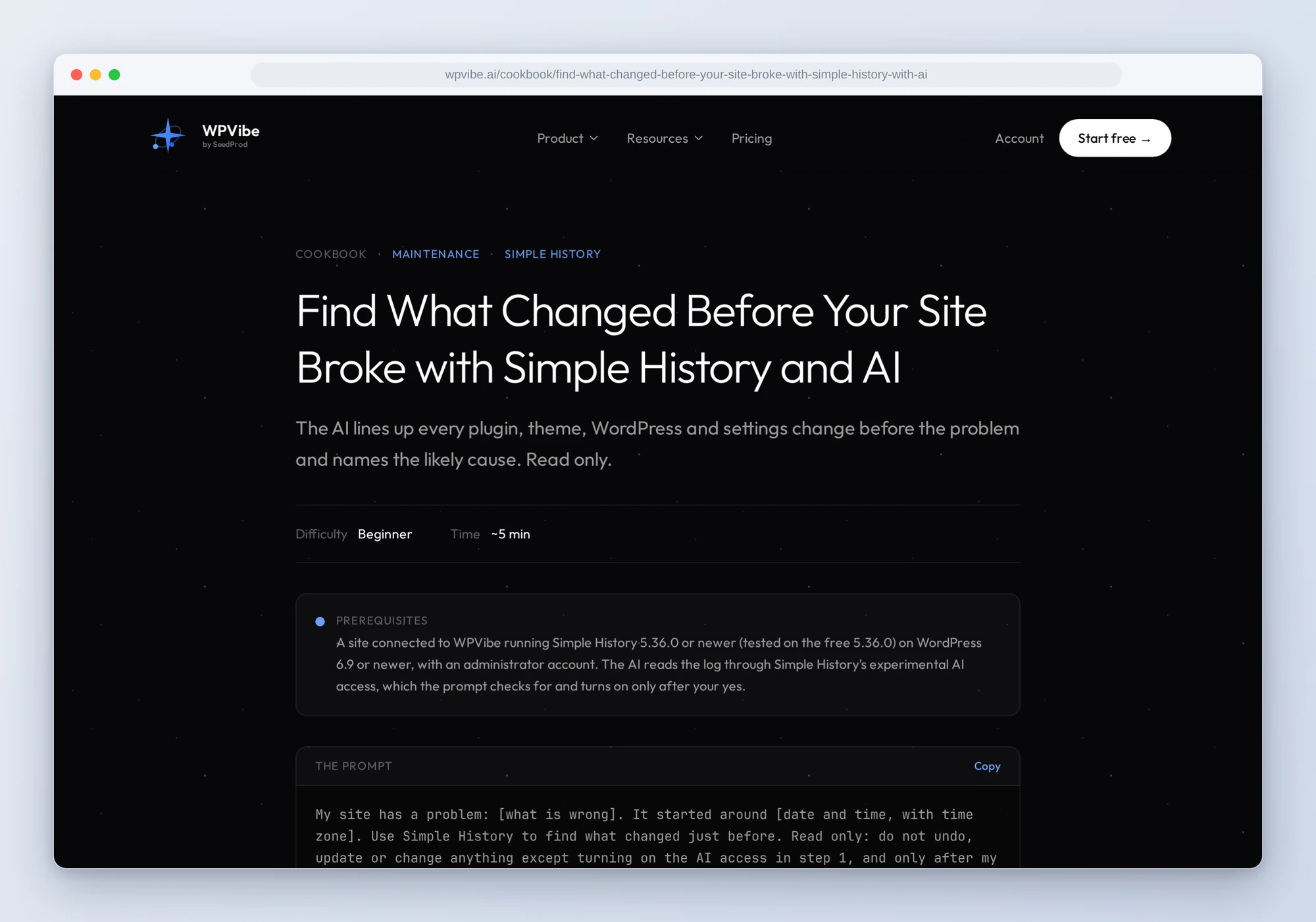
- Find what changed before your site broke: every plugin, theme, WordPress and settings change in the hours before the problem, in order, with the likely cause and how you would undo it.
- Find out who changed a page: the edit found in the log, who made it, when, and what it changed, in plain words.
- See what changed this week: the week grouped by who did what, with the few changes worth a second look listed first.
- Review what one user did: a day-by-day summary of one person’s changes, with anything outside their role flagged. Handy at the end of a freelancer’s contract.
- Check failed logins: attempts by day, every username tried, and which of those names are real accounts on your site.
In practice it sounds like this. You say your checkout broke around 3 PM and paste the recipe. The AI first checks whether Simple History’s AI access is on. On most sites it isn’t yet, so it tells you what the switch also turns on and asks. After your yes it ticks the box and reads the log for the day before and the day of the problem. It lines up the changes: a page edit in the morning, a tagline change after lunch, and a shop plugin updated at 2:41 PM. It opens that update, reads the version before and after, and tells you the update is the likely cause and how to roll the plugin back. It doesn’t roll anything back. What happens next is your call.
Who this is for
- Anyone whose site just broke. The first question is what changed. The AI answers it from the log in a few minutes, instead of you clicking through pages of events.
- Sites with more than one person logged in. Editors, freelancers, a virtual assistant, a client who likes to tweak things. Find who changed the pricing page, or what one person did all month.
- Agencies looking after client sites. A weekly summary of who changed what on each site, and a failed-login check that tells you whether bots are guessing real usernames.
How to get started
Step 1: Install Simple History. The recipes need Simple History 5.36.0 or newer (tested on the free 5.36.0), WordPress 6.9 or newer and an administrator account. Simple History’s AI access is experimental: its abilities only register while the Enable experimental features box in Simple History’s settings (General) is ticked. That box also turns on the plugin’s other experimental features, which Simple History says may not work as expected and could change or be removed in future updates. You can tick it yourself, or let the recipe do it: every recipe checks first and asks before WPVibe ticks it. The log covers what happened after Simple History was installed and keeps 30 days by default, so install it before you need it.
Step 2: Install WPVibe and connect the AI you already use. WPVibe is an MCP server that connects the AI you already use to your WordPress site. Install the free WPVibe plugin from WordPress.org. Its settings screen has buttons to add it to Claude or ChatGPT, plus a server address for other AI apps. Sign in with a free WPVibe account when your AI asks, then paste the connect line from the same screen into your AI, open the link it replies with while logged in to your WordPress site, and approve. No passwords ever go in the chat.
Step 3: Run the see-what-changed-this-week recipe. It’s the gentlest first run: it only reads the log, and you learn what your log already knows before you need it in a hurry.
Why these are worth trusting
We installed Simple History 5.36.0, the free version, on a test site, made the kind of changes a real site sees (posts created, edited and trashed, a plugin installed and updated, a setting changed, a handful of failed logins) and ran all six abilities through WPVibe. All six are verified. We wrote down what would have sent an AI the wrong way:
- The abilities only read. Simple History registers no ability that changes or clears the log. Its code says why: an audit log’s value is that tampering shows, and an agent that could purge it would destroy that. WPVibe doesn’t run Simple History’s own command-line tools either. The recipes tell the AI to change nothing except, on your yes, the experimental features box.
- One row can be several edits. Back-to-back edits to the same post come back as one row with a count, under the newest editor. In our test, two people edited one post in a row and the row named only the second. The recipes say “edited 2 times, last by Sam”, not that Sam did both.
- Failed logins pile into one row. In the failed-logins list, every attempt in the date range can land in one row, whatever username each used, and the row shows only the last name tried. Our six attempts on two usernames came back as one row naming only the real account. So the recipe takes the usernames from a search, which lists every attempt one by one.
- 100 rows a call, no next page. On a busy site the recipes ask one day at a time and tell you when a day was cut off.
- Your AI’s edits look like yours. Edits WPVibe makes through WordPress’s REST API, like saving a post, are logged under the WordPress account you connected with, and the log can’t tell them apart from saves in the block editor.
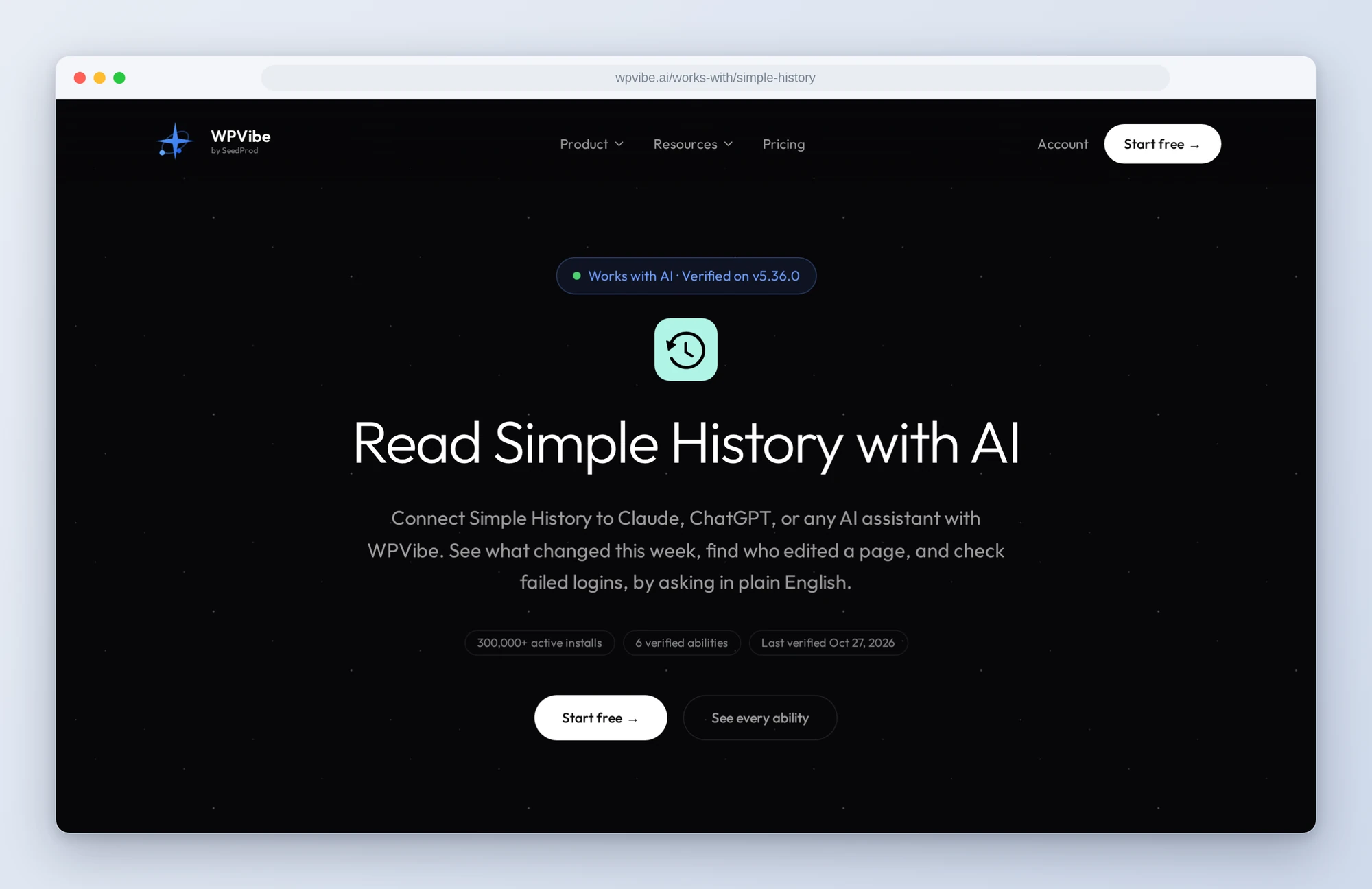
The Simple History page has all six abilities and what we learned testing them. If you only try one, paste the this-week recipe today, while nothing is broken. The day something is, you’ll know where to look.
John and the WPVibe team
P.S. WPVibe is free to start and works with the Claude or ChatGPT account you already have, so there is no second AI subscription to buy. Simple History is free on WordPress.org too.