Your AI Just Learned LightStart
Maintenance mode has one blind spot: you. You stay logged in while you work, so you keep seeing the normal site. You finish the move, close the laptop, and the site keeps telling visitors and search engines it’s down, because nobody checked as a visitor. And the page they get often says nothing useful, like when you’ll be back or how to reach you.
LightStart, the plugin formerly called WP Maintenance Mode and on 400,000+ sites by WordPress.org’s count, puts up the page visitors see while you work on a site. Its current version gives AI assistants abilities to read and set maintenance mode and to list the emails its coming soon page collects. WPVibe now has a verified LightStart page and five tested recipes, so the AI you already use can take your site offline with a page that says when you’re back, check what visitors really see, and bring it back online when you’re done.
What you can ask for
All five are copy-paste prompts built on calls we ran against a live LightStart install before publishing them:
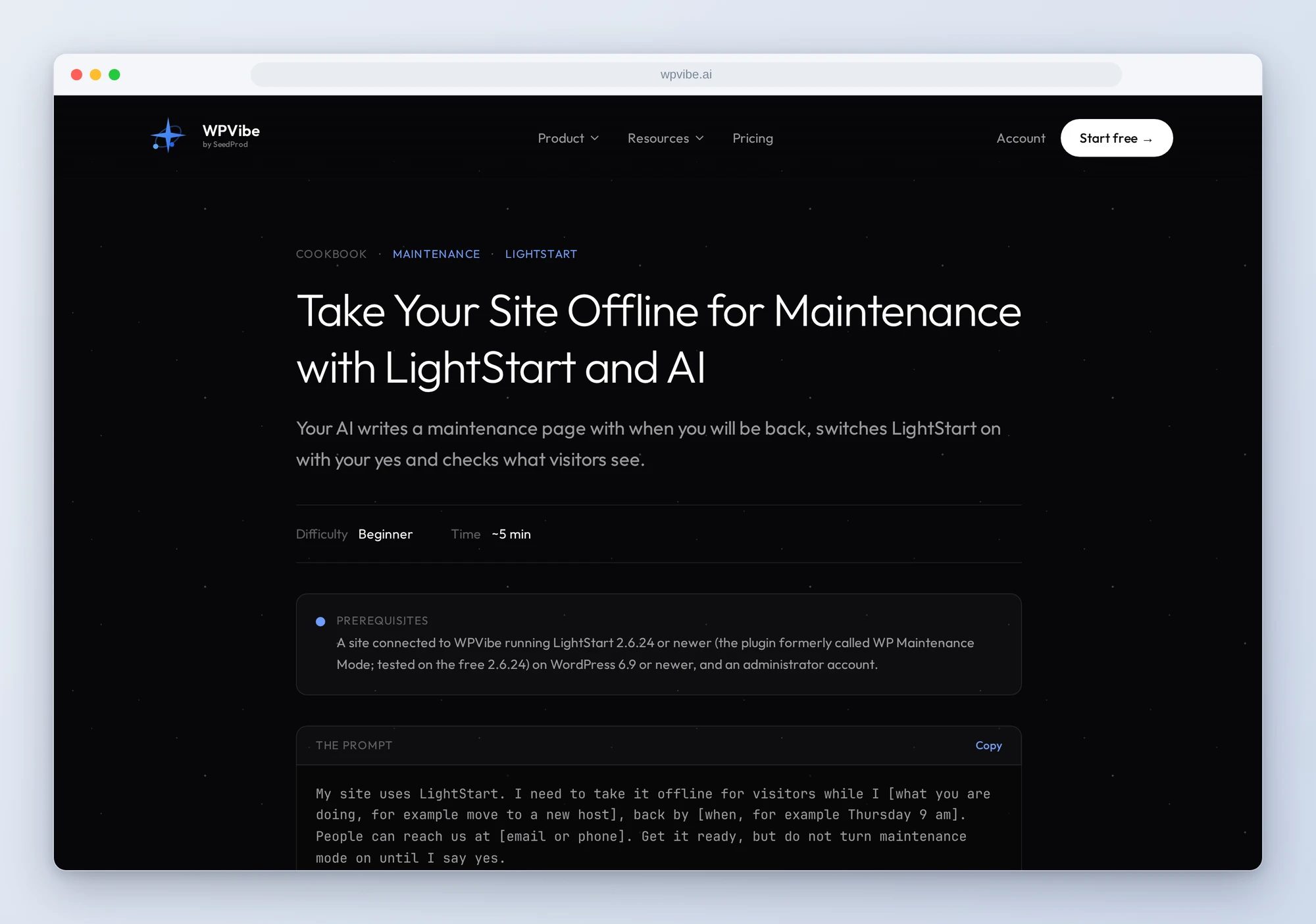
- Take your site offline for maintenance: the AI writes a short maintenance page with what you’re doing, when you’re back and how to reach you, shows it to you, and switches maintenance mode on only after your yes. Then it fetches your site as a visitor to prove what people see.
- Bring your site back online: it checks what visitors get, tells you if Discourage search engines is also ticked, turns maintenance mode off on your yes, and fetches your pages again to prove they’re back.
- Let someone see the site during maintenance: a client or teammate gets through by user role or IP address, and the AI tells you who else that lets in before it saves anything.
- Keep a page open: leave the contact or landing page up while the rest of the site is offline, with a check of which other pages, posts and products the rule would also open.
- Export your coming soon subscribers: every email your coming soon page collected, as CSV for your email service. It only reads.
In practice it sounds like this. You say you’re moving hosts and will be back Thursday at 9 am. The AI reads LightStart’s settings, sees maintenance mode is off, and writes a private page with a heading, one line on the move, when you’re back and your email. It shows you the text, then runs LightStart’s dry run of the switch, which saves nothing, and waits. You say yes. It turns maintenance mode on with that page and fetches your home page and one other page logged out. Both show the maintenance page. On Thursday you ask it to bring the site back, and it checks again the same way.
Who this is for
- Site owners moving hosts or changing themes. Visitors get a page that says when you’re back, and you get proof the site is really online again afterwards.
- Agencies working on client sites. Let the client review the new design during maintenance without opening the site to everyone, and take the access away when they sign off.
- Anyone launching with a coming soon page. Pull the list of people who asked to hear when you launch, ready for your email service.
How to get started
Step 1: Install LightStart. The recipes need LightStart 2.6.24 or newer (tested on the free 2.6.24), WordPress 6.9 or newer, and an administrator account. There is nothing to switch on: the abilities are there as soon as the plugin is active. Choosing your own maintenance page needs LightStart’s block-based maintenance page, the default on new installs; with the older classic screen the AI can still switch maintenance mode on and off, showing LightStart’s built-in screen.
Step 2: Install WPVibe and connect the AI you already use. WPVibe is an MCP server that connects the AI you already use to your WordPress site. Install the free WPVibe plugin from WordPress.org. Its settings screen has buttons to add it to Claude or ChatGPT, plus a server address for other AI apps. Sign in with a free WPVibe account when your AI asks, then paste the connect line from the same screen into your AI, open the link it replies with while logged in to your WordPress site, and approve. No passwords ever go in the chat.
Step 3: Ask whether your site is still in maintenance mode. The bring-it-back recipe is the quickest first run: it checks what visitors see and changes nothing until you say yes.
Why these are worth trusting
We installed LightStart 2.6.24, the free version, on a test site with 24 pages and a WooCommerce shop, and ran all three of its abilities through WPVibe. All three are verified. We wrote down what would have sent an AI the wrong way:
- The switch doesn’t go through WPVibe’s approval page. Turning maintenance mode on or off, and every other setting change, runs straight away. So the recipes run LightStart’s own dry run first, show you the result and wait for your yes in the chat.
- The lists are replaced whole. The pages left open and the roles let through are each sent as a full list. Send only the new entry and the others are gone, so the recipes always send the full list.
- A page rule matches more than the page. An entry opens every address that contains it. In our test, contact also opened search results for contact, while /contact/ with both slashes didn’t. The recipes write the entry with both slashes and check what else it would open.
- Administrators always get through. That’s why you keep seeing the normal site. The recipes fetch your pages as a logged-out visitor, and a private window works too.
- It’s a notice, not a lock. In our test, adding ?login to an address showed the real page during maintenance. To keep something private, use private or draft status.
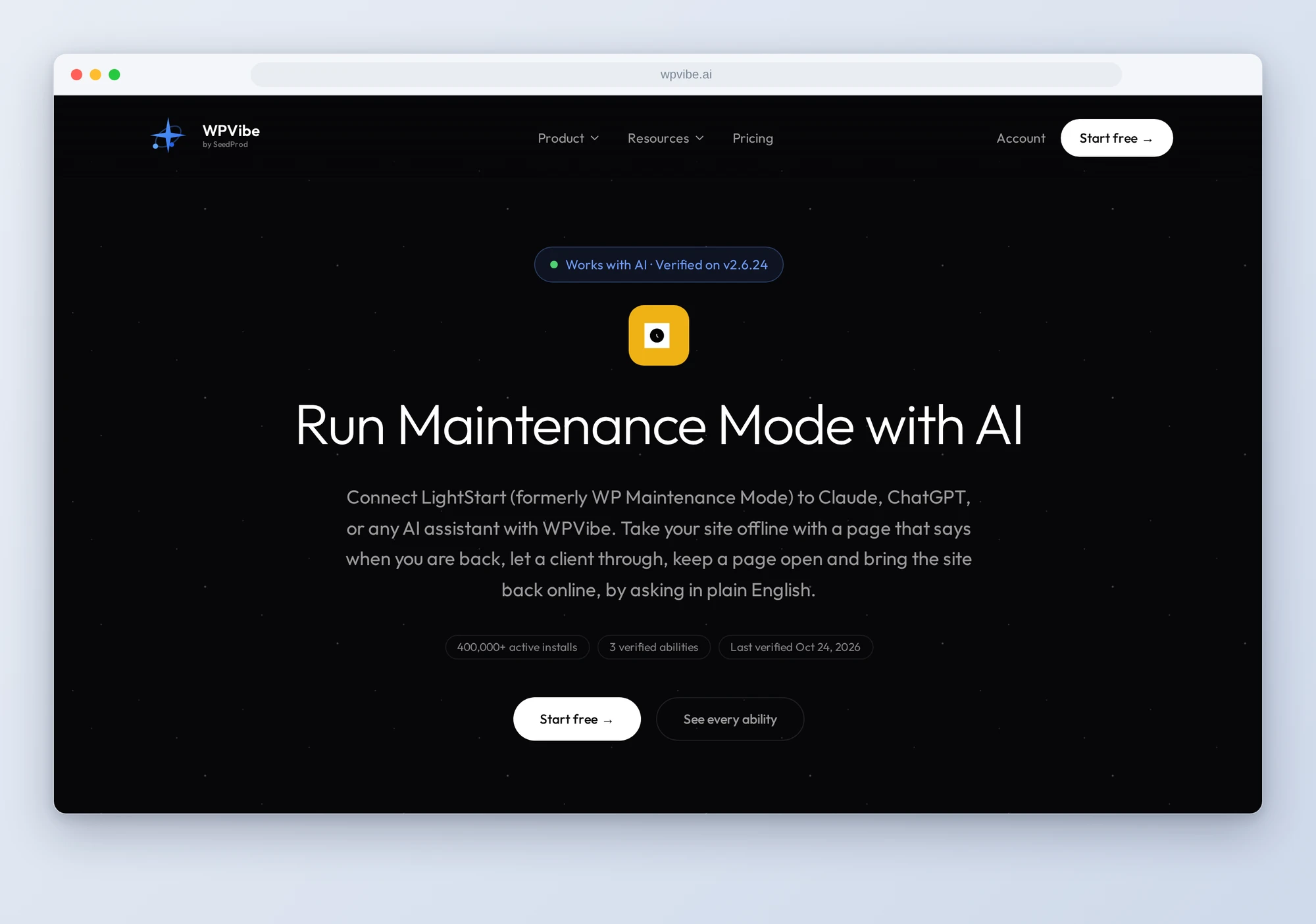
The LightStart page has all three abilities and what we learned testing them. If you only try one, ask your AI whether your site is still in maintenance mode. It’s a quick check, and it shows you what your visitors see right now.
John and the WPVibe team
P.S. WPVibe is free to start and works with the Claude or ChatGPT account you already have, so there is no second AI subscription to buy. Next time you go offline for a move, you’ll know exactly what visitors see, and when they stop seeing it.