8 Tips to Make Your WPVibe Free Plan Go Further
If you’re on WPVibe’s free plan, you’ve probably had this happen. You’re halfway through a job, it’s finally coming together, and your AI tells you you’ve hit the daily limit.
It’s hard to tell what used all those calls up, too. It feels like it must be the long chat, but WPVibe doesn’t count your messages at all.
So I took the jobs people mention most in their WordPress.org reviews and ran each one two ways, counting every call. It turns out most of the calls go on how you ask for a job, not on the job itself.
That’s good news, because how you ask is the part you can change. Here’s where the calls went, and the eight habits that made them go further.
Jump to a tip:
- Agree the design before you apply it
- Ask for everything at once
- Have your AI build the tool once
- Do the thinking in the chat
- Tell it what you’ve already checked
- Save a skill about your site
- Spread big jobs across the day
- Keep a reset in the bank
What Uses Up a WPVibe Call (and What’s Free)
Every time your AI does something on your WordPress site, like reading a post or saving a change, that’s one WPVibe call. The free plan gives you 100 a day across all your sites, or 300 a day in your first week.
Pretty much anything that touches your site counts, from reading a post to uploading an image.
The free list is longer than you might think, though. According to WPVibe’s guide to checking your usage, none of these use a call
- Connecting, listing or removing your sites
- Viewing your profile
- Loading or saving skills
- Checking on an approval or an upload
- Using a banked reset, which clears your daily count
- Anything that fails
Your messages don’t count either, however long the chat gets. As the guide puts it, “your allowance counts the WPVibe calls your AI makes, not the messages you send.”
The catch is that one request can still use several calls. Your AI usually reads before it writes, then often reads again to check its work. And if it works through a job one item at a time, every item counts.
8 Ways to Get More from WPVibe Free
Most of these tips come from the same kind of test. I picked a job and asked for it the obvious way, the way you’d probably type it without thinking. Then I asked for the same job a smarter way and compared how many calls each one used.
I did that for five everyday jobs. Asked the obvious way, they used 80 calls between them. Asked the smarter way, they used 33.
Each run was a fresh chat with my AI assistant, Claude, with nothing but my messages to go on. Your own AI might take a slightly different route, so go by the direction rather than the exact numbers.
| Tip | The job | Calls, the obvious way | Calls, the smarter way |
|---|---|---|---|
| Agree the design first | Restyle a page section, with five changes and one change of mind | 21 | 8 |
| Ask for everything at once | Short descriptions on 10 products | 20 | 4 |
| Have your AI build the tool once | The same 10 descriptions, as a job you’ll repeat | 20 | 4 the first time, then 0 |
| Do the thinking in the chat | Meta descriptions on 5 posts, with two rounds of rewrites | 18 | 9 |
| Tell it what you’ve already checked | Find and fix a missing Contact page | 8 | 3 |
| Save a skill about your site | Add an FAQ section in a fresh chat | 13 | 9 |
| Spread big jobs across the day | A job too big for one sitting | Not counted | Same calls, without running out halfway |
| Keep a reset in the bank | A day that needs more than 100 calls | Not counted | One banked reset clears your count |
Agree the Design Before You Apply It
Agreeing the design first means talking the whole change through in the chat, then having your AI apply it in one go. It saves calls because restyling a page live is expensive.
When you’re restyling, it’s tempting to ask for one change, look at it, then ask for the next. Each change is a separate edit on the live page. Your AI usually looks at the page again to check it worked, so the calls add up fast.
It’s the job that comes up most in WPVibe’s WordPress.org reviews, too. paulbuijs found that heavy design or styling sessions “burn through them much faster than content work does.”
To test it, I made two identical test pages and asked for the same five changes to the top section of each. These were the changes
- A sage green background, with some padding
- A dark green heading
- A rounded terracotta button
- Everything centered
- Bigger intro text
Then I changed my mind, the way you do, and asked for the green to be lighter.
On the first page, I asked for one change per message, and each one went onto the live page as I asked. That came to 21 calls, because there were 10 separate edits and a check after most of them.
On the second page, I described the changes and my AI looked the page over and suggested how it would do them. We agreed the whole design in the chat, then I asked for it all in one go. That took 8 calls, with a single edit.
The change of mind shows the difference best. In the chat, asking for a lighter green cost nothing. On the live page, it was one more edit to make and check.
So get the design right in the chat first, and change your mind there as often as you like. Your AI can apply the finished version in one go.
Ask for Everything at Once
Batching means asking your AI to fetch and save lots of items in one go, instead of one at a time. It matters on any job that touches lots of products, pages or posts.
I tested it on two jobs, writing short descriptions for 10 WooCommerce products and changing a phone number on 10 pages. For each, I asked one item per message first, then for all 10 in a single message.
When I asked for short descriptions on 10 products one at a time, my AI used 20 calls. That’s a search and a save for each product. When I listed all 10 in one message, it used 4. It fetched them together and saved them together without being asked.
Website pages were different. When I asked it to change a phone number on 10 pages, it still went page by page and used 20 calls. Adding one line, “please batch it”, brought that down to 7.
So tell your AI to batch, even when you think it will anyway. And yes, a batch counts as one call. I checked my usage before and after a batch of 10 changes, and it went up by one.
Here’s the exact line I added to the end of my message
The same line helped with SEO descriptions. Saving five new meta descriptions one post at a time took 9 calls, and adding “batch it” got that down to 5.
That batch did skip a step, though. Normally WPVibe shows you a sample before it saves SEO descriptions, but this time all five went straight in. So pair “batch it” with “show me first”, and you’ll have seen the batch before anything saves.
Have Your AI Build the Tool Once
This tip is for jobs you’ll do more than once. Instead of your AI updating every item itself, it builds you a small upload tool in your WordPress admin. You then do the updates through that tool, which uses no calls at all.
The idea came from a reviewer, ypraise. They asked their AI to “write a plugin to allow woocommerce products to be seo and content optimised via a csv file,” and found “the 100 credits a day is more than enough for this.”
To test it, I used the same job as the batching test, short descriptions for 10 WooCommerce products. I asked my AI for a tool that updates the descriptions from a CSV file (a spreadsheet saved as plain text).
My AI looked over the shop, wrote the tool and wrote the CSV file for the 10 products, all in 4 calls. It saved the tool as a snippet in WPCode, a plugin for adding code snippets to WordPress.
After that it was over to me. I switched the snippet on and uploaded the CSV through the tool in wp-admin. It took about three minutes and no calls at all, and all 10 products updated.
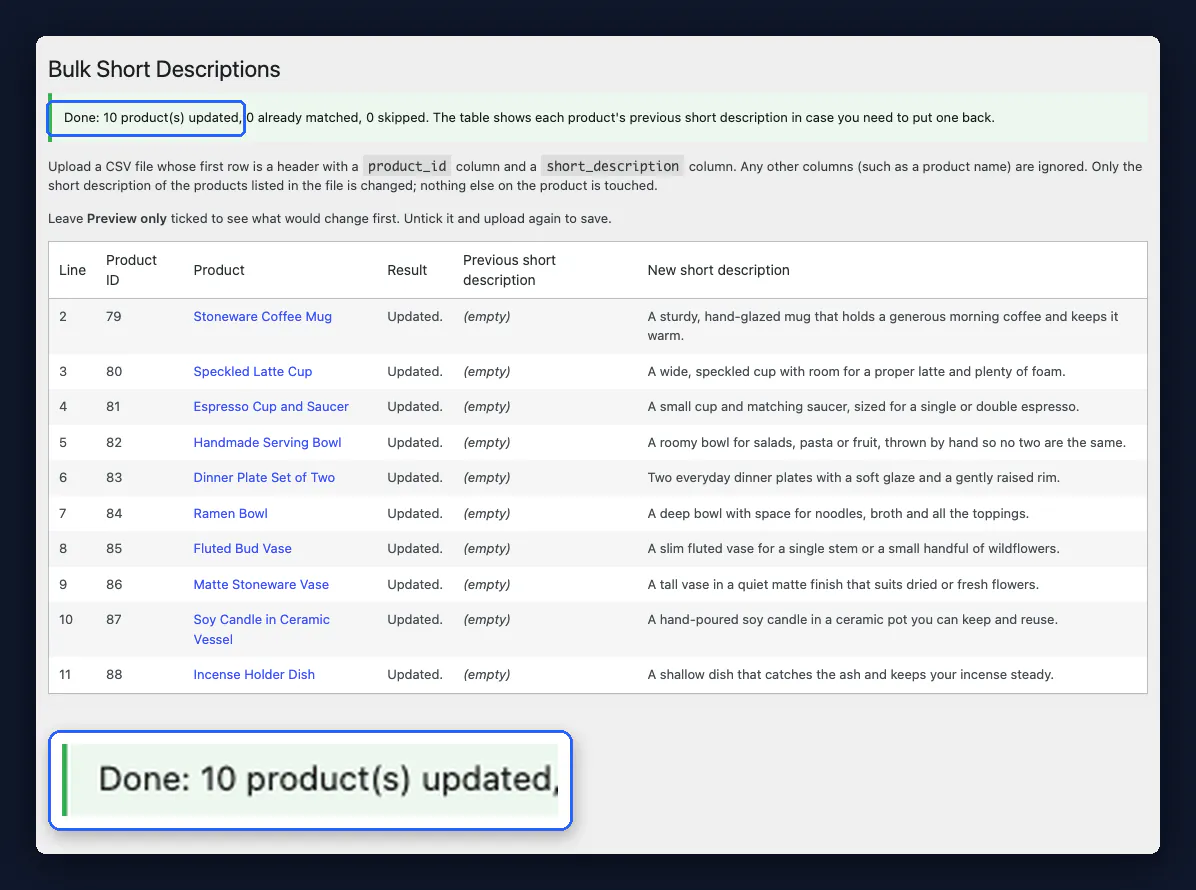
So for one job, the tool used the same 4 calls as batching, plus a few minutes of my time. It pays off when you repeat the job, because every upload after the first uses no calls.
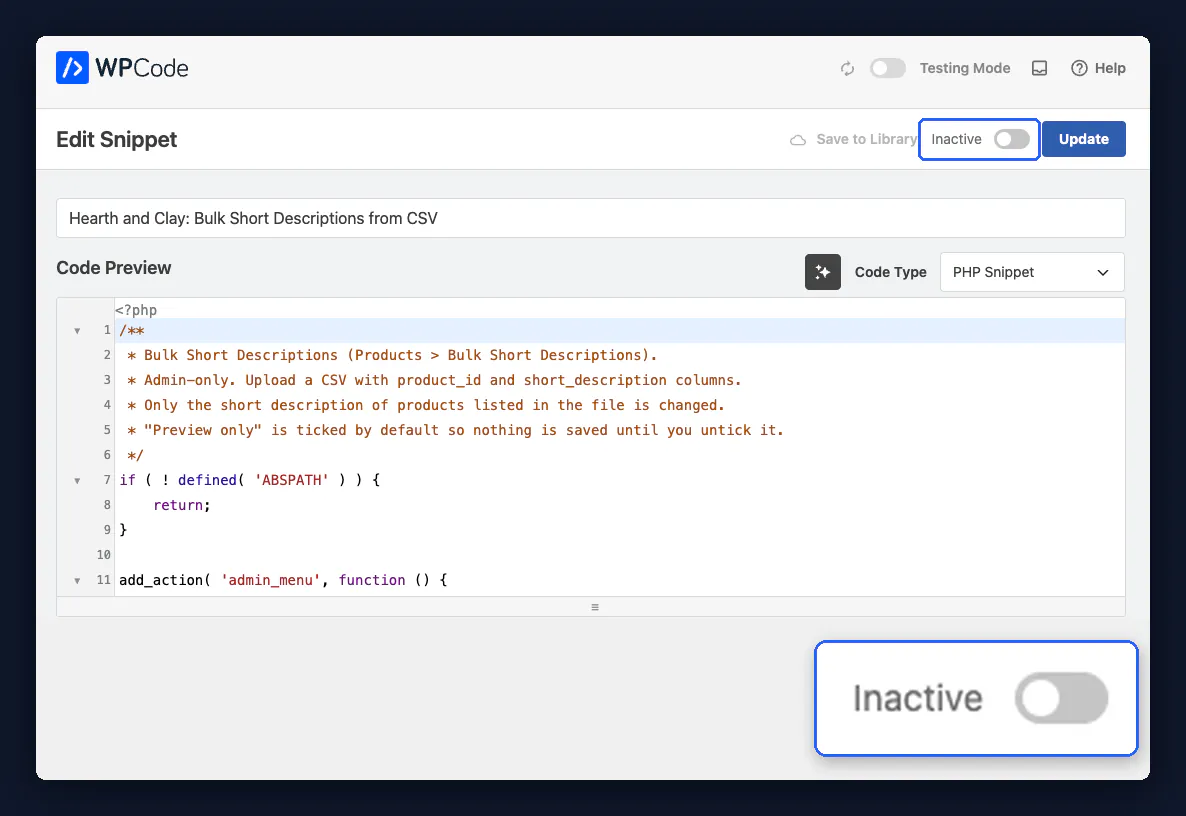
WPVibe saves new code snippets switched off, so turning one on is always your own click in wp-admin. Before you do, read what your AI wrote and take a backup. Then switch it off again once the job’s done.
Do the Thinking in the Chat
Doing the thinking in the chat means your AI writes and rewrites in the conversation. It only saves to your site once you’re happy. Every save is a call, but the rewriting before it is free.
To test it, I asked for new meta descriptions on five posts. Then I asked for two rounds of changes, first “make them friendlier” and then “a bit shorter”.
The first time, my AI saved the descriptions to the site straight away. Then it saved all five again after each round of changes, and the whole job came to 18 calls.
The second time, my AI kept the drafts in the chat while I asked for both rounds of changes. It saved only the final versions, once, and that came to 9 calls.
The chat version did a better job, too. Saving every round dropped the exact search phrase two of the posts were targeting, but the chat version kept them all.
Just remember your AI app has limits of its own, and a long planning chat uses those instead of WPVibe’s. As vickyf94 put it, “now I’m just timed out by ChatGPT’s 5-hour limit instead!”
Tell It What You’ve Already Checked
When something on your site goes wrong, your AI has to work out where to look before it can fix anything. Every page or setting it checks along the way is a call.
If you tell it what you’ve already ruled out, it can skip the looking around and go straight to the likely cause.
To test it, I broke something on purpose. I switched my Contact page to draft, so the Contact link in the menu went to a page that wasn’t there.
First I reported it the vague way, “People are saying they can’t get in touch with us any more.” My AI found the problem, but it took 8 calls of looking around to get there.
The second time, my message named the Contact page and listed what I’d already ruled out. It wasn’t in the trash, and its page address and the menu link were fine. I also said it might have been unpublished.
That took just 3 calls, with one read, publishing the page again and one check.
Save a Skill About Your Site
A skill is a set of notes about your site that your AI saves to your WPVibe account. It holds things like how your pages are built and which colors and fonts you use. In a new chat, your AI can load those notes instead of working it all out again.
To test it, I asked for the same kind of job in two fresh chats. Each time, it was adding a short FAQ section to a page.
In the first chat, with no notes, adding an FAQ section to my About page took 13 calls. A lot of that went on getting to know the site, like finding the page and working out how it was built.
So I had my AI save what it had learned as a skill. In the second chat it loaded that skill first, and adding an FAQ section to my Services page took 9 calls.
Saving and loading skills never use a call.
It’s a smaller saving than the other tips, because your AI still has to read the page it’s editing. Still, grynge makes a good case for it: “known-good settings available in the next conversation would save a lot of time.”
Spread Big Jobs Across the Day
This tip won’t cut the number of calls a job uses. It’s about timing, so you don’t run out halfway through something.
WPVibe’s limit works on a rolling 24 hours rather than resetting at midnight. Calls are counted in 10-minute blocks, and each one comes back about 24 hours after you used it. So a busy morning comes back the next morning.
Before you start anything big, it’s worth asking your AI how much you have left
WPVibe will also add a short heads-up to your AI’s replies at 50%, 80% and 95% of your limit. That’s a good point to finish what you’re doing and save the next job for later.
Keep a Reset in the Bank
This last tip is a backup for the days when one big job needs more than your 100 calls.
A banked reset clears your 24-hour count in one go, so your full allowance is back straight away. Every account that existed on September 30 got one, Free accounts included.
Each reset lasts 90 days from when it’s given, so the September 30 reset runs until about December 29. If you made your account after September 30, you won’t have that one. Check your account page to see if one’s waiting.
To use it, click Use reset on your account page, or tell your AI “use my reset”. It doesn’t count as a call, and it still works after you’ve hit the limit.
It won’t raise your limit, though, so I’d save it for a day with a big job. WPVibe also hands out extra resets for things like launches, holidays and outages. Its post on banked resets explains how they work.
What Didn’t Save Me Anything
Not everything I tried made a difference. Some habits sound like they should save calls, like keeping your messages short. They didn’t lower the count at all.
One is still worth doing for another reason, and one is against WPVibe’s rules. Here’s what didn’t help
- Naming the exact items to touch. A vague “tighten up my mug descriptions” used 5 calls, but it changed six products, including a teapot and a tumbler. Naming the three I meant used 6 calls and changed only those. So it saved mistakes, not calls, and grynge puts the rule well: “these 250 records are the only records you are allowed to touch.”
- Shorter messages. Your allowance counts calls, not messages, so trimming what you type doesn’t help.
- Switching AI apps or connecting another site. The allowance belongs to your WPVibe account, not to a site. Every app and site you connect shares the same 100 calls.
- A second free account. Don’t. WPVibe’s pricing page says extra accounts opened to add free allowance count as “circumventing usage limits.”
WPVibe Free Plan Questions
What Happens When I Hit the WPVibe Limit?
When you hit the WPVibe limit, nothing breaks. Your AI’s calls to your site are blocked until usage frees up. WPVibe’s message tells you when the first calls come back.
Is There a Monthly Limit on the WPVibe Free Plan?
There’s no monthly limit on the WPVibe free plan. It’s a rolling 24-hour count of 100 calls, and each call comes back about a day after you use it.
Where to Start With 100 Calls a Day
If you only change three things tomorrow, I’d start with these, in this order
- Ask for everything in one message and say “batch it”, with “show me first” for anything that saves in bulk.
- Agree any design change in the chat before your AI applies it.
- Draft and rewrite in the chat, then save once.
If you’re still hitting the limit every day after that, WPVibe’s own reset post says it plainly: “a bigger plan is the steadier fix.” Upgrades kick in straight away and clear your current 24-hour count.
And if you haven’t connected a site yet, you can start with WPVibe for free. Try one batched job first and see how few calls it takes.