Your AI Just Learned PushEngage
Push notifications are the one channel where your audience said yes in advance. No algorithm sits between you and them, and no inbox tab hides you. That is what makes a push list valuable, and it is also what makes it fragile. People who opted in will opt out after a few notifications they did not want, and you rarely get them back.
Most of what keeps a list healthy is unglamorous setup work. Which content sends an automatic push. Which segments exist. Whether the site is even still connected after last month’s migration. It lives in settings screens that get visited once, on install day, and never again.
PushEngage 4.2.10 changes the shape of that. It now tells AI assistants what it can do, in a language they understand, using the WordPress Abilities API. Nineteen operations on a standard install: notifications, segments, audience groups, analytics, auto-push settings, category mapping, connection status, and the debug log. Four of them make changes, including sending a push. So today WPVibe ships tested PushEngage recipes and a verified Works with AI page.
What you can ask for
Every one of these is a copy-paste prompt we ran against a live PushEngage install, connected to a real PushEngage account, before publishing it:
- Stop the wrong pages from sending push notifications by seeing every content type that triggers an automatic push, and cutting the list down
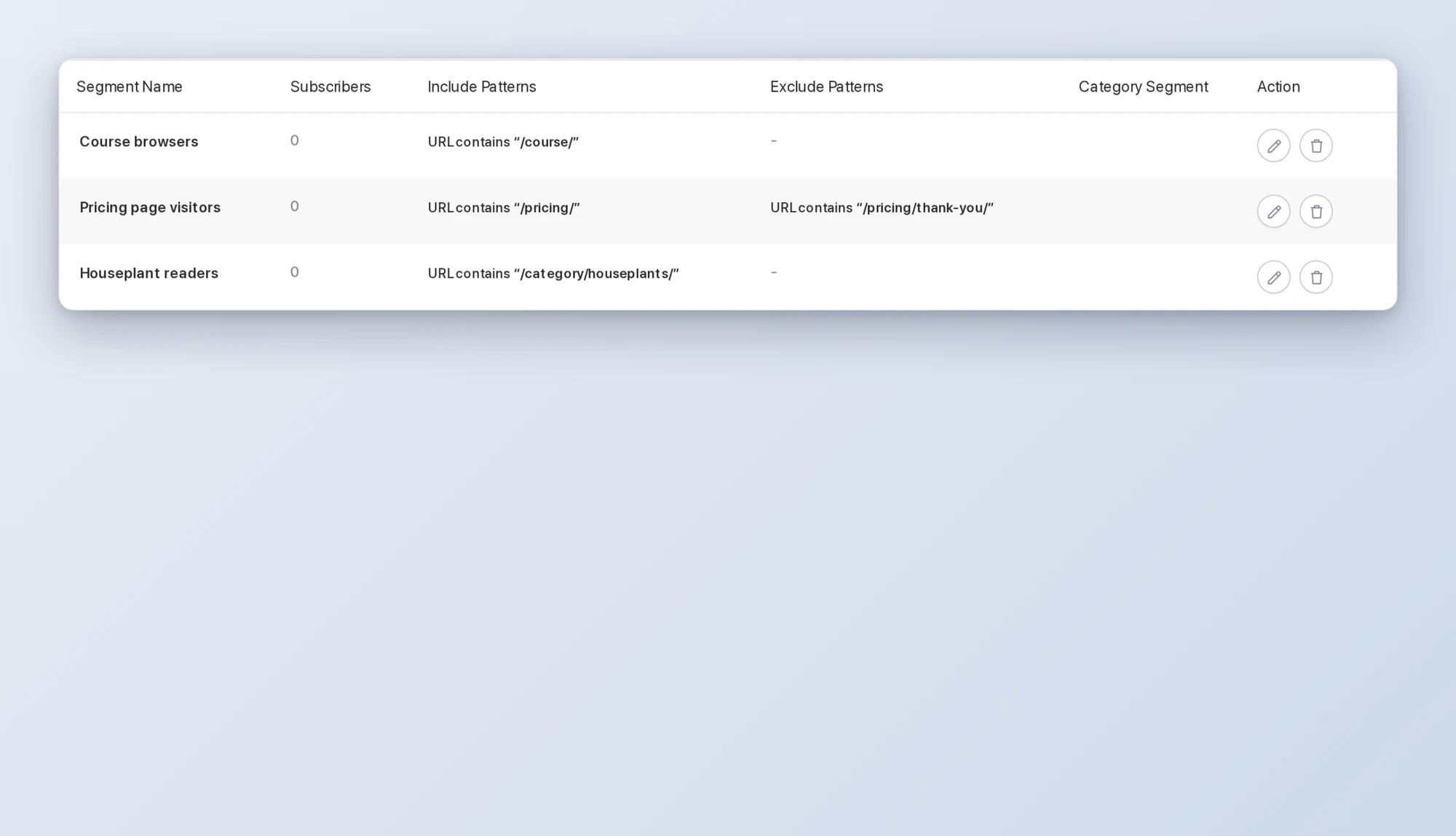
- Create a subscriber segment from a plain-English description, with the URL rule checked against your real pages
- Check your PushEngage setup: connection, subscribers, auto-push, segments, and the debug log in one checklist
- Send a push notification for a post, written to fit the character limits and sent only after you approve the exact text in your browser
Picture launching a new section of your site. You tell your AI you want to reach the people who read your houseplant articles. It looks up how your category addresses are really built, proposes a rule, and shows you three pages the rule catches and one it correctly skips. You say yes. The segment exists, and it starts filling with every subscriber who visits those pages from then on.
Who this is for
- Publishers and bloggers with auto-push on. You want every new post announced, and nothing else.
- Stores and course sites. Your site has a dozen content types, and only two or three of them are news to a subscriber.
- Anyone who set up push once and has not looked since. The health check takes a minute and tells you whether it is still working.
How to get started
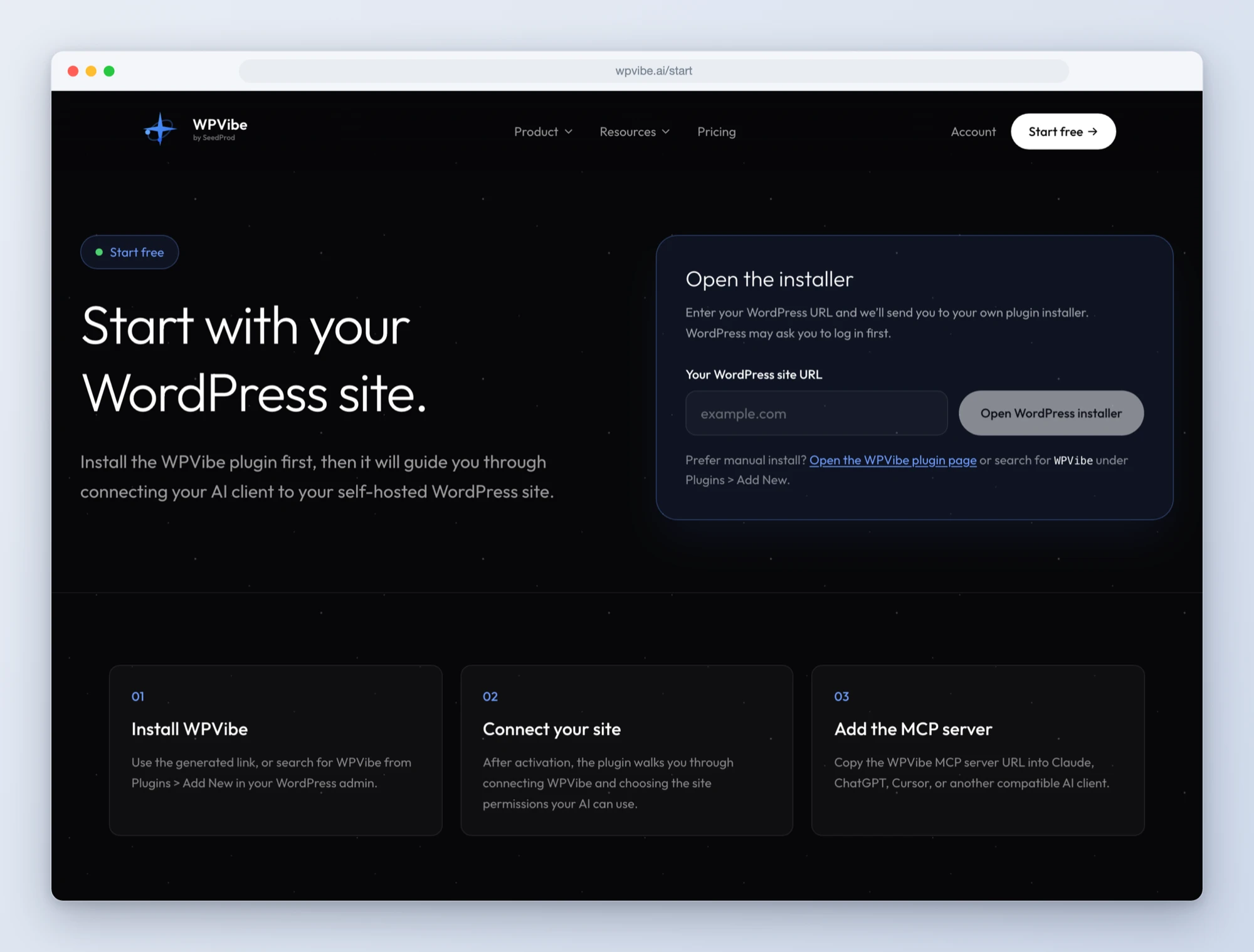
Step 1: Install the free WPVibe plugin
Add the WPVibe plugin to the site running PushEngage. Make sure PushEngage is on 4.2.10 or newer, WordPress is on 6.9 or newer, and the plugin is connected to your PushEngage account.
Step 2: Connect the AI you already use
Claude, ChatGPT, Cursor and others. One click to authorize, about thirty seconds, and no passwords ever go in the chat.
Step 3: Ask for what you want
Open a PushEngage recipe, paste the prompt, fill in your own details. Start with the health check. It is read-only, so there is nothing to undo.
Why these are worth trusting
We connected a test site to a real PushEngage account and ran every recipe through it. The first thing we read was the auto-push settings, and the list of content that could trigger a push had fourteen entries. Posts and pages, which you would expect. Also page builder templates, quizzes, certificate templates, memberships, and assignments. Auto-push was off on that site. On a site where it is on, publishing a template would notify every subscriber.
Nobody chooses that list. On our fresh install it simply held every public content type the site had. So the first recipe exists to show it to you, sort what a subscriber would want from what is plumbing, and save the shorter list. Then it reads the settings back, because a change you have not seen saved is a change you are guessing about.
The segment recipe has its own honest note. A segment built from page visits starts at zero and fills from now on. It does not reach back and sort the subscribers you already have. The recipe says so, so that a zero on day one reads as expected and not as broken.
About sending a push
PushEngage lets an AI send a notification, and credit to their team for how they handled it. Sending is marked as a sensitive action, so WPVibe stops and asks you to approve it in your browser, with the exact title, message, and link in front of you. We tested it by sending to a list with nobody on it: the approval screen came up, we approved, and the notification appeared in the PushEngage account with the right text. Nothing reaches a subscriber because an AI decided it should.
Two honest limitations while it is fresh. Saving a notification as a draft through the ability does not work in 4.2.10, so the recipe sends directly and uses the approval screen as your review. We have reported that to the PushEngage team. And a notification sent this way goes to all of your subscribers. There is no audience or segment choice in what PushEngage exposes to AI today, so targeted sends still happen in the PushEngage dashboard. The PushEngage team has told us more write abilities are on the way.
All of the recipes live on the PushEngage page, along with every ability and the gotchas we found. If you have auto-push switched on, start with the first recipe. It takes five minutes, and it is the one that protects the list you already built.
John and the WPVibe team
P.S. WPVibe is free to start and works with the AI plan you are already paying for, so there is no second AI subscription to buy. Connect your site and try the first recipe.