WPVibe Now Supports SVG Images (and Cleans Every One First)
SVG is the format your logo already comes in. It’s what designers hand over, what icon sets download as, and it stays sharp on every screen.
WordPress won’t take it. Upload an SVG and you get “Sorry, you are not allowed to upload this file type.” There’s a real reason for that: an SVG isn’t just a picture, it’s code. It can carry a script that runs the moment someone opens the file on your site.
So until today, when you asked your AI to add your logo, it had to stop and send you off to convert it to a PNG first.
That’s why I’m excited to announce SVG support in WPVibe 1.19.
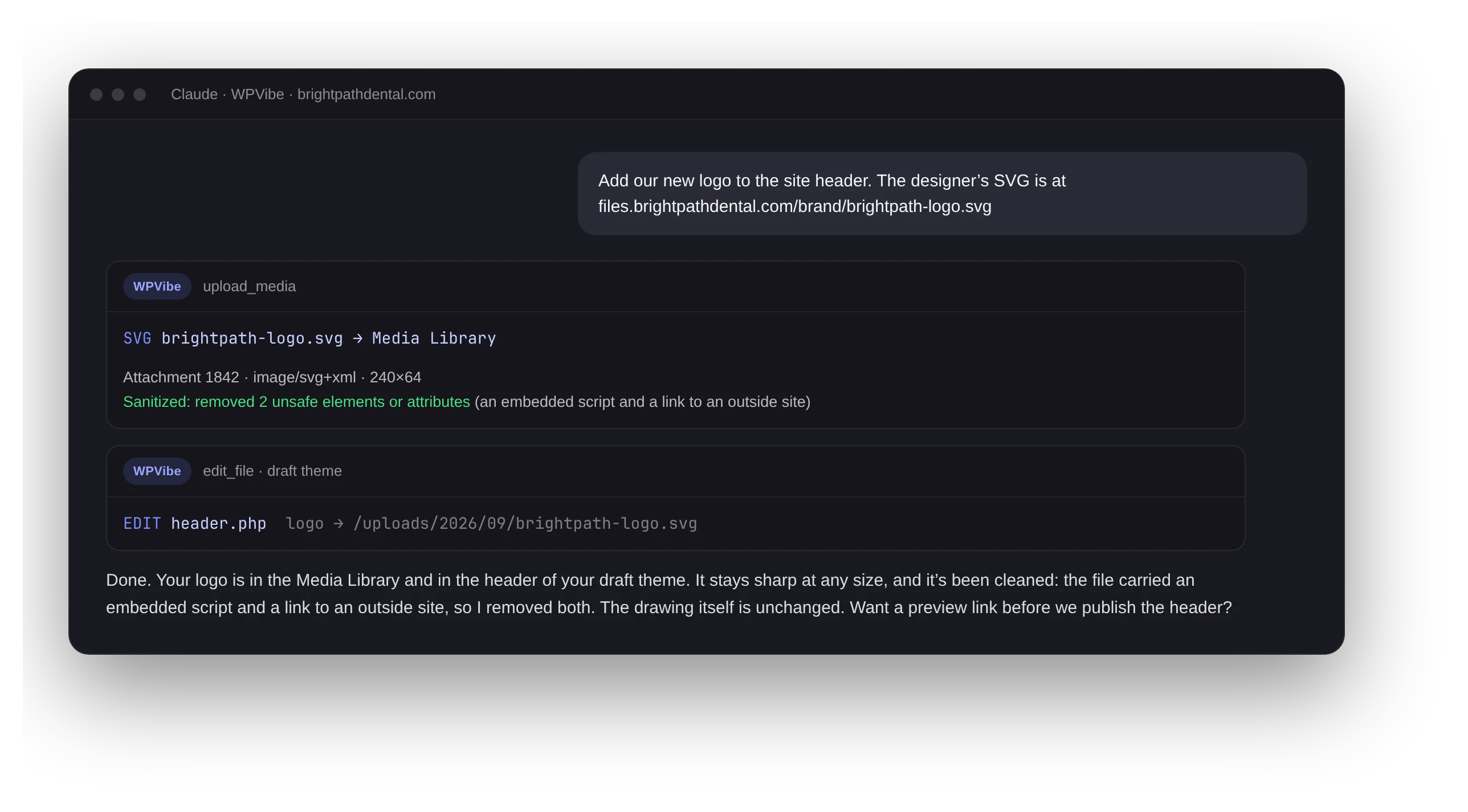
Now you can ask Claude, ChatGPT, or whichever AI you use with WPVibe to add SVG logos, icons and illustrations to your Media Library or your theme. WPVibe cleans every SVG before it’s saved, so what lands on your site is the drawing and nothing else.
What’s new
- SVGs in your Media Library. Give your AI a link to an SVG (or upload one from your computer) and it’s added like any other image, ready for posts, pages and featured images.
- SVGs in your theme. When your AI builds or edits a draft theme, it can write SVG icons and logos straight into the theme files.
- Every SVG is cleaned first. Scripts, click and load handlers, links to other sites, embedded web pages, and styles that could load or run anything are removed. Your AI tells you how many things it removed.
- Unsafe files are refused, not guessed at. If a file can’t be cleaned safely, nothing is saved, and your AI suggests a PNG or WebP instead.
- Your upload settings stay yours. SVG is allowed for that one file only. Uploads in wp-admin work exactly as they did before.
- The right size everywhere. Width and height come from the file itself, so SVGs show at the correct size in the editor and as featured images.
How the cleaning works
We didn’t write a sanitizer from scratch. WPVibe uses svg-sanitize, the open source library behind Safe SVG, one of the most popular SVG plugins on WordPress.org. It keeps only known-safe SVG tags and attributes.
Then WPVibe runs a second, stricter pass of its own. It checks every link and every bit of CSS, refuses files that try to hide code in unusual text encodings or XML entities, and spots an SVG by what’s inside the file rather than its name. An SVG renamed to .png still gets cleaned.
The cleaning applies to everyone, administrators included. WordPress normally lets admins upload whatever they like. We’d rather clean it anyway.
Before this shipped, we threw more than 60 known attack files at it. None came out able to run code.
How to use it
There’s nothing to turn on. Update the WPVibe plugin to 1.19 (it arrives through normal WordPress updates), then ask your AI things like:
- “Add our logo from this link to the Media Library and put it in the header.”
- “Use these three SVG icons in the features section.”
- “Set this SVG illustration as the featured image for the launch post.”
If your AI says your site needs an update first, that’s WPVibe checking that your plugin can clean SVGs before it sends one. Update the plugin and ask again.
Try it today
Already using WPVibe? Update the plugin and try it with your own logo. New to WPVibe? Connect your site in about two minutes, free, or get the WPVibe plugin from WordPress.org.
Thanks,
John Turner
Founder, WPVibe
P.S. If you’ve been keeping a folder of PNG copies of your logo just for WordPress, you can retire it.