Your AI Can Now Build and Edit Your WPForms Forms

Almost every WordPress site has a contact form, and almost none of them have been opened since the day they were made. The button says Submit. Every field is required, including the ones nobody reads. The message box gives a visitor no idea what to write. Each of those costs a few enquiries a month, and none of them is worth an afternoon in the form builder, so they stay.
WPForms was early to this. It started telling AI assistants what it can do back in January, using the WordPress Abilities API, and in June it went past reading: an AI assistant can now create a form, add fields, and edit the fields and wording of a form you already have. That is eight operations in the free version. WPForms Pro adds three more for reading and searching form entries. It was one of the first plugins in our Works with AI program, and we never properly told anyone.
So with WPForms 2.0 out, we went back and re-tested every WPForms recipe against it, wrote a new one for editing, and updated the WPForms page with every ability verified. Five of the six recipes work with the free version.
What you can ask for
Every one of these is a copy-paste prompt we ran against a live WPForms install before publishing it:
- Build a contact form from a description, with the fields, the button text, and a draft page to review it on
- Improve a form you already have: clearer labels, sensible required fields, helpful placeholders, and a button that says what happens next (new)
- Fix contact form emails that never arrive, starting with a diagnosis and not a guess
- Find broken and forgotten forms across every page, including the ones embedding a form that no longer exists
- Find the leads worth calling back in a week of entries, with the spam set aside (Pro)
- Switch from Contact Form 7 and swap every embed, one page at a time
Picture a landscaper who needs a quote request form. They describe it in a sentence: name, email, which service, a few words about the garden. A minute later the form exists, on a draft page, with a button that says Request my quote. They ask for a phone field and a better prompt in the message box, and both are there on the next reload.
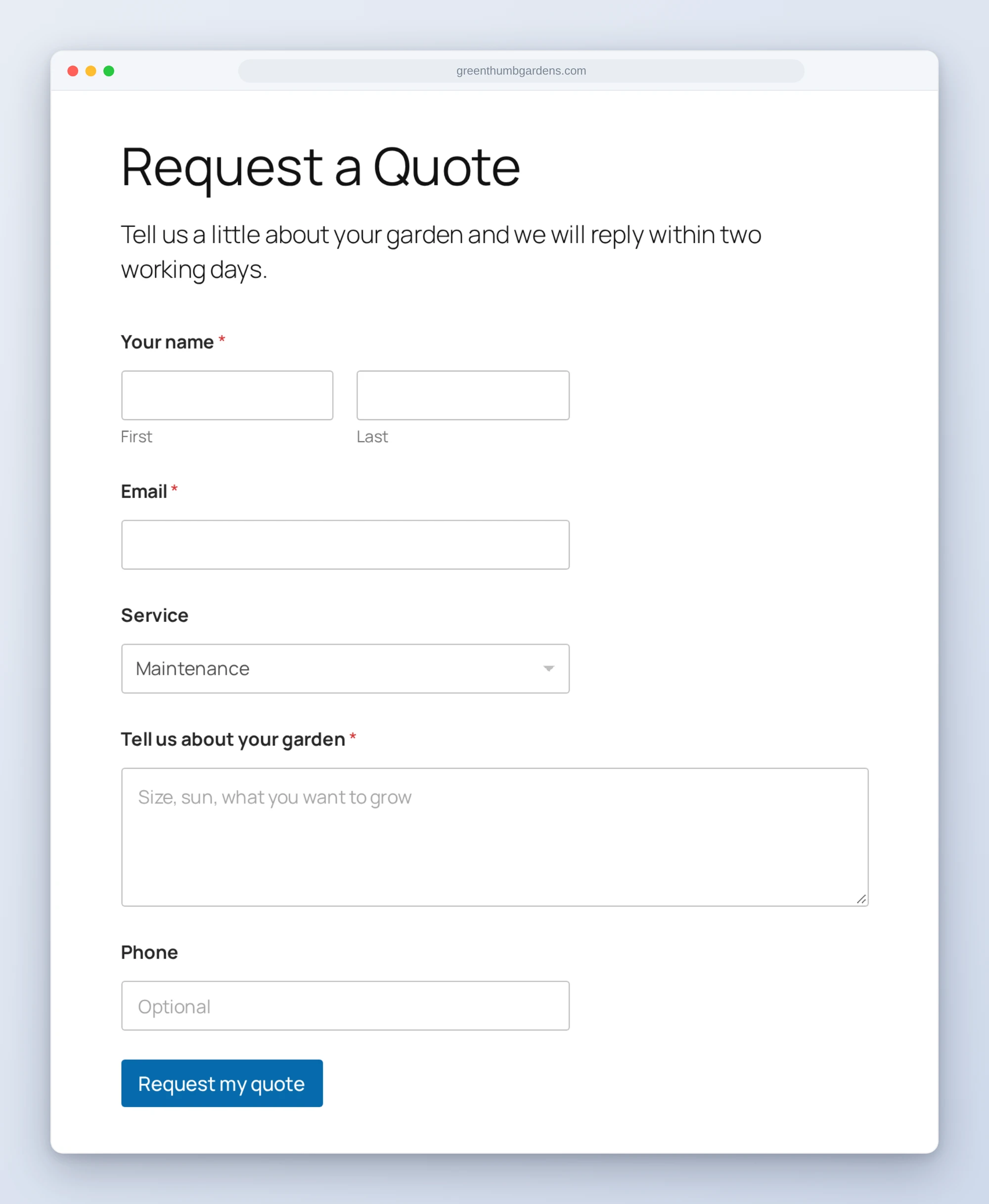
That is the real form, built and edited through WPForms’ abilities. Look at where the phone field ended up: below the message box. A field added by AI goes to the end of the form, and moving it is a drag in the form builder. We left it there because that is what you will see too.
Who this is for
- Small businesses whose form is their sales pipeline. A clearer form and a weekly read of the entries is worth more than most redesigns.
- Freelancers and agencies. Every client site needs a form, and every inherited site has three that nobody can account for.
- Anyone still on Contact Form 7. The switch is mostly finding every embed, which is exactly the part an AI is good at.
How to get started
Step 1: Install the free WPVibe plugin
Add the WPVibe plugin to the site running WPForms, and make sure WPForms is on 2.0 or newer and WordPress is on 6.9 or newer.
Step 2: Connect the AI you already use
Claude, ChatGPT, Cursor and others. One click to authorize, about thirty seconds, and no passwords ever go in the chat.
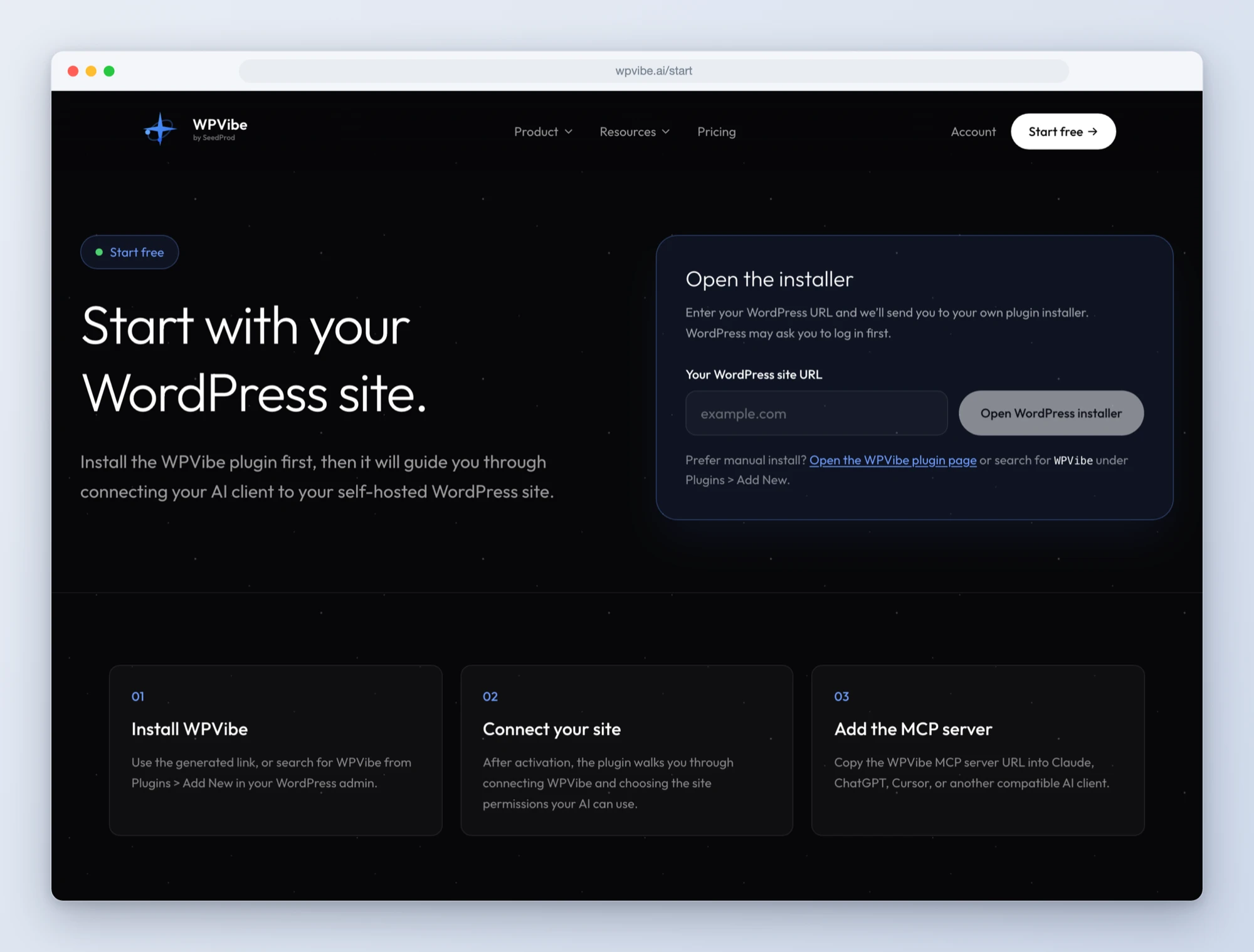
Step 3: Decide whether your AI may change forms
Out of the box, a connected assistant can only read your forms. To let it create and edit them, turn on AI form editing under WPForms, Tools. It is off by default, and with it off every change is refused while reading keeps working. We checked.
Step 4: Ask for what you want
Open a WPForms recipe, paste the prompt, fill in your own details. Start with the audit of broken and forgotten forms. It is read-only, so there is nothing to undo.
Why these are worth trusting
We built a form through the abilities and then compared it, setting by setting, with a form made by hand in the form builder. Most of it matched. The AI-built form had a working notification to the site’s admin email and a confirmation message, so it was usable from the first minute.
One thing did not match. A form made in the builder gets spam protection switched on. The form made by AI did not have it, and an AI cannot switch it on, because only three form settings are open to it. A contact form without spam protection is an open door for junk. So the recipe now says it plainly, the AI tells you before the form goes live, and you turn it on in the form builder under Settings, Spam Protection and Security. It takes ten seconds. It is the kind of thing you only find by comparing what was saved with what you expected.
For the leads recipe we loaded a form with nine entries across two weeks: real-looking enquiries of different sizes, a couple of one-line questions, and one piece of obvious spam. A date-range search returned exactly the six from the last week, the totals matched, and no IP addresses came back with the entries.
Credit to the WPForms team
The design here is careful in a way that is easy to miss. Editing is off until the site owner turns it on. The settings an AI can change are limited, on purpose, to the title, the description, and the button text, so an assistant cannot redirect your notifications or rewrite your confirmation. There is an ability whose only job is to tell an AI which field types and properties it is allowed to touch, which means it asks first and does not guess. And entries are read-only: an AI can find your best leads and cannot mark, star, or delete a single one.
Some honest limitations while it is fresh. An AI can add fields and cannot remove or reorder them. Eight field types are supported today: single line text, paragraph, email, numbers, dropdown, multiple choice, checkboxes, and name. When an AI reads a form back it sees labels and required state, and not dropdown choices or placeholders, so look at the live form after an edit. Notifications, confirmations, and spam protection are set in the form builder.
All six recipes live on the WPForms page, along with every ability and the gotchas we found. If you have had the same contact form for years, start with the recipe that improves it. Ten minutes, your approval on every change, and a form that finally says what happens when someone presses the button.
John and the WPVibe team
P.S. WPVibe is free to start and works with the AI plan you are already paying for, so there is no second AI subscription to buy. Connect your site and try the first recipe.