WPVibe Is Now in Claude’s Connectors Directory
Until today, connecting Claude to your WordPress site started with a copy and paste. You found our server address, opened Claude’s connector settings, chose “add custom connector,” and pasted it in.
It works, and thousands of you did it. But it’s also the step where people stall. If you’ve never added a custom connector, a box asking for a server URL doesn’t feel like the start of something easy.
So we asked Anthropic to list us. As of today, that paste is gone.
WPVibe is in Claude’s Connectors Directory
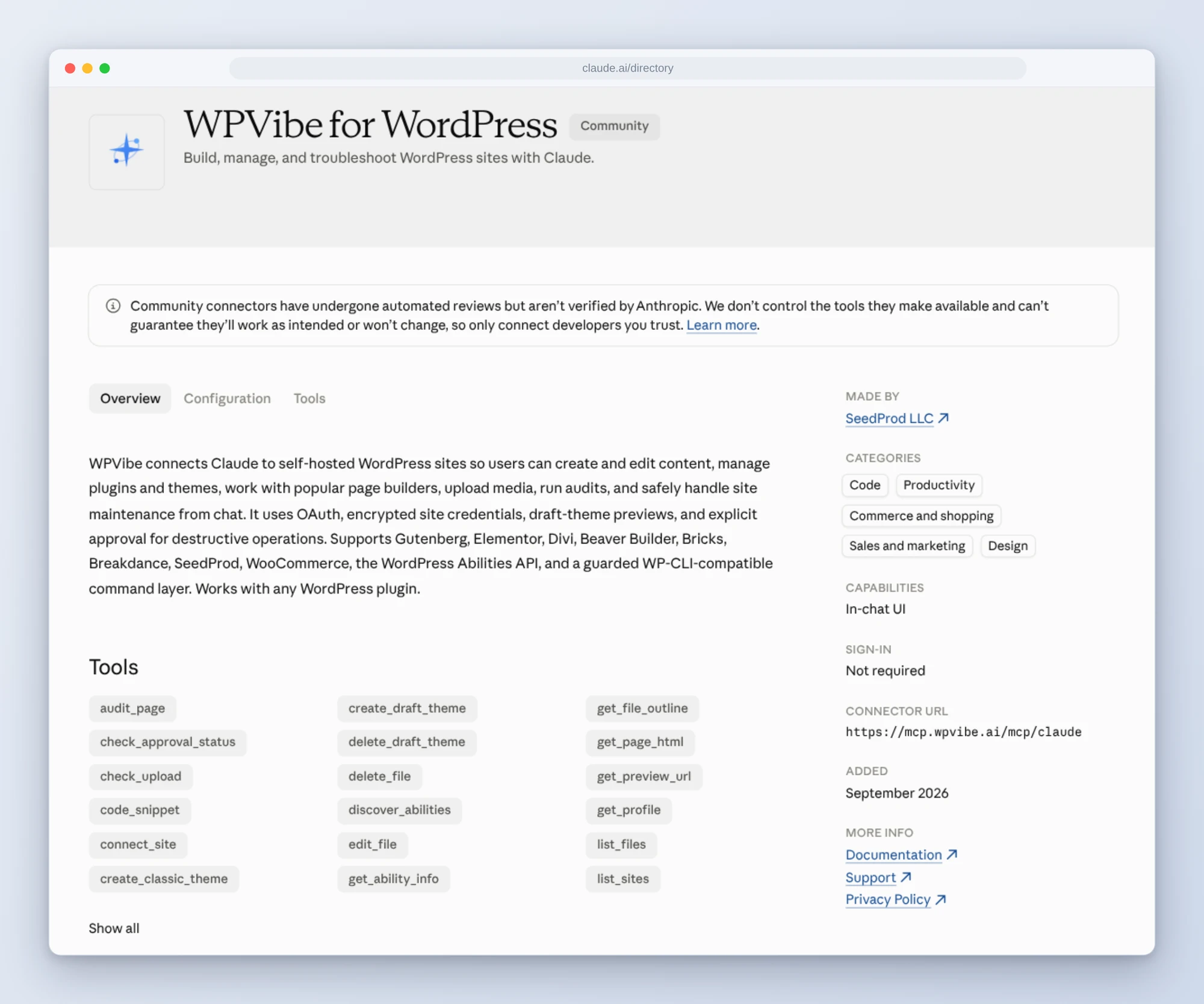
Open Claude, browse the directory, and you’ll find WPVibe for WordPress next to the other connectors. Click connect, sign in, and Claude can work on your self-hosted WordPress site.
Here’s the listing: WPVibe for WordPress in Claude’s directory.
What’s new
- No server address to copy. Find WPVibe in the directory and connect it there.
- It’s the same WPVibe. Same tools, same approvals before anything risky, same plans. The Free plan works here too.
- Built for self-hosted WordPress. Any host, any theme, and the page builders you already use: Gutenberg, Elementor, Divi, Beaver Builder, Bricks, Breakdance and SeedProd.
- Already connected? Nothing changes. If you added WPVibe to Claude with the server address, it keeps working. You don’t need to reconnect.
How to connect
Step 1: Open the listing. Go to WPVibe for WordPress in Claude’s directory, or open Customize > Connectors in Claude and search for WPVibe.
Step 2: Connect and sign in. Connect it, then sign in with your email. If you don’t have a WPVibe account yet, that sign-in creates a free one.
Step 3: Add your site. Install the free WPVibe plugin on your WordPress site. Its settings page gives you one line to paste into Claude, and that connects the site.
Step 4: Ask for something. Try “audit my homepage and tell me what to fix first.” Claude reads your real site and answers about it.
What the “Community” label means
Our listing carries a Community label. That’s Anthropic’s term for a connector built by an outside developer. Claude’s own note on the listing says Community connectors go through automated review but aren’t verified by Anthropic, and that you should only connect developers you trust.
That’s fair. Anthropic doesn’t run WPVibe, we do. Here is what we do with that trust:
- You sign in to WPVibe. Claude never sees your WordPress password.
- Your site credentials are stored encrypted.
- Risky changes wait for you. Deletes, database changes and code all stop for your approval before they run.
- Theme changes start as a draft. You preview them before your visitors see anything.
Anthropic decides which connectors get a closer look for its Verified label. There’s no form to apply for it, so we’ll keep doing the work and see.
Not on Claude?
WPVibe isn’t tied to one AI. There’s an official app for ChatGPT, and Cursor, Claude Code and other MCP clients connect with the server address, the same way they always have. One account covers all of them, with no second AI subscription.
If you’ve been meaning to try this and the setup put you off, today is a good day. Find WPVibe in Claude’s directory, or start here if you’d like the guided version.
Thank you for using WPVibe, and for every bug report and idea you’ve sent our way. They’re why this listing exists.
John and the WPVibe team
P.S. New to WPVibe? The plugin is free on WordPress.org, and the Free plan is enough to see what your AI can do on your own site. Get started here.