Your AI Just Learned Premium Addons for Elementor
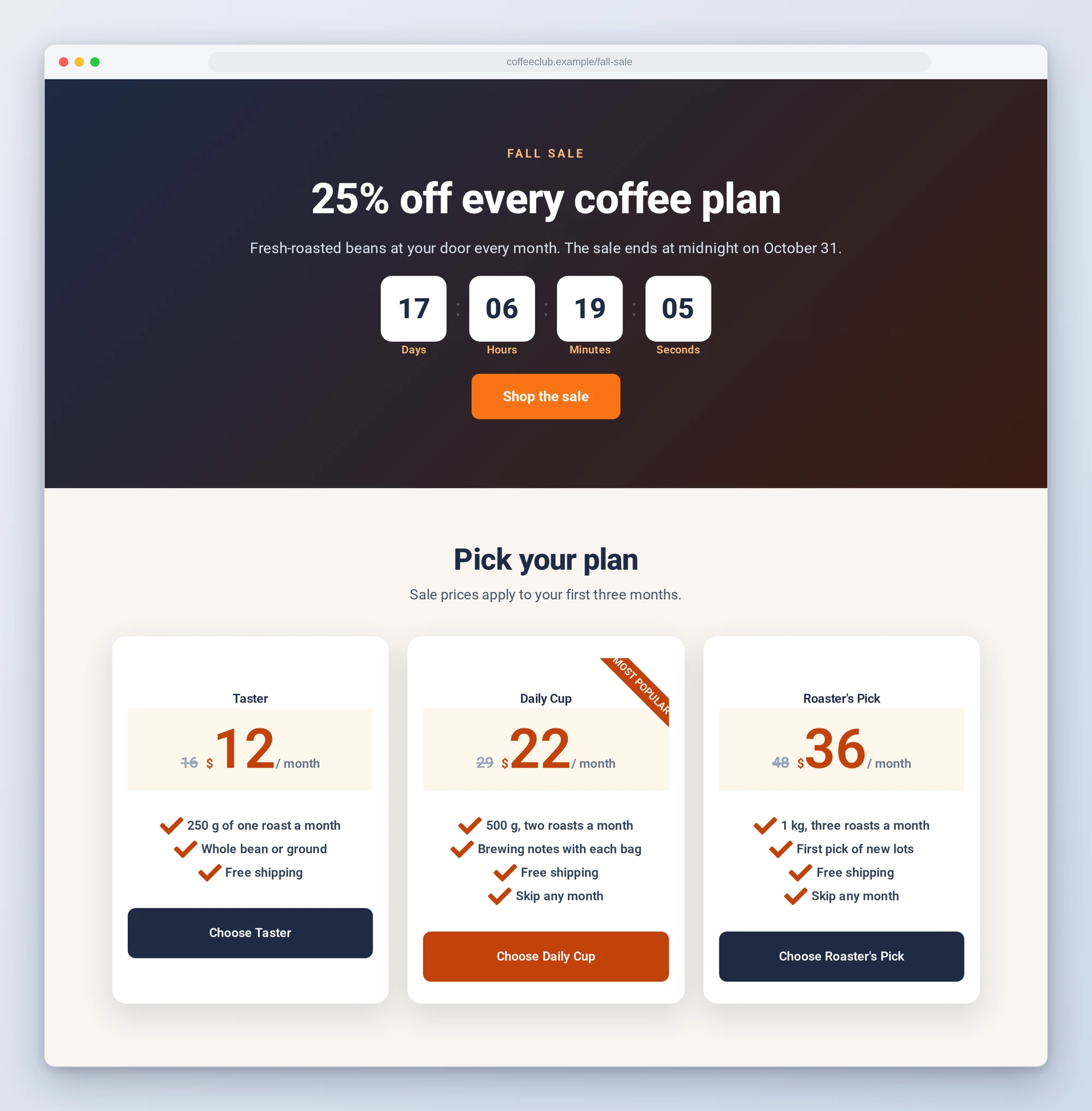
The sale starts Friday and the page still needs a countdown, a row of prices with the old ones crossed out, and a link to the terms. In free Elementor, the countdown, the price table and the popup are all Elementor Pro features. So it waits for an evening in the editor, or it ships without them.
Premium Addons for Elementor, the free addon from Leap13 that WordPress.org counts on 600,000+ sites, already has those widgets: a countdown, pricing tables, a modal box, and display conditions that show a section only to some visitors or only on some dates. What it doesn’t have is someone to build the section for you.
Today WPVibe ships a verified Premium Addons for Elementor page and five tested recipes, so the AI you already use can add a sale countdown, a pricing section or a popup to an Elementor page, control who sees a section that’s already there, and turn last campaign’s page into the next one. All on the free versions of Elementor and Premium Addons.
What you can ask for
Each of these is a copy-paste prompt built on steps we ran against a live Premium Addons install before publishing it:
- Add a sale countdown: a heading, a countdown to your deadline in your site’s timezone and a button, with your own message for when the time is up
- Add a pricing section: your plans side by side with features, old prices crossed out and one Most popular ribbon, stacked on phones
- Show a section only to some visitors: only to logged-out visitors, only between two dates, or both, checked the way a logged-out visitor sees the page
- Reuse a sale page for your next campaign: copies last campaign’s page as a draft, swaps in the new name, dates, prices and countdown, and publishes only when you say so
- Add a click-to-open popup: a button that opens your terms, a size guide or any details in a popup, without Elementor Pro
In practice it sounds like this. You paste the countdown recipe and say “Fall Sale page, ends October 31 at 11:59 pm, button says Shop the sale.” Following it, the AI reads your page, checks your site’s timezone, and looks up the countdown’s real setting names so nothing is left at its demo default. It builds the section on a draft copy of your page and sends you a preview link. The live page changes only when you say yes, with one small edit that the AI can reverse if you change your mind.
Who this is for
- Shops running sales on free Elementor. A countdown and a pricing row on the sale page, without buying Elementor Pro for one campaign.
- Anyone who runs the same campaign every year. Last year’s page becomes this year’s draft with the new dates and prices, and the old page stays as it was.
- Sites with members or newsletters. A sign-up offer only logged-out visitors see, or a banner that shows only during the sale dates.
- Agencies and freelancers. Client asks for a countdown on Friday; you paste a prompt, check the preview and send it.
How to get started
Step 1: Install Elementor and Premium Addons, and switch on its AI tools. The free versions of both are enough; we tested on Premium Addons 4.11.111 with Elementor 4.3.4. Premium Addons’ AI tools are off until you switch them on: in wp-admin go to Premium Addons, then MCP Config & AI Abilities, and turn on Enable MCP & AI Abilities. Premium Addons asks for WordPress 7.0 or newer for this. Use an administrator account.
Step 2: Install WPVibe and connect the AI you already use. WPVibe is an MCP server that connects the AI you already use to your WordPress site. Install the free WPVibe plugin from WordPress.org. Its settings screen has buttons to add it to Claude or ChatGPT, plus a server address for other AI apps. Sign in with a free WPVibe account when your AI asks, then paste the connect line from the same screen into your AI and open the link it replies with while logged in to your WordPress site. No passwords ever go in the chat.
Step 3: Start with a countdown. Open the countdown recipe, fill in your page, deadline and button, and paste it. You get a preview of a draft copy before anything changes on the live page.
Why these are worth trusting
We tested with Premium Addons 4.11.111 and Elementor 4.3.4 on a live test site with real pages. Every widget the recipes use rendered for a logged-out visitor, the three-plan pricing row sat side by side on a computer screen and stacked on a phone-sized one, the popup opened and closed, and we checked the visitor rules from both sides. Here is what would have sent an AI the wrong way:
- Elementor’s element cache can show the wrong visitors a hidden section. With Elementor’s Element Cache at its default, a section with Premium Addons display conditions showed the first visitor’s version to everyone after them, logged in or not. The visitors-only recipe switches that cache off for its section, which fixed it in testing. We didn’t test whether a later save in Elementor’s editor keeps that setting, so the recipe also names the site-wide switch: Elementor, then Settings, Performance, Element Cache.
- A page cache can make the countdown run late. This one comes from reading Premium Addons’ code, since our test site has no page cache. Set to your site’s time, the countdown starts from the moment the page’s HTML was generated, so a cached copy runs late by its age. The recipe tells you to keep the page out of the page cache while it counts down.
- Some defaults are demo content. Leave the ribbon and feature list at their defaults and the pricing table shows NEW and List Item #1 to #3. The recipes look up every widget’s real settings first and check the preview for leftover demo text.
- Cloud-stored uploads can stop the countdown. On our test site, which keeps uploads in cloud storage, Premium Addons’ Dynamic Assets Generate setting linked its page script from an address where it didn’t exist, and the countdown never started. Turning that setting off fixed it.
- The free popup opens on a click or on page load, not on exit. Exit intent is a Pro feature, and a page-load popup opens on every page view, so the popup recipe uses a button.
- Nothing resends your whole page. The countdown, pricing, popup and visitors-only recipes make one targeted edit to the page’s Elementor data, on a draft copy first, and keep what’s needed to reverse it. The campaign recipe changes each value on a new draft and publishes that page on your yes. None asks the AI to retype your layout.
Credit to Leap13
Premium Addons 4.11.111 registers 40 abilities for AI assistants. It shares 23 of them on WordPress’s Abilities REST API and keeps 17 off that API on purpose, among them its build tools, menus, cross-site copy and paste, and its Premium Templates library. Those 17 stay with Premium Addons’ own MCP server (and Elementor’s, where it runs). We respect that call. WPVibe ran all 23 shared abilities on the test site, and the recipes use them to read your pages, look up each widget’s settings and make draft copies, while the sections themselves are added with WPVibe’s own Elementor editing.
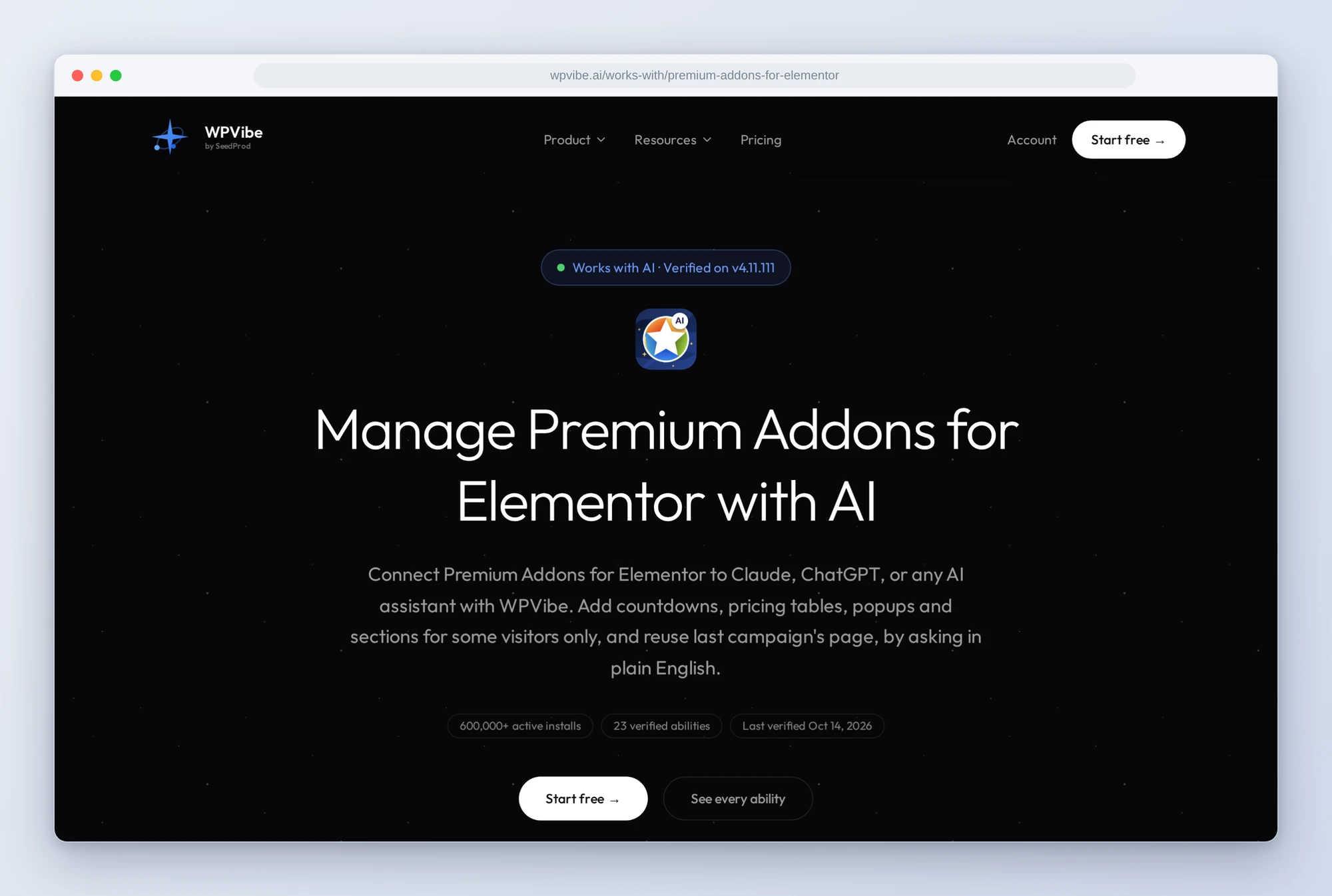
All five recipes live on the Premium Addons for Elementor page, with every gotcha we found. If you only try one, make it the countdown. It shows you a preview first, and your live page changes only when you say yes.
John and the WPVibe team
P.S. WPVibe is free to start and works with the Claude or ChatGPT account you already have, so there is no second AI subscription to buy. Connect your site and put a countdown on your next sale.