Your AI Just Learned SiteOrigin Widgets Bundle
A page built with SiteOrigin widget blocks keeps a lot inside each widget. A Price Table holds every plan’s name, price and feature list. A Contact Form holds who gets the messages, the subject line and the thank-you message, and none of that shows on the page. Copy a contact page from an old site and its form still sends to the old inbox. Nobody notices until a customer asks why nobody replied. Change one price and you open the widget, find the right column and edit it line by line.
SiteOrigin Widgets Bundle, on 400,000+ sites by WordPress.org’s count, added abilities in version 1.75.0 that let an AI read every SiteOrigin widget block on a page and change one widget at a time. WPVibe now has a verified SiteOrigin Widgets Bundle page and four tested recipes, so the AI you already use can replace placeholder text, update a price table, set where a contact form sends and add questions to an FAQ accordion.
What you can ask for
All four are copy-paste prompts built on calls we ran against a live Widgets Bundle install before publishing them. Each works on a draft or pending page:
- Fill in placeholder text in SiteOrigin widget blocks: find every Lorem ipsum and stock label, such as Feature Title or Customer Name, and replace it with your copy, asking you for prices, phone numbers and quotes instead of making them up
- Update a SiteOrigin Price Table: change plan prices, names, buttons and feature lists, column by column
- Set where a SiteOrigin Contact Form sends: point the form at the right inbox, with your subject line, thank-you message and button text
- Add questions to a SiteOrigin Accordion: add FAQ questions and your answers to the end of an accordion, or replace a stock panel left over from a template
In practice it sounds like this. You paste the price table recipe with your changes in plain words: the Family plan is now $64 a month, and it gets a free night guard. The AI asks you to close the page in the block editor, checks that SiteOrigin’s abilities are on your site, finds the draft page and reads every SiteOrigin widget on it, including the ones inside Group and Columns blocks. It shows you the table column by column, then each change as before and after, and waits for your yes. It sends only the fields that change, reads the table back to check the other plans did not move, and gives you the preview link with a list of every old and new value.
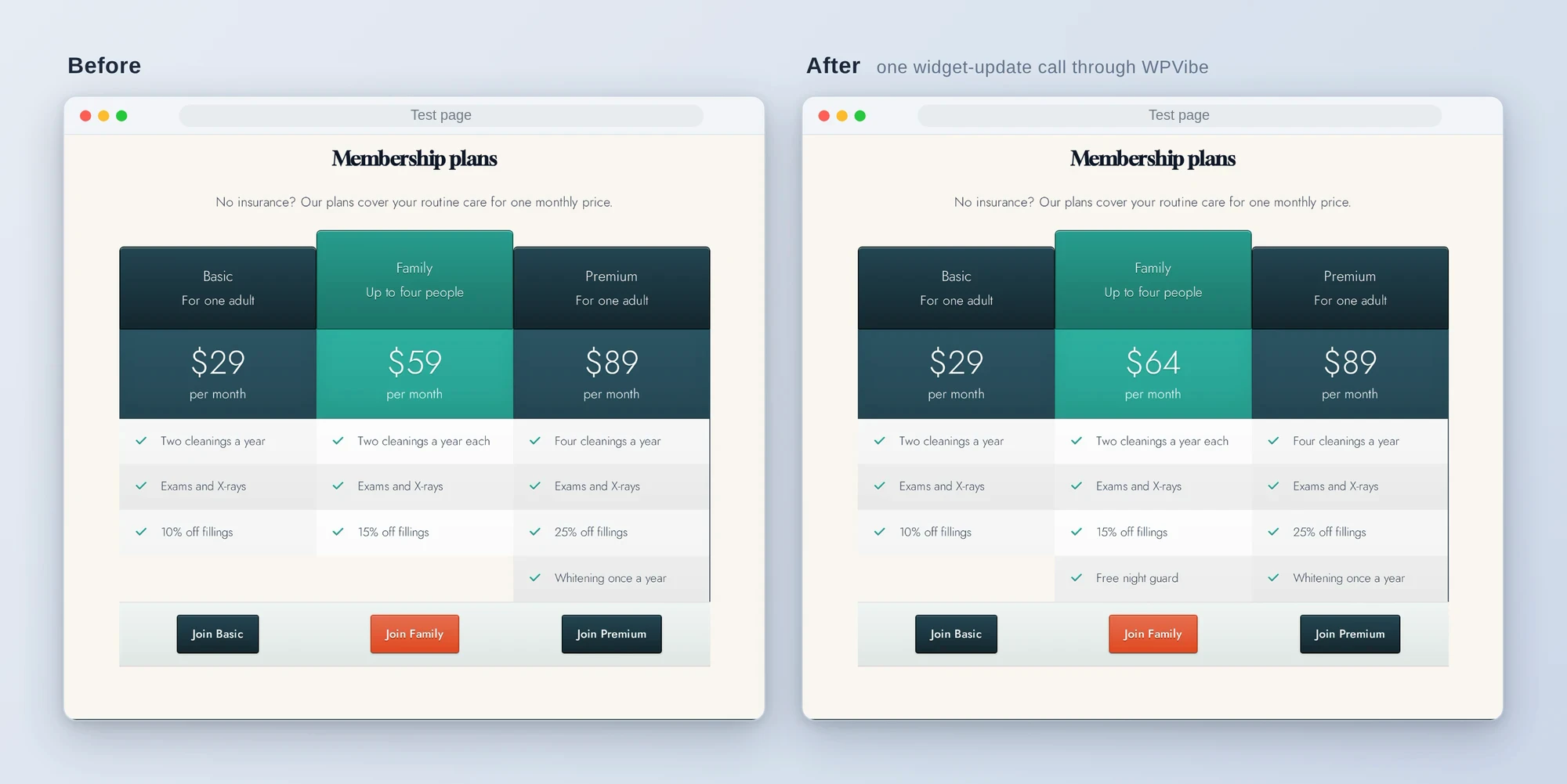
A Price Table widget on a test page, before and after one widget-update call through WPVibe: the Family plan goes to $64 and gains Free night guard, and the other plans stay as they were.
Who this is for
- Anyone finishing a page from a template or demo layout. The AI finds the stand-in copy widget by widget, so none of it slips through to the live page.
- Businesses whose prices change. Update the plans on a draft of your pricing page without opening each column. A page that’s already live still needs the block editor.
- Anyone who copied a contact page. See who gets the messages, and change it, before the page goes live.
- Sites building an FAQ. Add the questions customers ask to the end of the accordion on a draft, in your words.
How to get started
Step 1: Install or update SiteOrigin Widgets Bundle. The recipes need SiteOrigin Widgets Bundle 1.75.0 or newer, the free version is enough, on WordPress 6.9 or newer, with an account that can edit the page. The abilities are on as soon as the plugin is active. On a fresh install only six widgets are switched on (Button, Editor, Google Maps, Image, Image Slider and Post Carousel), so if you use the Price Table, Contact Form or Accordion, switch them on under Plugins, SiteOrigin Widgets. SiteOrigin’s tools never switch widgets on, and the recipes don’t either.
Step 2: Install WPVibe and connect the AI you already use. WPVibe is an MCP server that connects the AI you already use to your WordPress site. Install the free WPVibe plugin from WordPress.org. Its settings screen has buttons to add it to Claude or ChatGPT, plus a server address for other AI apps. Sign in with a free WPVibe account when your AI asks, then paste the connect line from the same screen into your AI, open the link it replies with while logged in to your WordPress site, and approve. No passwords ever go in the chat.
Step 3: Start on a draft. SiteOrigin’s tools change draft and pending pages only, so try a recipe on the page you’re building before it goes live, and close that page in the block editor while the AI works, and reload it before editing again.
Why these are worth trusting
We installed SiteOrigin Widgets Bundle 1.75.0, free, on a test site that already runs WooCommerce, LifterLMS and a custom theme. We built a dental practice home page from ten SiteOrigin widget blocks, some inside Group and Columns blocks, ran all four abilities through WPVibe, then followed each recipe step by step, and tightened the wording after three reviews. We wrote down what would have sent an AI the wrong way:
- Only the widget you name changes. In our test we compared all 17 blocks on the page before and after a change: one widget’s settings were different and every other block was identical.
- Draft and pending pages only. The tools refuse published pages, though reading works on any page. The recipes stop on a live page and send you to the block editor; they never switch it to draft, which would take it offline.
- Changing any field saves the whole widget again. Rich text saved from the visual editor is cleaned again as if newly typed: in our test, changing only an Editor widget’s title removed a Google Maps embed from its text and stopped a gallery shortcode working. The recipes look for embeds, scripts, forms and shortcodes first and leave those widgets to you.
- Lists change by position. Features, plans, FAQ panels and testimonials are numbered lists inside a widget, and an empty item sent by mistake wipes that item. The recipes address items by number and clear a list only to rewrite it.
- Close the page in the block editor. If the page is open in the block editor under the same account the AI uses, the AI’s change still goes through, and a later save from that editor puts the old version back. If someone else has it open, the change is refused. The recipes ask you to close it first; reload it before you edit again.
- No WPVibe approval page. Widget changes run directly, so the recipes show you each change and wait for your yes. When revisions are on, every change also saves a revision of the page.
- Shortcodes the AI writes are turned off. SiteOrigin stores their square brackets as full-width brackets, so the recipes write plain text and simple HTML.
- Widget blocks only. Widgets inside synced patterns aren’t reached through the page, and layouts made with Page Builder by SiteOrigin aren’t widget blocks; those have their own page and recipes.
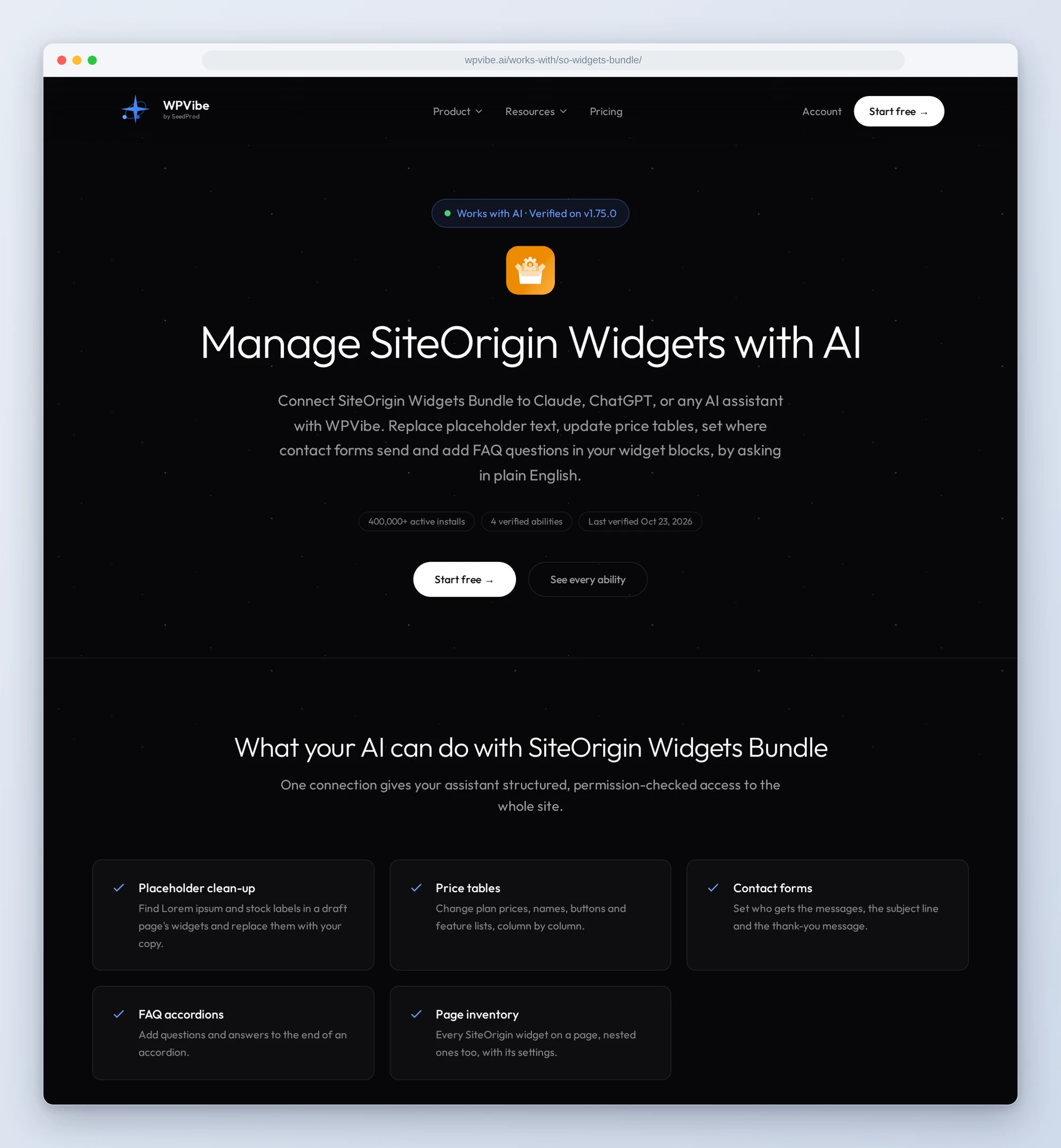
The SiteOrigin Widgets Bundle page has all four abilities and every gotcha we found. If you only try one, make it the contact form recipe on your next new page. It takes a few minutes, and it checks the one setting nobody sees until a message goes missing. After you publish, send yourself a test message through the form: whether it arrives also depends on how your site sends email.
John and the WPVibe team
P.S. WPVibe is free to start and works with the Claude or ChatGPT account you already have, so there is no second AI subscription to buy. Connect your site and let your AI change the one widget you mean.