Your AI Just Learned TranslatePress
Adding a language to a WordPress site with TranslatePress takes a minute. The defaults are what catch people out. The new language goes live the moment you add it, so visitors can pick Spanish from the language switcher before a single page is translated. And the short URL slug you give it, the /es/ part, is never checked against your pages. In our test, a language with the slug shop took over the WooCommerce shop page’s address and turned it into the Spanish home page.
TranslatePress, on 400,000+ sites by WordPress.org’s count, is the plugin that translates a WordPress site page by page, with each language under its own address. Its current version gives AI assistants abilities to add languages, change their URLs, show or hide them and set the default. WPVibe now has a verified TranslatePress page and five tested recipes, so the AI you already use can set up a second language the careful way: slug checked first, hidden until it’s translated, and nothing changed until you say yes.
What you can ask for
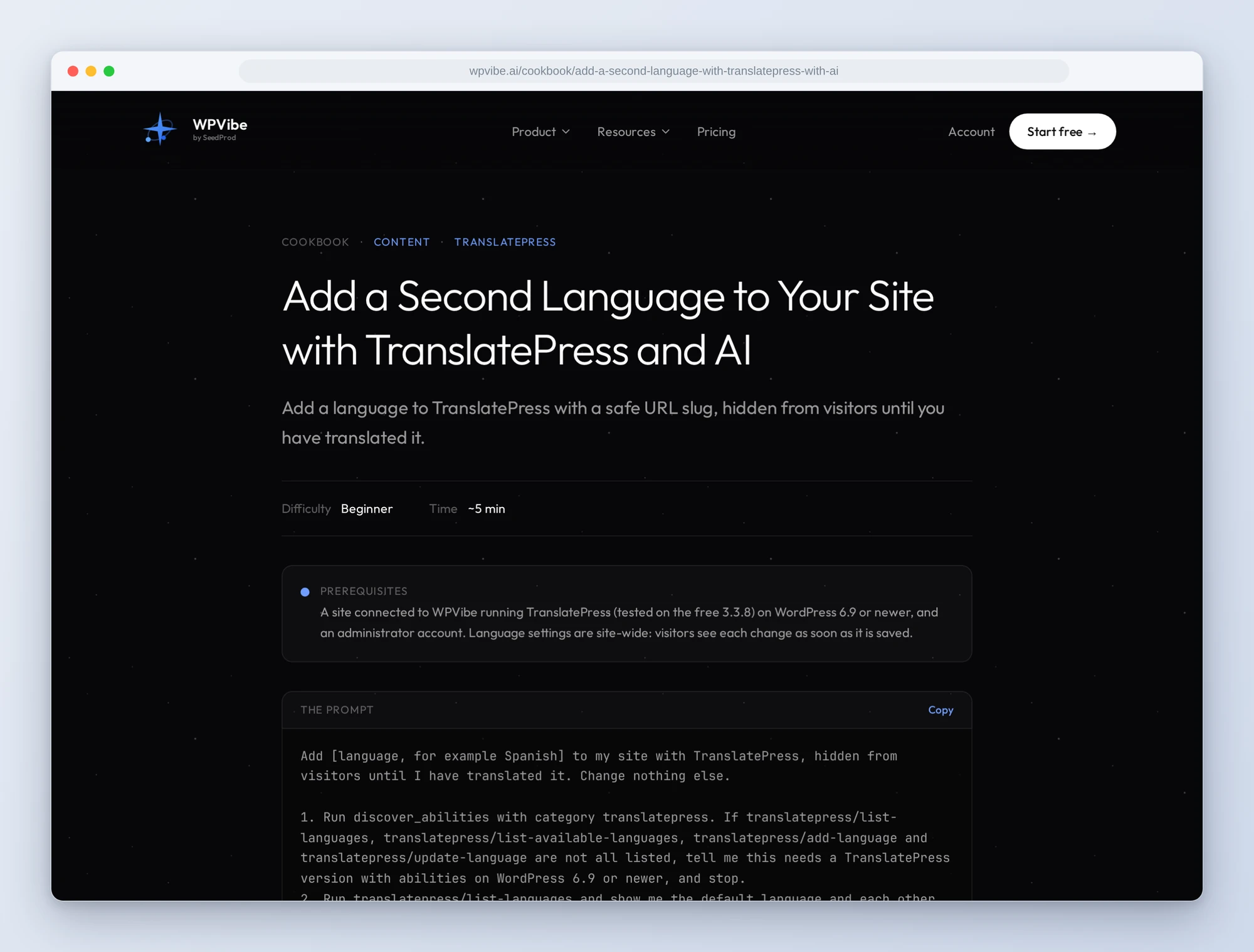
All five are copy-paste prompts built on calls we ran against a live TranslatePress install before publishing them:
- Add a second language: the right language code (it asks Spain or Mexico when there’s a choice), a URL slug checked against your pages, posts and other languages, and the language hidden from visitors straight after it’s added
- Show or hide a language: publish a finished translation, or hide one while you rework it. Every translation is kept either way
- Change a language’s URL: move /es/ to /espanol/ or /mx/, with the new slug checked first and a plain warning about the links people already have
- Swap your second language: the free plugin allows one language besides your default, so this replaces it. Removing the old one goes through WPVibe’s approval page in your browser
- Set the default language: make the default match the language your content is written in, before you start translating
In practice it sounds like this. You ask for Spanish, hidden until you’ve translated it. The AI reads your TranslatePress languages, sees English as the default and free TranslatePress’s one extra slot open, and asks whether you mean Spanish for Spain or for Mexico. It checks the slug es against your pages, your posts and the addresses WordPress and your plugins use, then shows you the one change it will make: Spanish (Spain), at /es/, hidden. You say yes. It adds the language, hides it right away, and checks that a visitor at /es/ gets page-not-found for now. When the translation is done, you ask it to show Spanish.
Who this is for
- Site owners adding their first language. Get it set up without visitors seeing a half-translated site or a page losing its address.
- Stores and businesses with a new market. Swap free TranslatePress’s one extra language when your audience changes, with the old translations kept in case you go back.
- Agencies setting up client sites. Fix a wrong default language before translation starts, and hand over a site whose languages are hidden until the client signs off.
How to get started
Step 1: Install TranslatePress. The recipes were tested on TranslatePress 3.3.8, the free version, and need WordPress 6.9 or newer and an administrator account. There is nothing to switch on: the abilities are there as soon as the plugin is active.
Step 2: Install WPVibe and connect the AI you already use. WPVibe is an MCP server that connects the AI you already use to your WordPress site. Install the free WPVibe plugin from WordPress.org. Its settings screen has buttons to add it to Claude or ChatGPT, plus a server address for other AI apps. Sign in with a free WPVibe account when your AI asks, then paste the connect line from the same screen into your AI, open the link it replies with while logged in to your WordPress site, and approve. No passwords ever go in the chat.
Step 3: Start with the language you want to add. The add-a-language recipe checks everything before it changes anything, and leaves the new language hidden. Translate at your own pace, then use the show-or-hide recipe to publish it.
Why these are worth trusting
We installed TranslatePress 3.3.8, the free version, on a test site with 24 pages and a WooCommerce shop, and called its abilities through WPVibe (removing a language we ran directly on the site after WPVibe showed its approval page). 7 of its 8 abilities are verified. The eighth sets a TranslatePress license key, and we only had a made-up key, so it isn’t marked verified. We wrote down what would have sent an AI the wrong way:
- Every language change is site-wide and live at once. A language you add is shown to visitors straight away, so the recipes hide it in the next step. Only removing a language goes through WPVibe’s approval page; for every other change the recipes show you what will happen and wait for your yes in the chat.
- Slugs aren’t checked against your pages. That’s how shop took over the shop page in our test. Adding a language with a slug another language already uses is worse: TranslatePress quietly resets every language’s slug to its language code, your default’s included. The recipes check pages, posts, your other languages and common addresses first.
- Old links don’t follow a slug change. TranslatePress doesn’t redirect the old slug. In our test the language’s old home page showed page-not-found, and WordPress sent other old links to the same page in the default language. So change a slug before you share the language’s links.
- Translations belong to the default language. Changing the default hides the translations you already have until you change it back, so the default recipe asks first and is meant for setting up, before you translate.
- The license key is saved before it’s checked. A mistyped key replaces a working one. None of the recipes set it; paste it yourself in TranslatePress’s settings.
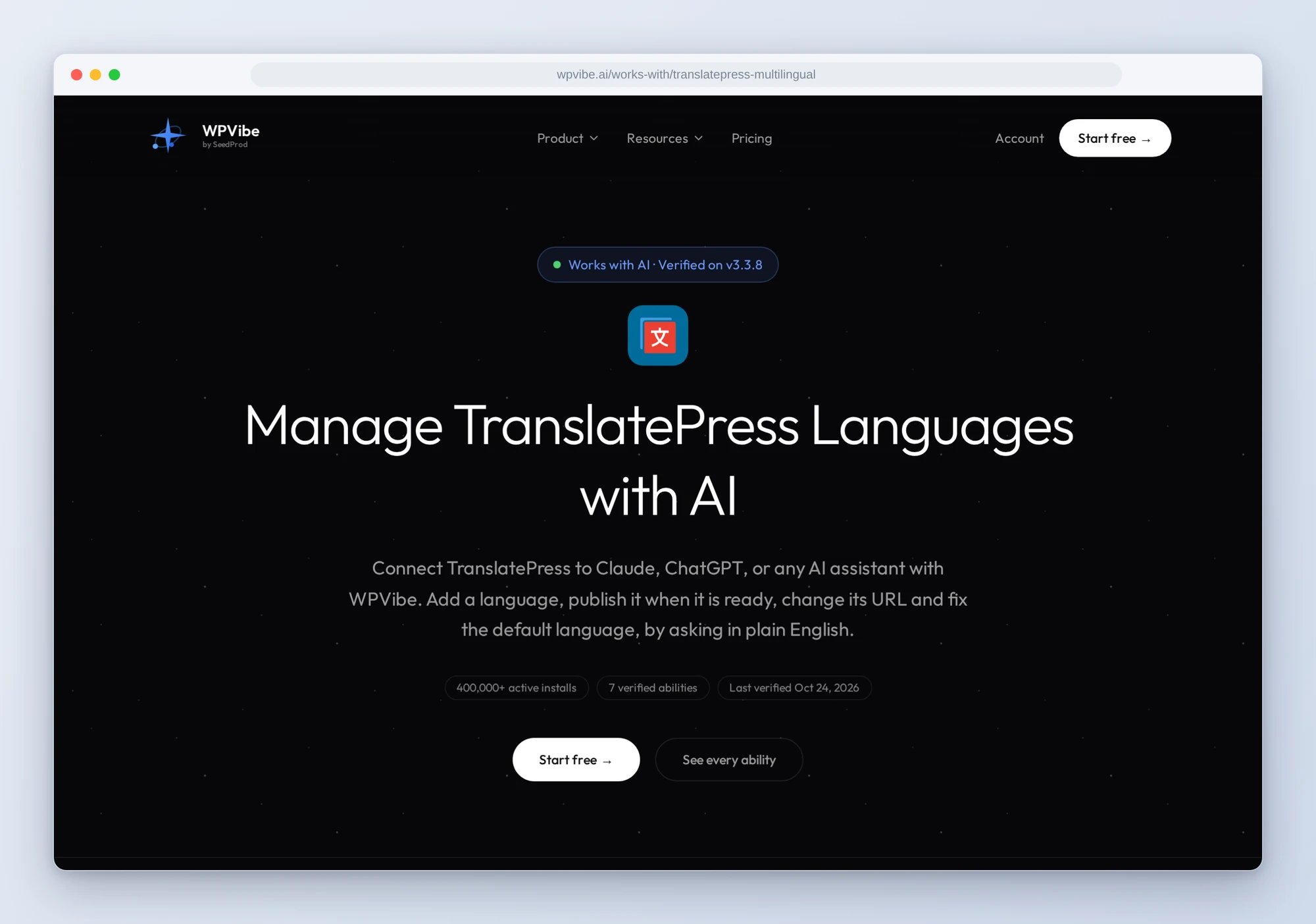
The TranslatePress page has every ability we verified and the gotchas we found. If you only try one, make it the add-a-language recipe. It checks the slug, adds the language and hides it straight away, and leaves the rest to you.
John and the WPVibe team
P.S. WPVibe is free to start and works with the Claude or ChatGPT account you already have, so there is no second AI subscription to buy. Add your next language without the half-translated week in between.