Your AI Just Learned SpeedyCache
You change the phone number in your footer widget, check the site, and the old number is still there. SpeedyCache clears everything on its own when you save a classic menu or switch themes, but a widget, Customizer or theme style change clears a few pages at most, so most pages your visitors open still have the old footer. And that is the problem you can see. One setting can mean phone visitors never get a cached page at all, and a custom login page can be stored, so its form can stop working. Nobody checks, because checking means reading a cache folder.
SpeedyCache, on 500,000+ sites by WordPress.org’s count, stores a ready-made copy of each page so it loads without being rebuilt, and can minify and combine your CSS and JavaScript. Its recent versions also give AI assistants abilities to clear the cache for the whole site, a URL or a post, rebuild the preload list, and read its cache, file, exclude and preload settings. WPVibe now has a verified SpeedyCache page and four tested recipes, so the AI you already use can clear the pages showing old content, clear and warm up the whole cache, give you a health check, and tell you why a page isn’t cached.
What you can ask for
Each of these is a copy-paste prompt built on calls we ran against a live SpeedyCache install before publishing it:
- Clear SpeedyCache for a page showing old content: just the pages you name, with when each copy was cached, and a check that the stored copies are really gone
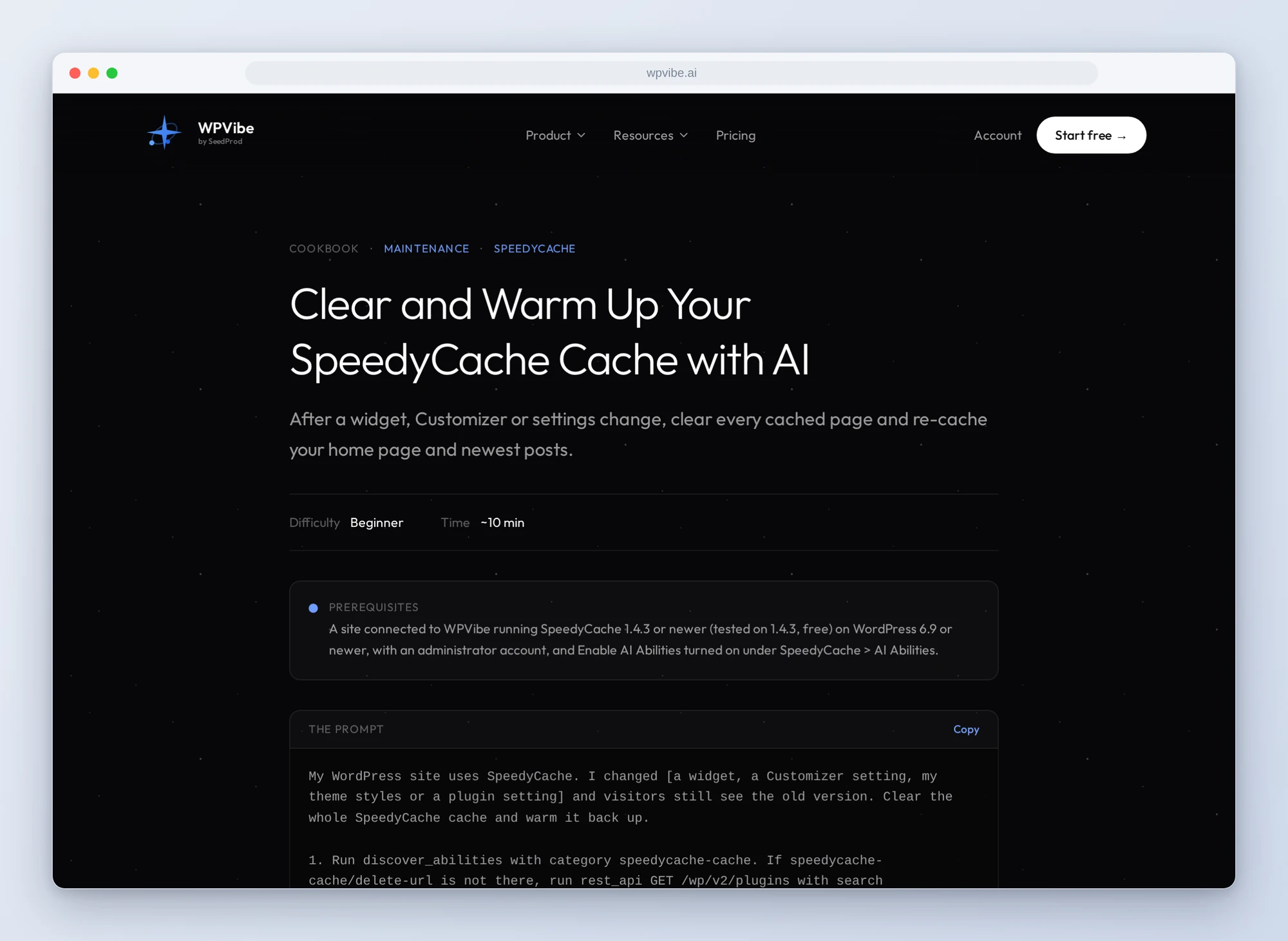
- Clear and warm up your cache: after a widget, Customizer or settings change, every cached page cleared once you say yes, then your home page and newest posts and pages cached again in the background
- Get a SpeedyCache health check: your cache, mobile, member, preload and exclude settings checked against your site, sorted into fix now, worth doing and fine to ignore, with nothing changed
- Find out why SpeedyCache is not caching a page: the one rule that keeps it out, and the one change that fixes it
In practice it sounds like this. You paste the clear-and-warm-up recipe after changing your footer. The AI checks that SpeedyCache’s cache is on, counts the cached pages in its cache folder, and tells you what it will clear, including that SpeedyCache also clears Varnish if Purge Varnish is on, and Bunny or Cloudflare (for Cloudflare, the whole zone) if its own CDN setting is on. You say yes. It clears every cached page in one go, and leaves the minified CSS and JavaScript files alone, because SpeedyCache names those by their content and a change already makes new ones. It lists the cache folder again to confirm the pages are gone, then rebuilds the preload list: your home page and up to about 90 of your newest posts, pages and products. WordPress cron caches about ten a minute while the site gets visits, and the AI checks back to show you it is moving. Clearing the cache deletes no content.
Who this is for
- Site owners who change a widget and wonder why nothing changed. Clear the pages that need it, or everything, and have them cached again with the change.
- Shops, membership and course sites. Find out whether members are being served the logged-out page, and whether login, account or thank-you pages are sitting in the cache.
- Anyone whose speed test says a page isn’t cached. Get the setting, rule or visit that keeps it out, in plain words.
- Agencies looking after many sites. A plain-language cache check per site, without clicking through every SpeedyCache tab.
How to get started
Step 1: Install or update SpeedyCache and turn on its abilities. The recipes need SpeedyCache 1.4.3 or newer on WordPress 6.9 or newer, with an administrator account. SpeedyCache’s abilities are off until you turn on Enable AI Abilities under SpeedyCache > AI Abilities. That switch is all WPVibe needs: the MCP Adapter and Application Password steps on that page are for connecting an AI client to WordPress directly.
Step 2: Install WPVibe and connect the AI you already use. WPVibe is an MCP server that connects the AI you already use to your WordPress site. Install the free WPVibe plugin from WordPress.org. Its settings screen has buttons to add it to Claude or ChatGPT, plus a server address for other AI apps. Sign in with a free WPVibe account when your AI asks, then paste the connect line from the same screen into your AI, open the link it replies with while logged in to your WordPress site, and approve. No passwords ever go in the chat.
Step 3: Start with the health check. It only reads, so it is the safe first run, and it tells you what to fix first and on which SpeedyCache tab.
Why these are worth trusting
We installed SpeedyCache 1.4.3, the free version, on a test site that already runs WooCommerce and LifterLMS, with SpeedyCache’s settings and exclude rules set up the way a real site would have them. All 12 abilities ran through WPVibe, and after every clear we checked the cache folder and the response headers ourselves. We wrote down what would have sent an AI the wrong way, from our tests and from SpeedyCache’s code:
- The abilities are off on a fresh install. Nothing from SpeedyCache shows up for the AI until Enable AI Abilities is on, so every recipe checks for it first and tells you where it is.
- “Cleared” doesn’t prove anything was cleared. Clearing a URL or a post reports success whether or not a copy was cached, and the cache statistics came back 0 and 0 with eight pages cached. The recipes look in SpeedyCache’s cache folder instead.
- Exclude rules only stop a page being stored. A page cached before its rule was added kept being served, and a visitor with an excluded cookie still got the stored copy. The recipes clear the page after a rule, and say which visitors a rule can’t protect.
- Phone visitors can miss the cache entirely. With Mobile Override on and no Pro Mobile Cache, phone visitors never got a cached page in our test. The health check flags it.
- Custom login and account pages get cached. Preload cached our custom login, account and thank-you pages: SpeedyCache only skips WooCommerce’s cart, checkout and My Account pages on its own. The health check lists the ones to exclude.
- The recipes keep your keys out of the chat. Two of the read abilities hand back your CDN API key in full, so the recipes never call them.
- Settings stay yours. No ability changes SpeedyCache’s settings or adds an exclude rule, so the AI tells you which tab to change. Clears run at once with no approval page, so the recipe that clears everything, and the one that can delete an exclude rule, wait for your yes in the chat first.
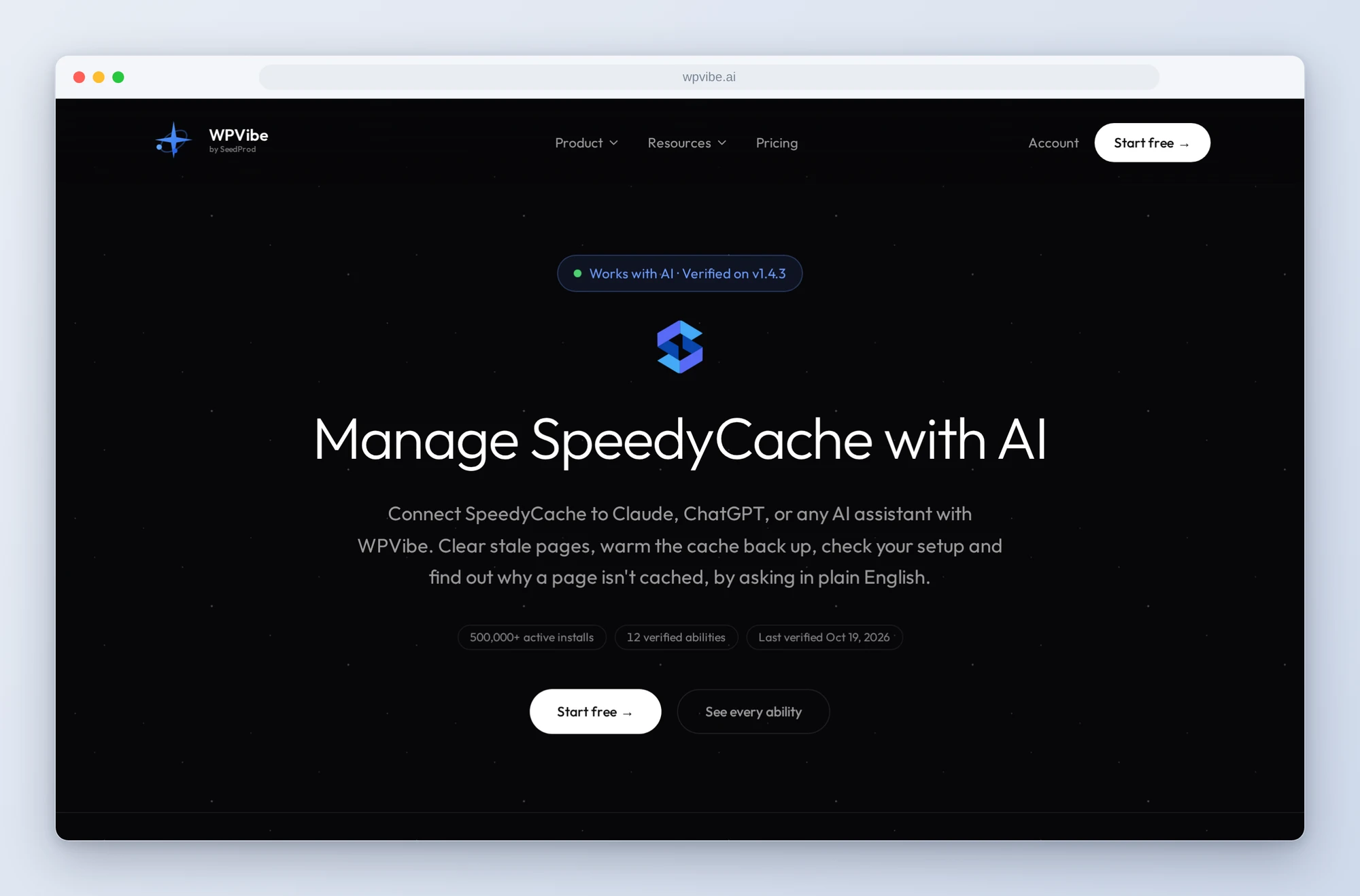
The SpeedyCache page has every ability we verified and the gotchas we found. If you only try one, make it the health check. It is the one that finds what nobody noticed.
John and the WPVibe team
P.S. WPVibe is free to start and works with the Claude or ChatGPT account you already have, so there is no second AI subscription to buy. Connect your site and let your AI clear the old footer for you.