Your AI Just Learned Sticky Header Effects for Elementor
Your visitors scroll past your menu and your phone number in the first second. On a long page, finding them again means scrolling all the way back up. A header that stays at the top fixes that, and in Elementor it’s a panel of switches, colors and pixel values for every screen size. So it waits, along with the see-through header over your hero image you keep meaning to try.
Sticky Header Effects for Elementor, a free plugin on 300,000+ sites by WordPress.org’s count, adds those effects to Elementor: a header that sticks on scroll, changes color, turns see-through over the top of the page or slides away while visitors read. Since version 2.2.0 it gives AI assistants four abilities, and we verified all four on the free 2.2.3 with free Elementor. WPVibe now has a verified Sticky Header Effects page and five tested recipes, so the AI you already use can set up your header by asking.
What you can ask for
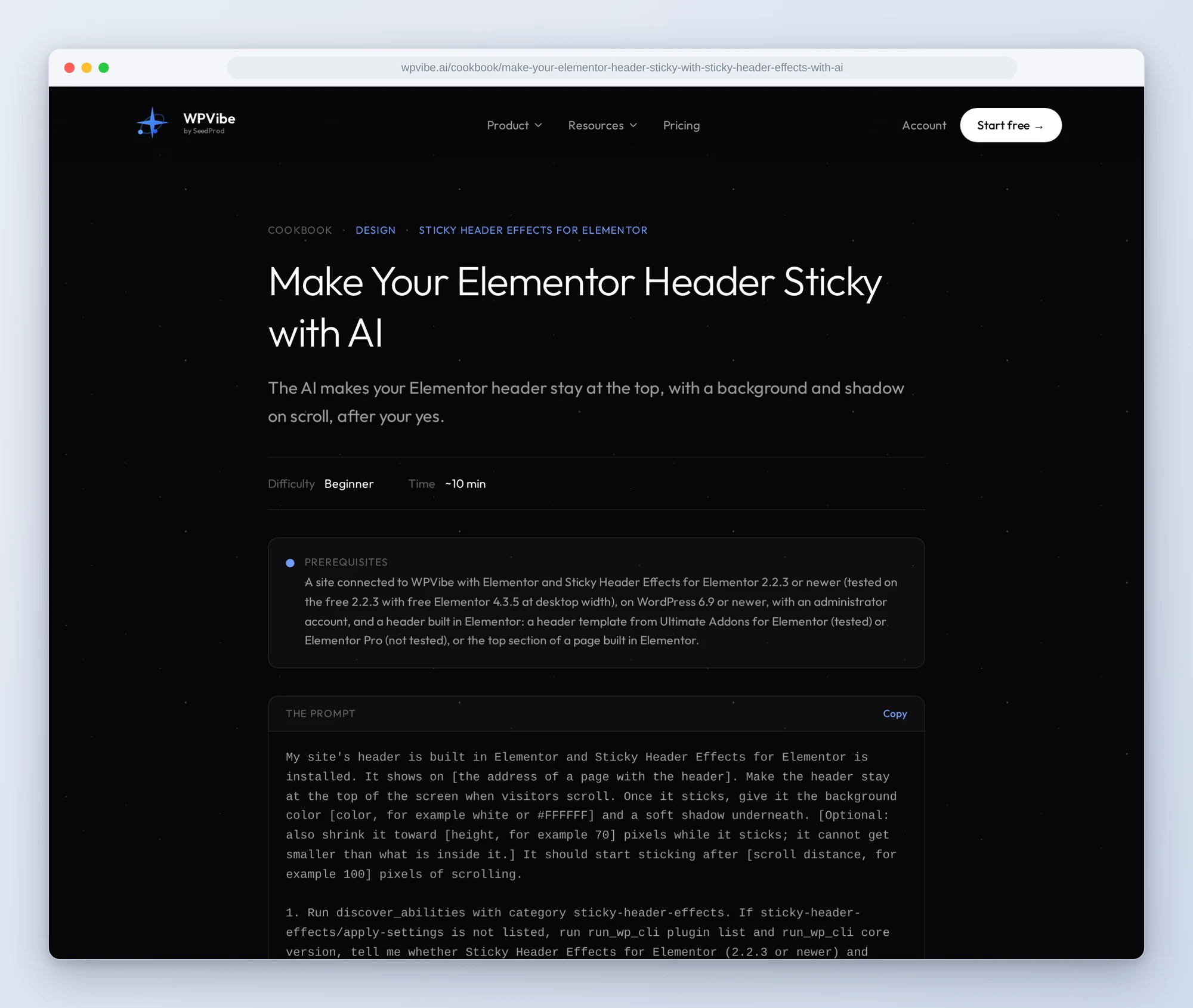
- Make your Elementor header sticky: it stays at the top on scroll, with the background color and soft shadow you pick.
- Put a transparent header over your hero: see-through over the top image, solid in your color once visitors scroll.
- Hide your header when visitors scroll down: it slides away while people read and comes back the moment they scroll up.
- Stop menu links landing under your sticky header: every in-page jump leaves room for the header, so the section heading is in view.
- Find out why your sticky header isn’t working: the AI reads the settings and tells you what’s stopping it. It only reads.
In practice it sounds like this. You paste the sticky header recipe and say you want a white background and a soft shadow once visitors scroll. The AI finds where your header is built and reads the sticky settings it has today. If the header is a template that shows on every page, it says so. It shows you the exact change and writes down the old values. After your yes it applies the settings, checks which ones the plugin kept, and tells you how to put them back. Then you scroll your page and see it stick.
Who this is for
- Elementor site owners who never got to the header. The settings are there; the afternoon to work through them isn’t. Now it’s one prompt and a yes.
- One-page sites. Menu links that jump to sections further down, landing with the heading in view instead of hidden behind the header.
- Anyone whose sticky header stopped working. Works on your laptop, not on your phone? The AI reads the settings and tells you the most likely cause, without changing anything.
How to get started
Step 1: Install Sticky Header Effects for Elementor. The recipes need version 2.2.3 or newer with Elementor, WordPress 6.9 or newer and an administrator account. The free plugin is enough; its AI abilities need no setting turned on.
Step 2: Install WPVibe and connect the AI you already use. WPVibe is an MCP server that connects the AI you already use to your WordPress site. Install the free WPVibe plugin from WordPress.org. Its settings screen has buttons to add it to Claude or ChatGPT, plus a server address for other AI apps. Sign in with a free WPVibe account when your AI asks, then paste the connect line from the same screen into your AI, open the link it replies with while logged in to your WordPress site, and approve. No passwords ever go in the chat.
Step 3: Run the why-isn’t-it-working recipe first. It only reads, so it’s the safe way to see what your header has today before you change it.
Why these are worth trusting
We installed the free Sticky Header Effects 2.2.3 with free Elementor 4.3.5 on a test site, built a page with its own header and a site-wide header template, and ran all four abilities through WPVibe. Then we scrolled the pages in a real browser to check the main effect behind each recipe. All four abilities are verified. We wrote down what would have sent an AI the wrong way:
- Changes are live straight away. There’s no draft and no revision, and WPVibe shows no approval page for these settings. So every recipe writes down the old values, shows you the change and waits for your yes before it touches anything.
- A header template changes every page. If your header is a template that shows site-wide, one change shows on every page it covers. The recipes tell you before they ask.
- Unknown settings are dropped quietly. That includes the tablet and phone versions of a setting, which win on those screens. The recipes check what the plugin kept and point out phone and tablet values you’d change in Elementor.
- The AI can switch sticky on, not off. To turn the effect off, switch off Enable under Sticky Header Effects in the header’s Advanced tab in Elementor. The recipes tell you where.
- Close the header in Elementor first. If it’s open in the editor, saving there later can put the old settings back. The recipes ask you to close it without saving.
- The menu fix, measured. With the anchor fix on, a click on an in-page menu link put the section heading 70 px down the screen, clear of the 60 px header. Without it, the heading landed under the header.
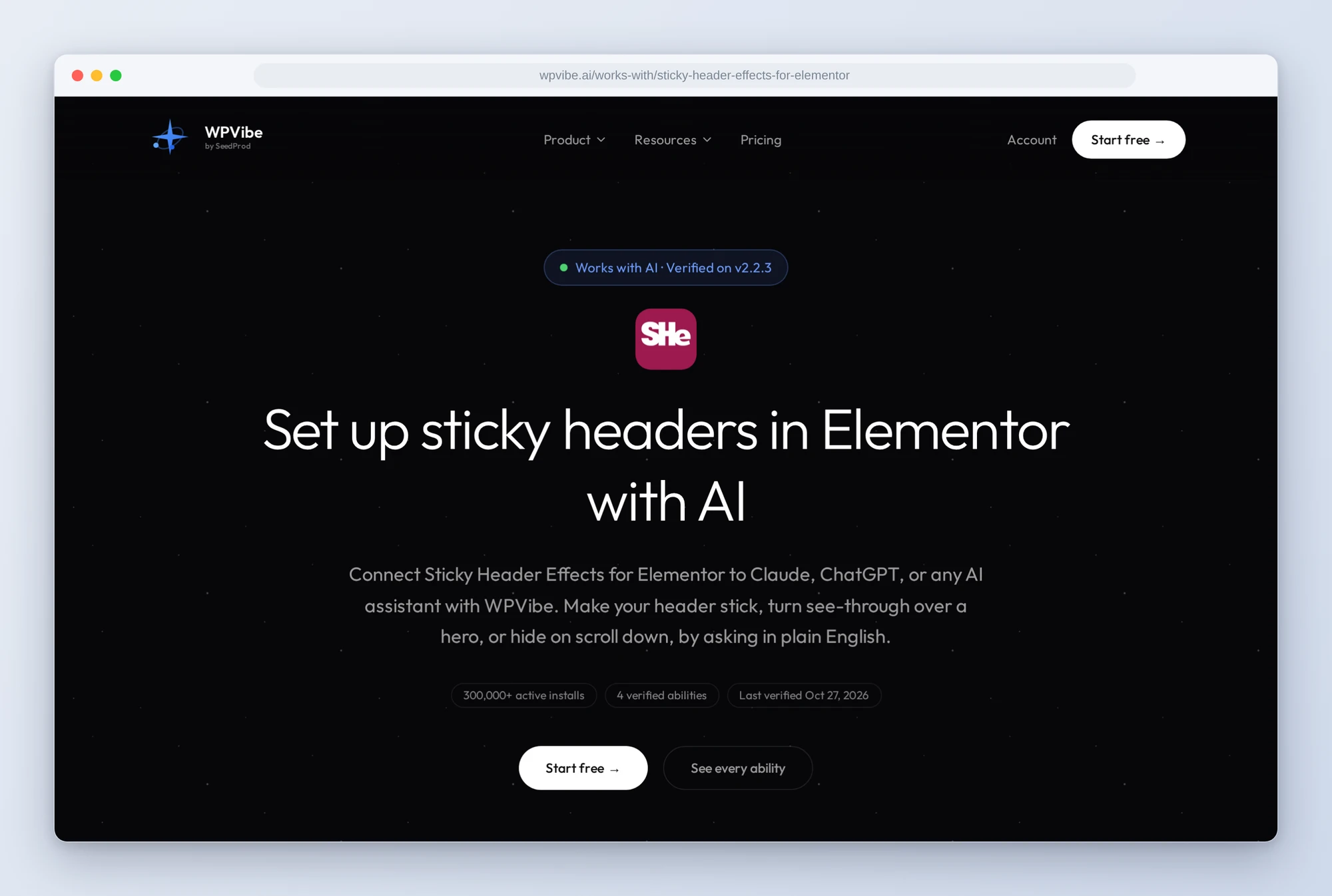
The Sticky Header Effects page has all four abilities and everything we found testing them. If you only try one, run the sticky header recipe on your home page and scroll. That’s the header your visitors have been scrolling back up for.
John and the WPVibe team
P.S. WPVibe is free to start and works with the Claude or ChatGPT account you already have, so there is no second AI subscription to buy. Sticky Header Effects for Elementor is free on WordPress.org too.