Your AI Just Learned Ultimate Addons for Elementor
Free Elementor designs the pages on your site, but Elementor’s own builder for the header and footer around them, the Theme Builder, is part of Elementor Pro. So on free Elementor the page can look designed while the header still looks like the theme.
Ultimate Addons for Elementor (UAE), the free plugin from Brainstorm Force that started as Elementor Header & Footer Builder, fills that gap, and WordPress.org counts it on 2 million+ sites. Since version 2.9.0 it also registers abilities for AI assistants, 45 of them in the current 2.9.5, covering header, footer and before-footer templates, their display rules, the widgets inside them and the Elementor pages they sit on.
So we tested them. Today WPVibe ships a verified Ultimate Addons for Elementor page and five tested recipes, which means the AI you already use can build and change your header and footer with you, on free Elementor and the free version of UAE.
What you can ask for
Each of these is a copy-paste prompt whose steps we ran against a live UAE install before publishing it:
- Create a header and footer without Elementor Pro: built as drafts from your Elementor colors and fonts and your menu, described to you for a yes, then applied site-wide and checked on a real page
- Give a landing page its own header: a trimmed copy with only your logo and one button, or Elementor’s Canvas template for no header or footer on a page built with Elementor, checked on the page afterward, without touching the rest of the site
- Add a call to action above the footer on every blog post: one template with your heading, text and button, on single posts only, so the old posts get it too
- Change a UAE header: a new button, a menu color or a swapped widget, each change shown old and new first, made one at a time and checked on the live page
- Show logged-in visitors a different header: My account in place of Sign up for members and customers, while everyone else keeps the header they see today
In practice it sounds like this. You paste the first recipe with your menu, a button and your colors. Following it, the AI checks that UAE’s AI tools are on, reads your Elementor colors and fonts, and builds the header and footer as drafts, which visitors never see. It describes what is in each one and waits. On your yes it sets them to show site-wide, publishes them, and fetches one of your pages to confirm your theme’s own header and footer are gone and the new ones are there.
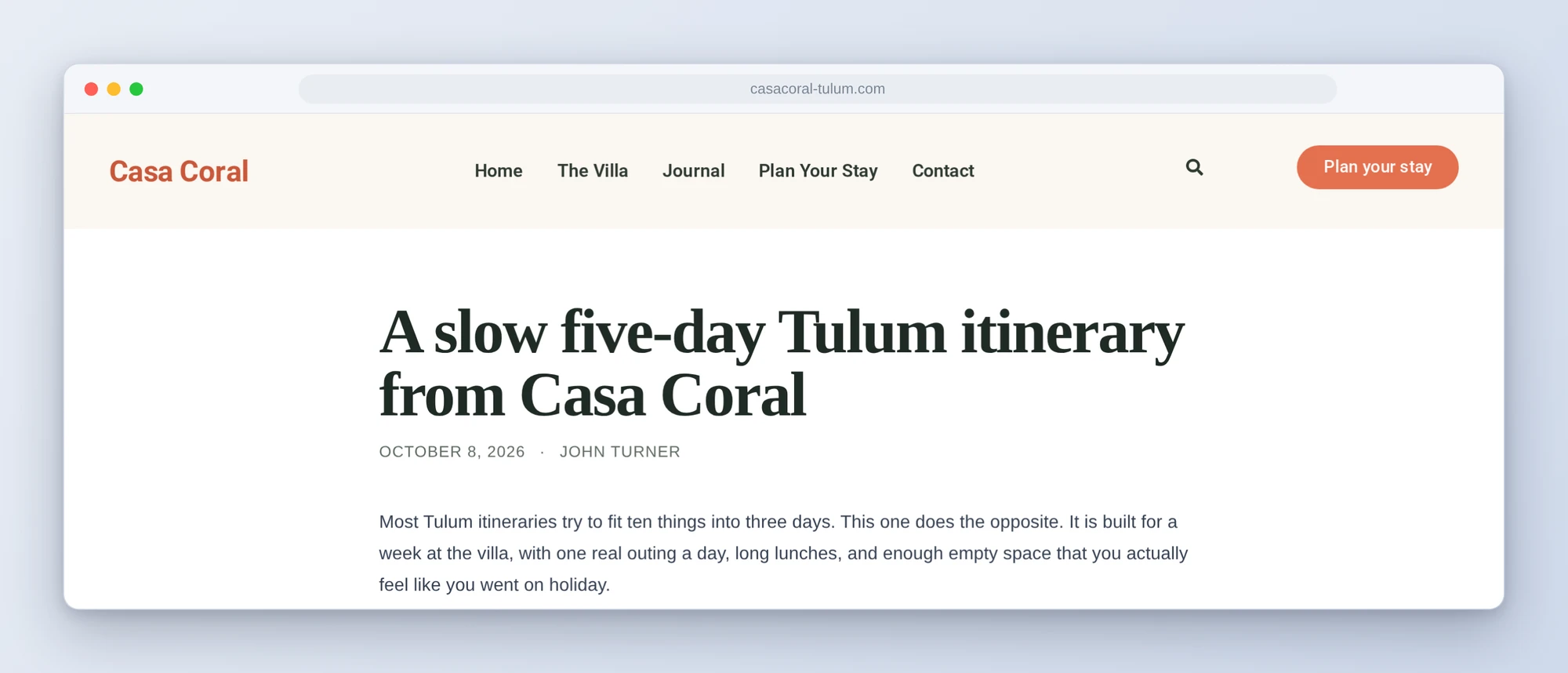
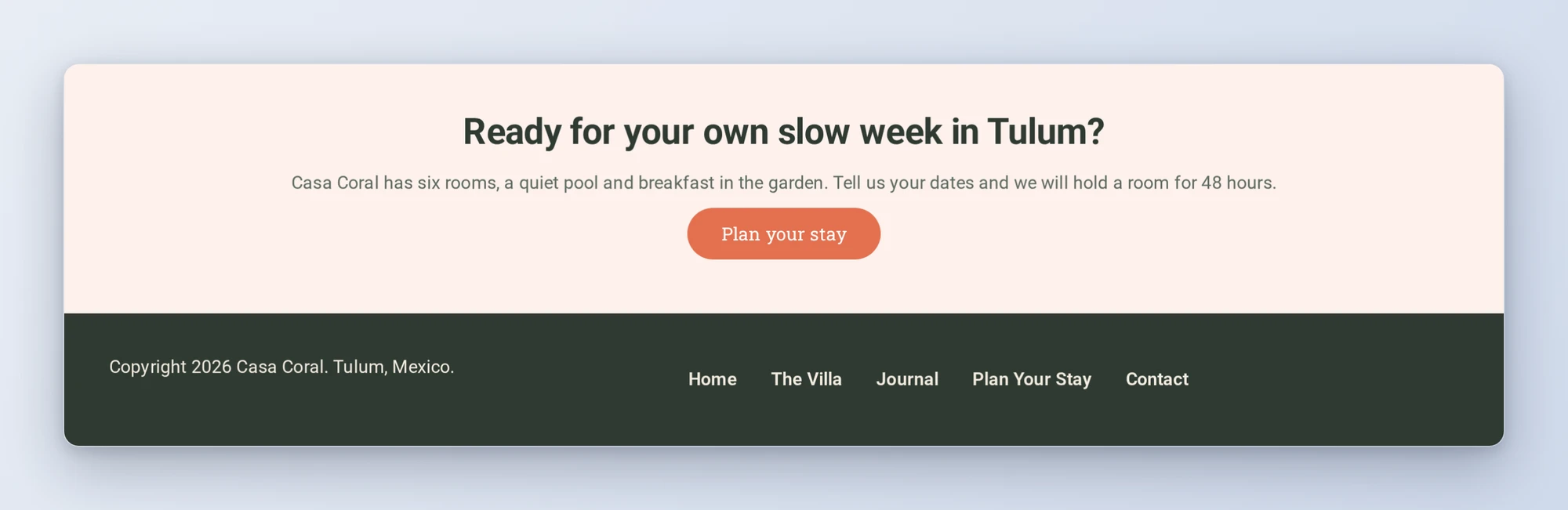
The header above and the call to action below were built that way on our test site, Casa Coral, a demo villa site: a site title, the main menu, a search icon and a booking button on top, and a “Plan your stay” card above the footer of every blog post.
Who this is for
- Sites on free Elementor. The header and footer stop being the part of the site free Elementor can’t reach, and you do not have to learn the template screens to get there.
- Bloggers and small businesses. A call to action at the end of every post, a landing page without the menu pulling people away, and a booking button in the header, each one a short conversation.
- Membership sites and shops. Logged-in visitors get a header with their account link, and the sign-up button stays for everyone else.
- Agencies running UAE on client sites. The same five prompts on every client site that meets their requirements, and header changes the client asks for get made one checked step at a time.
How to get started
Step 1: Update UAE and turn on its AI tools
You need Elementor (the free version is enough) and Ultimate Addons for Elementor 2.9.5 or newer, on WordPress 6.9 or newer with a classic theme. UAE’s abilities are off by default: in wp-admin, go to UAE > Settings > AI Tools and switch on Enable Abilities and Enable Edit Abilities.
Step 2: Install WPVibe and connect the AI you already use
Install the free WPVibe plugin from WordPress.org. Its settings screen has buttons to add it to Claude or ChatGPT, plus a server address for other AI apps. Sign in with a free WPVibe account when your AI asks, then paste the connect line from the same screen into your AI and open the link it replies with while logged in to your WordPress site. No passwords ever go in the chat.
Step 3: Start with the header and footer
Open a recipe, paste the prompt and fill in your details. If you already have a UAE header, start with the recipe for changing it instead.
Why these are worth trusting
We installed UAE 2.9.5 with free Elementor on a test site running a classic theme and called every one of the 45 abilities. 42 ran through WPVibe. The other three delete a template, delete a page or remove a widget, so WPVibe stopped them for approval in the browser, and we ran those directly on the test site. We checked the results on the live site, logged out, and logged in for the logged-in header.
Then we wrote down what would have sent an AI the wrong way:
- Some documented settings do nothing. UAE’s own build examples name a few style settings that its widgets do not have: the search icon color is
toggle_color, nottoggle_icon_color, and the copyright text color istitle_color, notshortcode_text_color. The site title’s color isheading_color. A setting the widget does not have saves without an error and changes nothing, so the recipes have the AI read each widget’s real settings first, and give it the search icon key outright, because that widget’s settings list is too long to come back in one read. - The newest header wins, not the most specific one. When two published headers both match a page, UAE shows the one with the latest post date. A landing page header can lose to the site header or quietly take over, depending on order, so the recipes also exclude the page from every other header that covers it.
- A before-footer template wants a UAE footer. On our test theme, which UAE does not support natively, with UAE’s default compatibility method, publishing a before-footer template on its own replaced the theme’s footer on every post it covered. The call-to-action recipe stops if there is no UAE footer yet.
- Your theme’s header markup goes with the header. With the default compatibility method on a theme it does not support natively, UAE replaces the header markup the theme prints. On our test theme that dropped the body classes the theme’s header file adds, and pages lost their body font and background color. Look at a few pages after the first publish.
- Most changes do not stop for approval. For plugin abilities, WPVibe stops for your approval in the browser when the ability is marked destructive and deletes something or runs code, unless approvals are off for the site or you already approved that step. In our tests, deleting a template or page and removing a widget stopped for approval. Creating, editing and publishing a template did not, and neither did turning all of UAE’s widgets off at once, which removed the menus from a live header. That is why the recipes build new templates as drafts or copies, show you each change first and tell the AI to wait for your yes.
Credit to Brainstorm Force
Brainstorm Force built these abilities into UAE themselves, added the AI Tools screen in 2.9.0 with their own guide to connecting an AI assistant, and made the abilities read the real settings of each widget, which is how we found the keys above. If you already use WPVibe, there is no second connection to set up: the same abilities come through WPVibe, next to everything else the AI can do on your site, from editing pages to managing plugins.
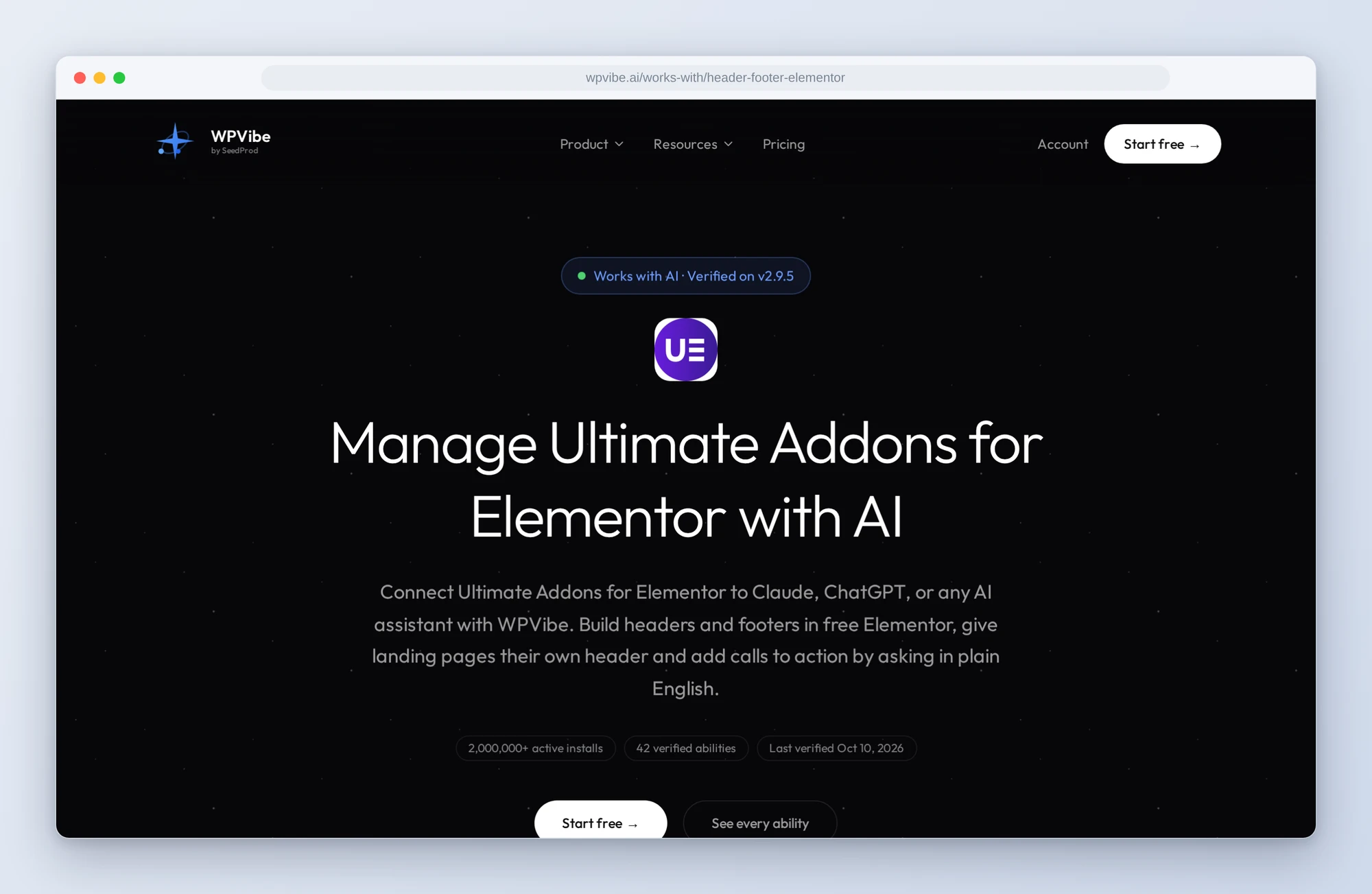
All five recipes live on the Ultimate Addons for Elementor page, along with every ability we verified and the gotchas we found. If you only try one, make it the header and footer. It builds both as drafts and tells the AI to wait for your yes before anything goes live.
John and the WPVibe team
P.S. WPVibe is free to start and works with the Claude or ChatGPT account you already have, so there is no second AI subscription to buy. Connect your site and build your header.