Your AI Just Learned WP Crontrol
The backup didn’t run last night. Or the weekly digest never went out, or the stock sync quietly stopped on Tuesday. WordPress runs those jobs in the background with WP-Cron, and when one fails, nothing tells you. You find out when a customer does, and finding the cause usually means reading code or error logs you can’t easily get to.
WP Crontrol, on 300,000+ sites by WordPress.org’s count, is the plugin people install to see those jobs. Version 2.0 makes logging and insights free and adds abilities for AI assistants: list and read scheduled events, run one now, pause and resume a hook, turn logging on per hook, and read the logs and a 7-day summary. Today WPVibe ships a verified WP Crontrol page and four tested recipes, so the AI you already use can find out why a job failed, give you a weekly report, pause a job safely and check your cron health.
What you can ask for
Each of these is a copy-paste prompt built on calls we ran against a live WP Crontrol install before publishing it:
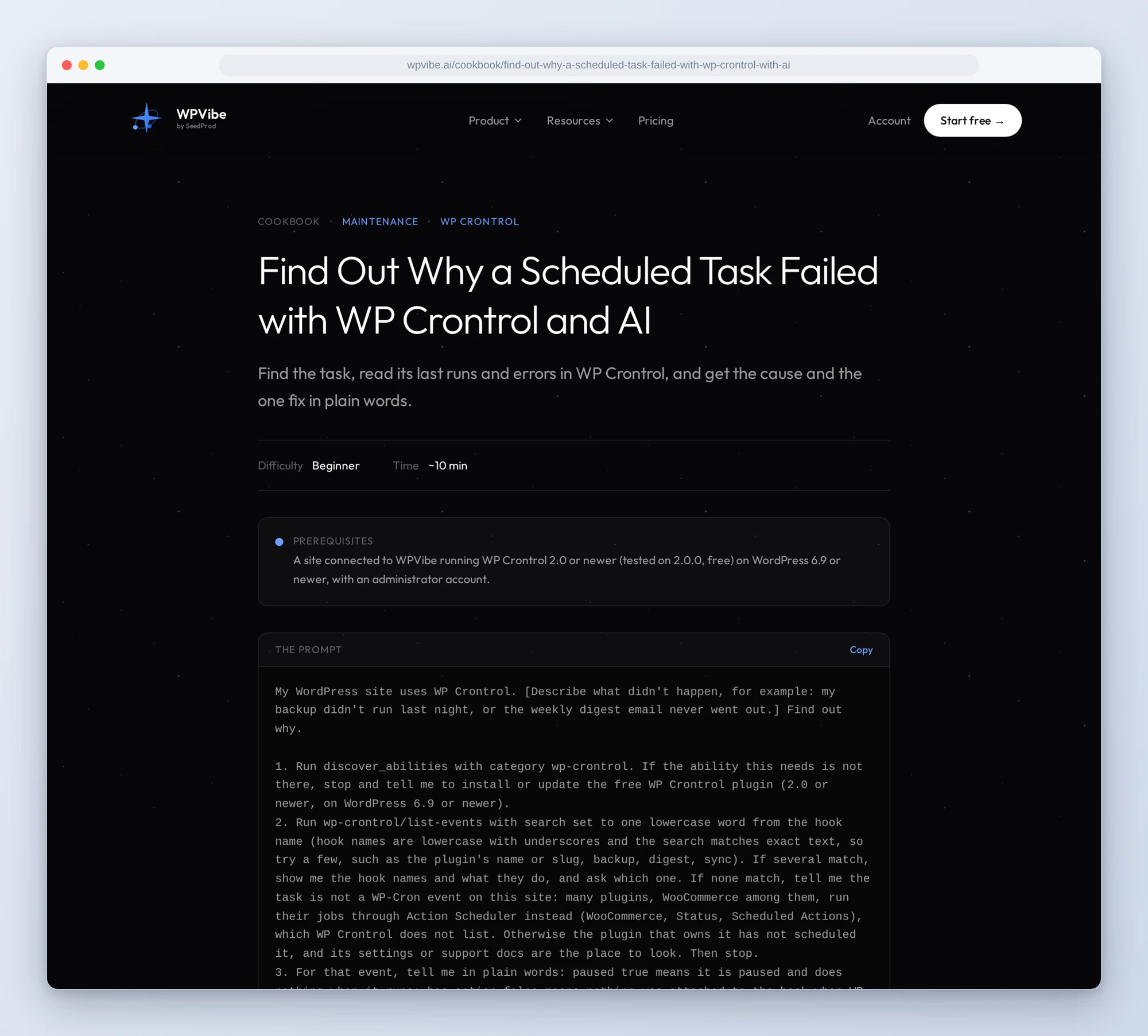
- Find out why a scheduled task failed: the AI finds the job, checks whether it is paused, overdue or left behind by a removed plugin, reads its last runs and errors, and explains the cause and the one fix in plain words
- Check which jobs failed or ran slow this week: a short report from WP Crontrol’s 7-day summary, with the latest error of each failed job explained in a sentence
- Pause a job and resume it later: one job stopped without deleting it, the pause checked, and one sentence that brings it back
- Check your cron health: late, paused, orphaned and broken scheduled events found and explained in one report, with nothing changed
In practice it sounds like this. You tell your AI the backup didn’t run and paste the first recipe. It finds the backup hook in WP Crontrol, tells you it is not paused and its handler is still there, and reads its last run, for example an HTTP request to your storage service that timed out. If logging was off for that job, it says so, because there is no history to read, and asks before turning logging on. Before it runs the job once to check, it asks you, since a run does the job’s real work right away. Then it reads the new run and tells you what happened.
Who this is for
- Store owners whose syncs and emails run on a schedule. Find out which job stopped, and why, before a customer notices. Jobs that run through Action Scheduler, as most of WooCommerce’s do, aren’t WP-Cron events, so WP Crontrol doesn’t list them.
- Anyone who has asked “did the backup actually run?” One question, and once logging is on for it, the answer comes from the job’s own log.
- Agencies looking after many sites. A weekly report of failed and slow jobs per site, and a health check after every plugin change.
- Developers who already use WP Crontrol. The same events and logs, read and explained by your AI instead of clicked through screen by screen.
How to get started
Step 1: Install or update WP Crontrol. You need WP Crontrol 2.0 or newer on WordPress 6.9 or newer, with an administrator account. Its abilities register on their own, with no setting to switch on.
Step 2: Install WPVibe and connect the AI you already use. WPVibe is an MCP server that connects the AI you already use to your WordPress site. Install the free WPVibe plugin from WordPress.org. Its settings screen has buttons to add it to Claude or ChatGPT, plus a server address for other AI apps. Sign in with a free WPVibe account when your AI asks, then paste the connect line from the same screen into your AI, open the link it replies with while logged in to your WordPress site, and approve. No passwords ever go in the chat.
Step 3: Start with the cron health check. It only reads, so it is the safe first run. Then run the weekly report: if nothing is logged yet, it suggests the jobs worth logging.
Why these are worth trusting
We installed WP Crontrol 2.0.0 on a test site running WooCommerce, LifterLMS and a few other plugins, with about 75 scheduled events, and added three test jobs of our own: one that times out and throws an error, one whose email fails to send, and one that just pings. All 10 abilities ran through WPVibe. We wrote down what would have sent an AI the wrong way:
- Logging starts off. WP Crontrol records a job’s runs only after logging is turned on for that hook, so the first check often has no history. The recipes say so and ask before turning it on.
- Completed doesn’t always mean it worked. Our digest job finished as completed while its email failed. The failure showed only in its warning flag, failed-email count and log messages, so the weekly report checks the warning flag and failed-email count too.
- Run now runs right away. WP Crontrol marks it destructive, but WPVibe’s approval page is for abilities that delete something or whose name says they run code, and run-event’s name doesn’t, so it runs at once. It does the job’s real work, emails and payments included, and for a WP Crontrol PHP cron event it runs that event’s stored code, which is why the recipe asks you first.
- An overdue job may already be running. WPVibe’s own requests count as visits, and a visit starts overdue jobs. On our test site, Run now on an overdue job led to three overlapping runs in four seconds, so the recipe checks again before running anything.
- No handler doesn’t always mean left over. Some active plugins attach their handler only while cron runs. On our test site, one such event belonged to LifterLMS, which was active, so the health check compares them against your active plugins before calling anything orphaned.
- Pausing covers the whole hook. Every event with that hook name pauses, runs that come due while paused are skipped rather than saved up, and a one-off event that comes due during the pause is gone.
Once logging is on for a job, WP Crontrol 2.0’s Cron Alerts can also email you when it fails.
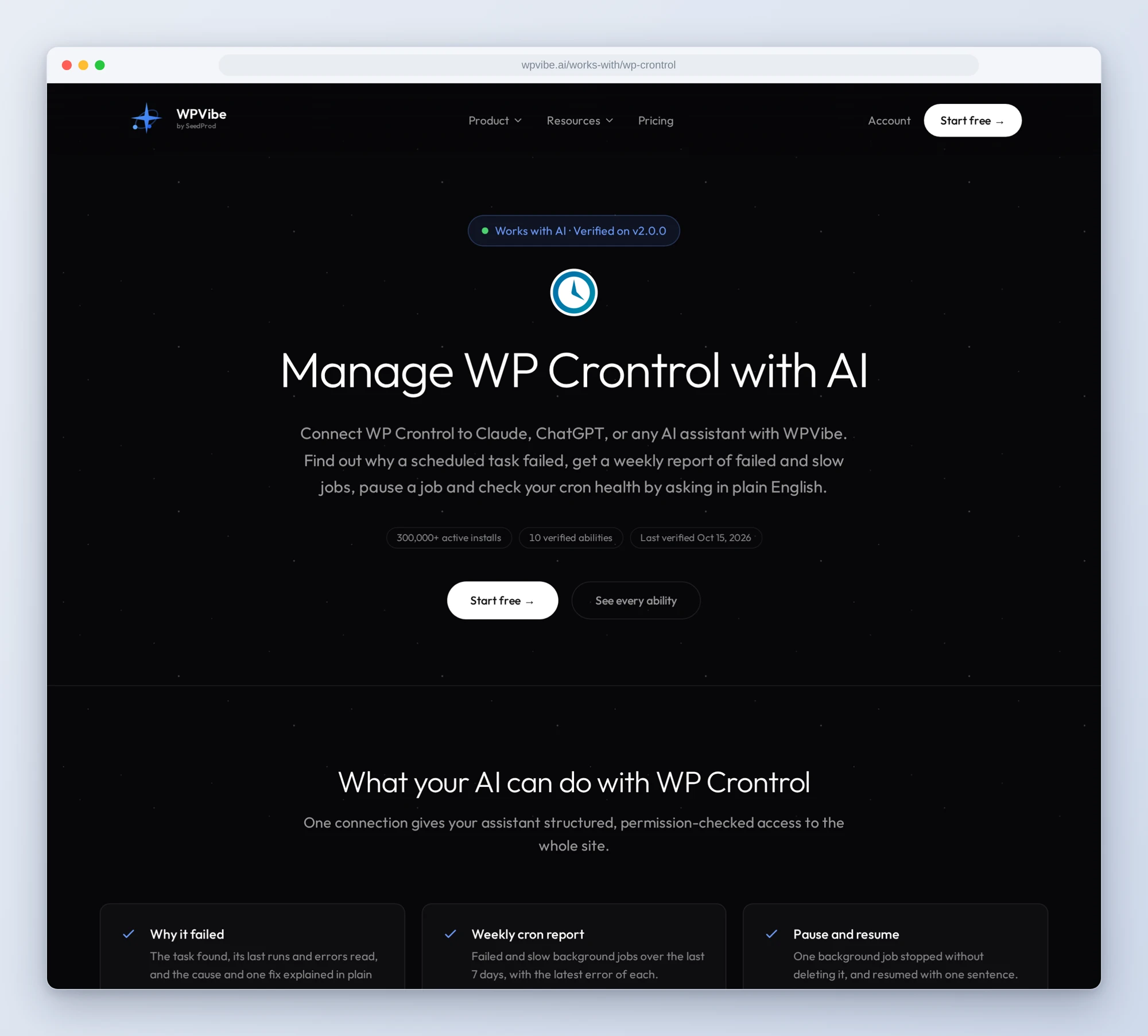
The WP Crontrol page has every ability we verified and the gotchas we found. If you only try one, make it the cron health check. It reads everything and changes nothing.
John and the WPVibe team
P.S. WPVibe is free to start and works with the Claude or ChatGPT account you already have, so there is no second AI subscription to buy. Connect your site and find out what your scheduled jobs did last night.