Is Your Site Actually Live? Your AI Can Check SeedProd for You
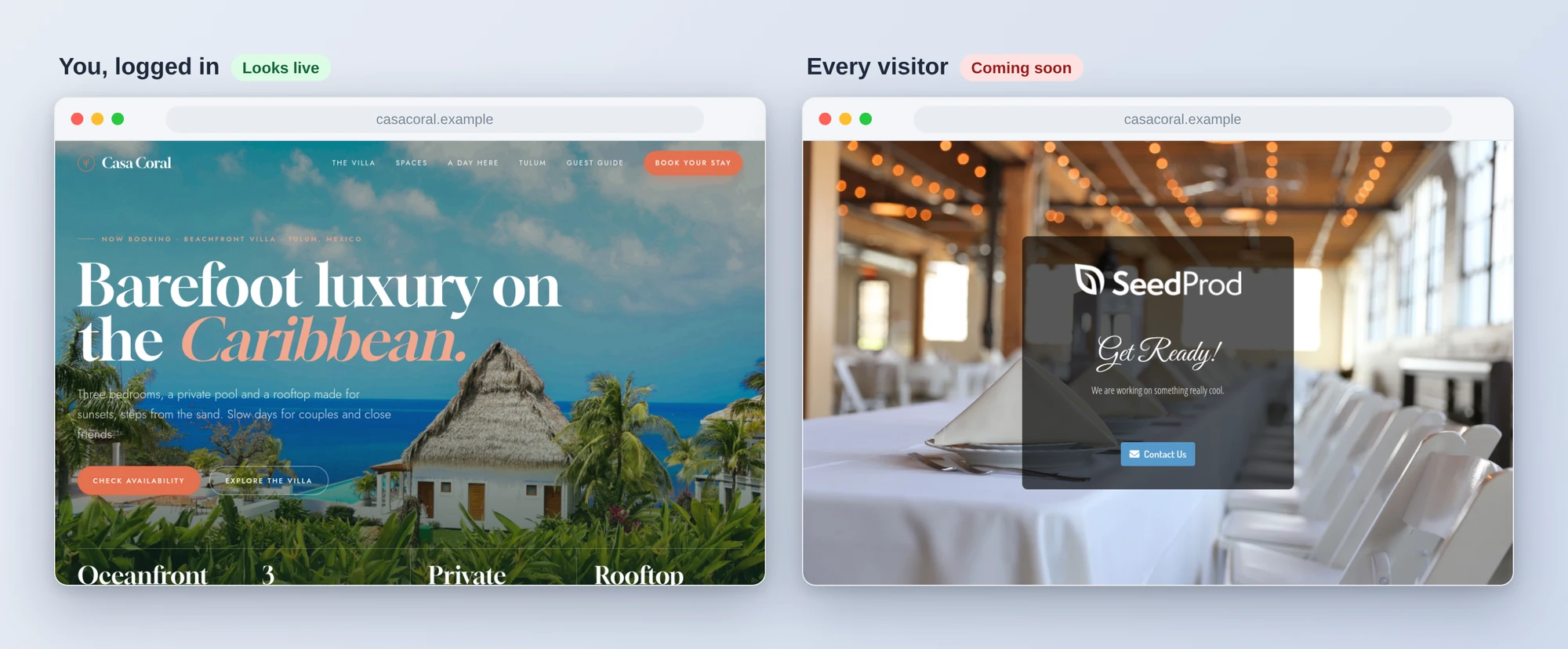
You put up a coming soon page while you built the site. Launch day came, you looked at the homepage, and there it was: the real site, every page in place. What you didn’t see is that SeedProd shows the real site to anyone who is logged in. Your customers, who aren’t, may still be getting the coming soon page.
It is an easy one to miss, because from your own browser everything looks finished. The same goes the other way: a maintenance mode switched on for an evening’s update and forgotten, telling every visitor and search engine the site is down.
Website Builder by SeedProd, the free plugin WordPress.org counts on 600,000+ sites, already worked with WPVibe for building pages. Version 6.20 adds SeedProd’s own abilities for AI assistants, and those new abilities now work with WPVibe too. WPVibe now has a verified SeedProd page and four tested recipes, so the AI you already use can tell you what visitors really see, run a maintenance window and bring the site back, and check or update the text on every SeedProd page.
What you can ask for
Each of these is a copy-paste prompt built on steps we ran against a live SeedProd install before publishing it:
- Check your site is live: your AI reads SeedProd’s status, fetches your homepage the way a visitor sees it, checks the WordPress setting that asks search engines to stay away, and switches coming soon or maintenance mode off on your yes
- Take the site offline for an update: a maintenance page that says when you are back and how to reach you, switched on when you say yes, plus one sentence that brings the site back when you are done
- Find template leftovers: a read-only sweep of every SeedProd page for placeholder text, example emails like [email protected], buttons that link to # and images without alt text
- Change a phone number, price or date on every SeedProd page: every place the old text appears, shown to you first, then replaced page by page with the rest of each page untouched
In practice it sounds like this. You paste the launch check and say “I launched last week, check that it’s really live.” Following the recipe, the AI runs SeedProd’s status check, fetches your homepage and one more page as a logged-out visitor, and tells you in plain words what customers get today. Then it stops. Only on your yes does it switch the mode off, keeping your coming soon page for next time, and it fetches the homepage again to show you the real site is what visitors now see.
To design a new coming soon page rather than check one, the coming soon page recipe still does that.
Who this is for
- Anyone about to launch. Run the launch check on the day, and again whenever someone says your site looks closed.
- Shops and booking sites with customer accounts. Logged-in customers see the real site too, so they can’t tell you it’s still hidden. The check looks the way a stranger would.
- Anyone who built on a SeedProd template. One sweep for the “My Feature or Benefit” and lorem ipsum a long page can hide.
- Agencies and freelancers. A maintenance window for a client update, with a page that says when the site is back, and a way back that works in a new chat.
How to get started
Step 1: Update SeedProd. The abilities arrived in SeedProd 6.20 and need WordPress 6.9 or newer. The free plugin is enough; we tested on SeedProd 6.20.10 (free) with WordPress 7.1. There is no setting to switch on. Use an administrator account.
Step 2: Install WPVibe and connect the AI you already use. WPVibe is an MCP server that connects the AI you already use to your WordPress site. Install the free WPVibe plugin from WordPress.org. Its settings screen has buttons to add it to Claude or ChatGPT, plus a server address for other AI apps. Sign in with a free WPVibe account when your AI asks, then paste the connect line from the same screen into your AI and open the link it replies with while logged in to your WordPress site. No passwords ever go in the chat.
Step 3: Start with the launch check. It reads before it changes anything, and it stops and tells you what it found before any switch is flipped.
Why these are worth trusting
We ran all six SeedProd abilities through WPVibe on a live test site with real SeedProd data, switched each mode on and off, and checked every mode change as a logged-out visitor. Here is what would have sent an AI the wrong way:
- Logged in, everything looks live. On the free plugin, anyone logged in, customers with accounts included, sees the real site while a mode is on (Pro can limit this by role). So every recipe checks with WPVibe’s page fetch, which loads the page as a visitor.
- The two modes answer search engines differently. Coming soon answers with a normal 200, so search engines take the coming soon page as your site. Maintenance answers with a 503 and a one-day retry, which says the outage is temporary. The recipes say which one fits: hours or days is maintenance, weeks is coming soon.
- Only one mode at a time. Turning maintenance on switches coming soon off. Left alone, a site hidden behind coming soon would go public the moment the maintenance window ended, so if coming soon is on, the maintenance recipe warns you first, and if you go ahead, the sentence it gives you to end the window switches coming soon back on with its page id.
- The switches take any page id. Give one that isn’t a SeedProd page and every visitor gets a single line, “Please create your Coming Soon Page in the plugin settings.”, with a normal 200. The recipes take the page id from SeedProd’s own status, or from the page they just created.
- A Pro block on the free plugin saves and shows nothing. A countdown saved without an error on SeedProd Lite and rendered as nothing. WPVibe’s save response names those blocks so you hear about it.
- Old Pro settings can mislead. On a site that once ran SeedProd Pro, the free plugin’s status still reported the old Pro license as active. The recipes go by the build it reports, free or Pro.
- Your AI never resends your whole page. SeedProd’s save replaces a page’s whole layout. WPVibe adds a page outline and single-section reads and edits, so your AI sends back only the sections it changed, read whole, and WPVibe keeps the rest of the page as it was. In our test, changing a phone number in two sections of a three-section page left the page identical apart from the number. WPVibe then runs SeedProd’s own builder save, so the page shows the new text without a trip to the builder.
One thing to know: WPVibe’s approval page is for abilities that delete something or run code, and SeedProd’s mode switches do neither, so they run without it. The yes in these recipes is an instruction to your AI: show you what it found and wait for you before it switches a mode or edits a page. The leftovers sweep changes nothing, and every mode switch is one request to undo.
Credit to the SeedProd team
SeedProd comes from the same team as WPVibe, and 6.20 registers six abilities with WordPress itself: status, list pages, read a page, save a page, and the two mode switches. They are shared on WordPress’s Abilities REST API, so tools built on it, WPVibe included, can find and run them. WPVibe ran all six, and the recipes are built on them, with WPVibe’s own section reads and builder save doing the rest.
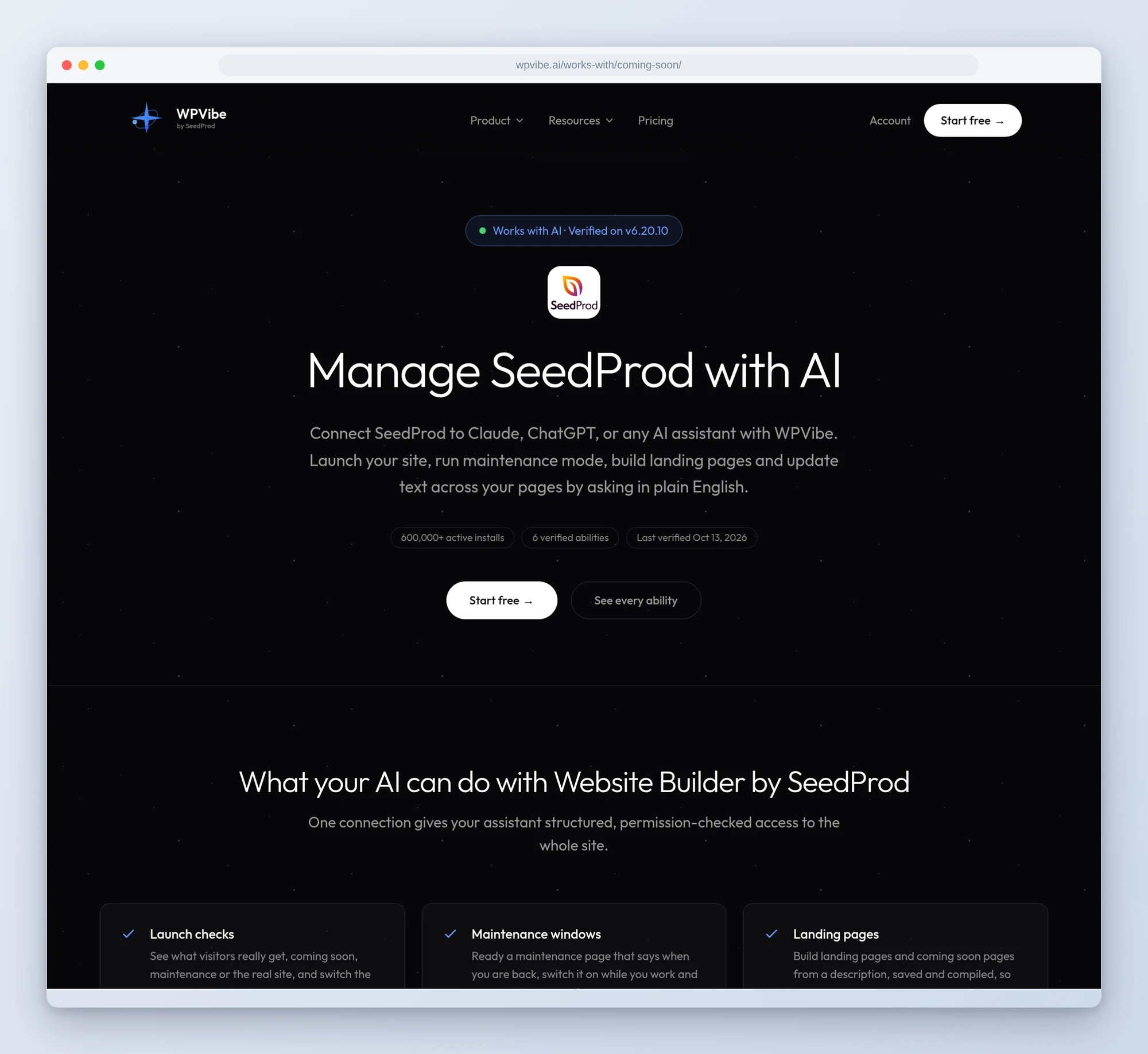
All four recipes live on the SeedProd page, with every gotcha we found. If you only try one, make it the launch check. It changes nothing until you say yes, and it may tell you something you’d rather know today.
John and the WPVibe team
P.S. WPVibe is free to start and works with the Claude or ChatGPT account you already have, so there is no second AI subscription to buy, and WPVibe’s daily allowance is separate from your Claude or ChatGPT limits. Connect your site and check what your visitors see.