How to Refresh an Old Blog Post With AI (+What to Check)
Old blog posts rarely break. They just stop being true, one update at a time, until a post you were proud of is telling readers something that changed months ago.
Rewriting a paragraph is the quick part. What eats the afternoon is working out which paragraphs are wrong, because that means going back through every claim and checking it against what’s true now.
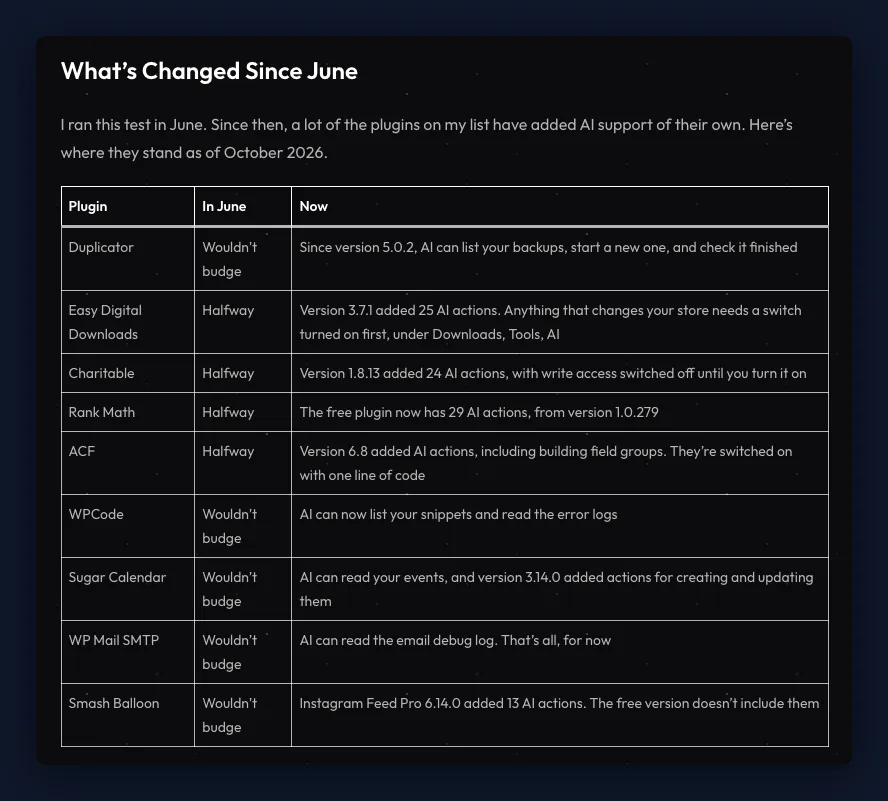
So when my July post about which plugins AI can run went out of date, I handed the checking to Claude. It found 11 plugins on my list that had changed, and saved nothing until I’d decided what to do about them.
Here’s how to do the same content refresh with AI on your own old posts, using my refresh as an example.
Jump to a section
- What You Need for a Content Refresh With AI
- How to Do a Content Refresh With AI
- Tell Your AI Where the Up-to-Date Facts Live
- Read What Your AI Found Before Anything Saves
- Check What Your AI Isn’t Sure About
- Save the Refresh as a Copy, Not Over the Live Post
- Move the Update Into the Original Post
- What Still Comes Down to You
- Frequently Asked Questions
- Would I Do a Content Refresh This Way Again
What You Need for a Content Refresh With AI
To do a content refresh with AI on your own WordPress site, you need three things, and if you already use an AI assistant you’ve got one of them.
- An AI assistant. I used Claude, but ChatGPT or Cursor would work the same way.
- WPVibe. WPVibe connects your assistant to your WordPress site, so it can read your posts and save changes itself rather than handing you text to paste in.
- A prompt. I started from the Find and Refresh Outdated Content with AI recipe in the WPVibe cookbook, a library of ready-made prompts for WordPress jobs.
How to Do a Content Refresh With AI
Doing a content refresh with AI comes down to five steps, from pasting the prompt to checking the live post afterward. Your AI does the reading in every one of them, and you make the calls.
- Paste the prompt with your post named in it, and tell your AI where the up-to-date facts live.
- Read what it found, and decide how each change should go in.
- Check everything it says it isn’t sure about.
- Have it save the refresh as a separate draft copy, not over the live post.
- Move the update into the original post, decide on the date, and check the live post.
Here’s each step in a bit more detail.
Tell Your AI Where the Up-to-Date Facts Live
The recipe I used normally looks for posts over two years old and gives you a shortlist, so if you don’t know which post needs refreshing, leave that part in. I already knew mine, so I named it instead.
Then I added one line of my own, and it’s the one I’d never skip now. It tells your AI to find out what’s changed before it proposes anything, because without it all your AI has to go on is the old post, and an old post can’t tell you what’s gone stale in it.
For mine, the up-to-date facts were in my newer posts and each plugin’s changelog on WordPress.org. For yours it might be product docs, a pricing page or your own later posts, wherever the claims in the post can be checked.
This is the prompt I used, with my details swapped for blanks.
That second paragraph comes from the recipe, and it’s what keeps you in charge. Your AI has to show you every change before it saves, and it can only move the date if the content really changed.
Read What Your AI Found Before Anything Saves
My AI came back with what had changed since I published, the edits it wanted to make, and a separate list of what it wasn’t sure about. Nothing had been saved yet.
The moment I started trusting it was the headline. My post was called “Only 6 Worked”, and my AI said “I can’t honestly replace ‘6’ with a new number”, because nobody had re-run my test, so it suggested keeping the old results as they were and adding an update.
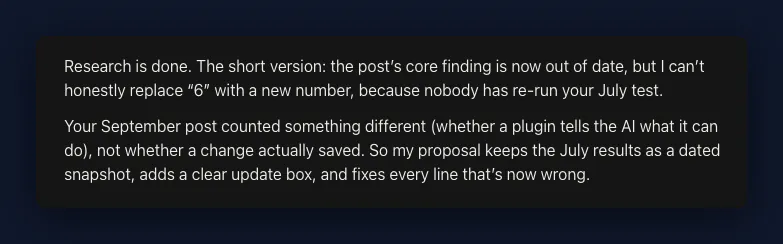
That’s the main decision in any content refresh. The recipe’s default is to fix the post in place, but mine was a test result, so the old results stayed as they were and everything that had changed went into an update.
It proposed three edits, and this is what I did with each.
| What my AI proposed | What I did |
|---|---|
| An update box saying what’s changed | Yes, but as a full section at the end, with one line after the intro pointing down to it |
| A tighter intro | No, because that’s how the post read when I published it |
| Fixing every line that was now wrong | The fixes were about right, but I had them go into the update section instead |
Check What Your AI Isn’t Sure About
The recipe asks AI to note what it isn’t sure about rather than guess, and this list is where your attention should go. On mine, it left out two plugins whose changelogs mentioned new AI features, because it hadn’t checked that they work with WPVibe, and I agreed.
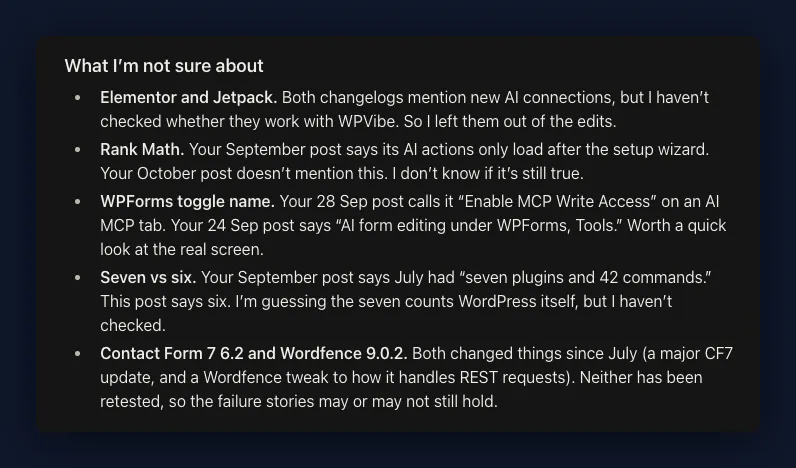
It also told me which changes came only from a plugin’s changelog, so they were what the plugin said it had added rather than something anyone had tested. That’s worth knowing before it goes in your post as fact.
And it got one thing wrong that came from my own prompt. I’d only mentioned July, so it said I ran the test in July, when I ran it in June, which is an easy slip to miss if you’re skimming.
Save the Refresh as a Copy, Not Over the Live Post
My prompt asked for “a draft or a pending revision”, and my AI pointed out the catch. Setting a live post back to draft takes it offline, and WordPress has no in-between option, since its Pending review setting disappears once a post is published.
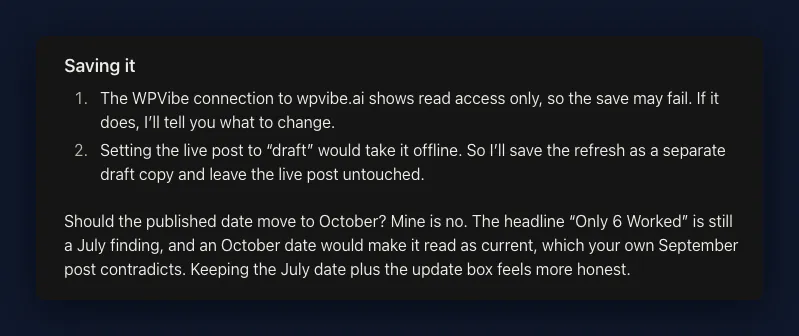
So it had WPVibe save the refresh as a separate draft copy and left the live post untouched. That gave me something to open and read through properly before anything changed for readers. And if an edit ever does go wrong on a live post, the Undo a bad edit by restoring a WordPress revision with AI recipe has your AI put the earlier version back.
Move the Update Into the Original Post
Don’t publish the copy itself. Mine had no SEO settings and the same title as the original, so instead I gave my AI three instructions.
- Move the update into the original post
- Keep the original publish date
- Move the draft copy to the trash
Keeping the date was my AI’s recommendation, and it was the right one. “Only 6 Worked” is still a July finding, so an October date would have made it read as current.
Once WPVibe had made the changes, I checked the live post. It was on the same address with the same published date, and only the last-updated date had moved, which is the one that should. My AI confirmed the SEO settings hadn’t changed either.
What Still Comes Down to You
My AI did all of the reading and checking on mine, which was always the slow part. These are the calls that still came down to me, and they’re the ones I’d look at on any refresh.
- Whether to fix the post in place or add an update section
- Everything on its not-sure list
- Changes that come from a changelog or a product’s own claims rather than a test
- Details it took from your prompt, especially dates
- Whether the publish date should move
- The live post’s address, date and SEO settings once the update is in
Frequently Asked Questions
How often should I refresh old blog posts?
How often you should refresh old blog posts depends on how fast the topic moves. I review my content as a whole once or twice a year, but a post about something that changes quickly can be out of date in a few months, as mine was, so those are worth refreshing whenever you know something’s changed.
Does changing the date on a post help SEO?
Changing the date on a post only makes sense when the content has genuinely changed. The cookbook recipe warns that changing dates alone is a trick search engines see through, so move it only when the post really is new.
How do I change the publish date of a post in WordPress?
To change the publish date of a post in WordPress, open the post in the block editor and click the gear icon at the top right to open the post settings. Click the date next to Publish, pick a new date and time in the calendar, then save the post. The WordPress guide to the settings sidebar covers each option.
Would I Do a Content Refresh This Way Again
Yes, and I already do. I refresh the articles I write for WPVibe this way almost every day, because it takes a lot less time than researching every change myself and making it by hand.
It’s the split I described in my post on which WordPress maintenance tasks to hand to AI. AI can rewrite anything you point it at, but deciding what goes in stays with you.
WPVibe is the piece that connects your assistant to your WordPress site, and you can connect Claude to WordPress for free to try it on one of your own old posts.