Claude can already write. Connected to WordPress through WPVibe, it can also publish, edit, fix, and build on your actual site, from any chat, with your approval on anything risky. Setup is a plugin install and one custom connector. Here is the whole process.
Before you start
- A self-hosted WordPress site where you can install plugins. (If your site is on WordPress.com, use their own Claude connector instead.)
- A Claude plan that includes custom connectors. Check Claude’s current plan page if you are unsure.
- Two minutes.
Step 1: Install the WPVibe plugin
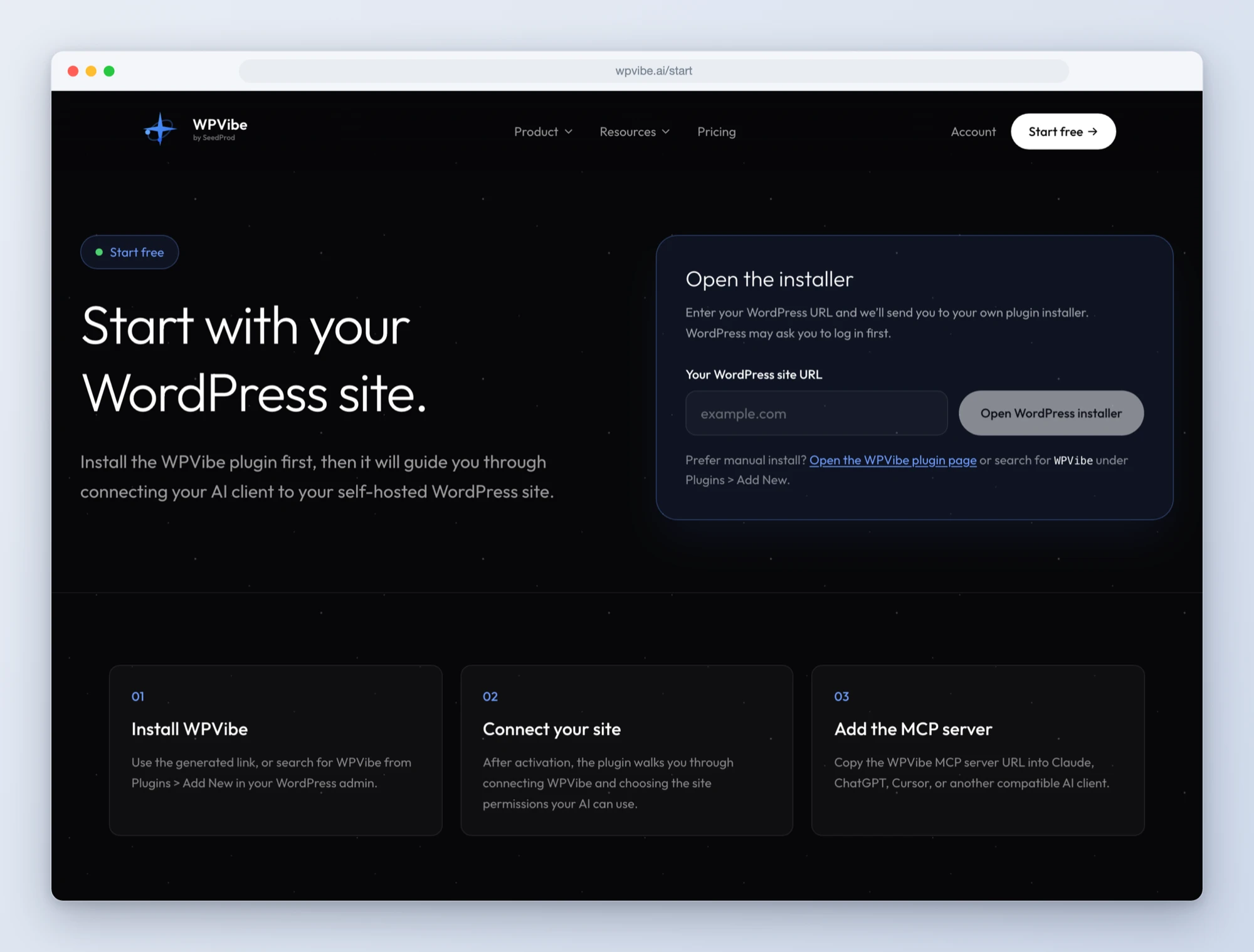
Go to wpvibe.ai/start, enter your site address, and follow the installer. It installs the free WPVibe plugin from WordPress.org and opens a one-click authorization screen in your wp-admin. Approve it and your site is connected to your WPVibe account.
Step 2: Add WPVibe as a custom connector in Claude
- In Claude, open Customize in the sidebar, then Connectors.
- Click Add, then Add custom connector.
- Name it WPVibe and paste this as the server URL:
https://mcp.wpvibe.ai/mcp - Leave the OAuth client ID and secret fields empty and click Add.
Step 3: Connect and sign in
Click Connect on the new WPVibe row. Claude opens the WPVibe sign-in: enter your email, then type the 6-digit code from the email you receive. The code is in the subject line, so it works from your phone or your computer. When the tab closes, WPVibe shows a check mark under Status.
Step 4: Try it
Start a new chat and ask:
Use WPVibe to list my connected sites. If none are connected, help me connect one.Claude lists the site you connected in step 1. From here, ask for real work: “Draft a post about our summer hours and schedule it for Monday,” or “Which plugins on my site have updates available?” If Claude answers without using WPVibe, make sure the connector is switched on in the chat’s tools menu.
Watch it done in two minutes
Claude Desktop and Claude Code
Claude Desktop shares connectors with your Claude account, so once WPVibe is connected on claude.ai it is available in the desktop app too. If it does not show up, restart the app.
Claude Code connects with one command in the terminal, then the same sign-in:
claude mcp add --transport http wpvibe https://mcp.wpvibe.ai/mcpWhat Claude can do once it is connected
Anything the WordPress user you authorized can do. Some starting points from the cookbook:
- Add schema markup to key pages so you qualify for rich results.
- Add analytics or a pixel sitewide without editing a theme file.
- Copy a page to another of your sites as a draft.
- Write and schedule posts, update plugins, run an SEO or accessibility audit, or build a landing page in your page builder.
Safe by default
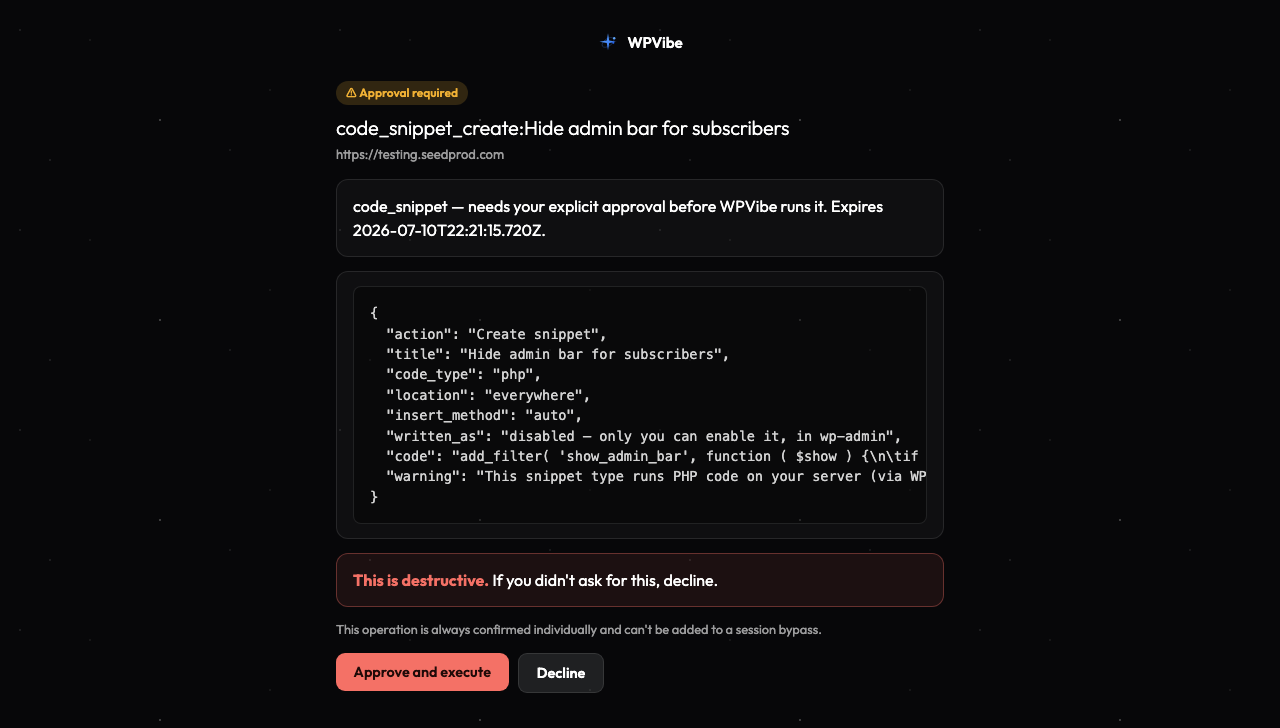
Claude works as the WordPress user you authorized and cannot exceed that user’s permissions. Theme changes happen in a draft with a private preview and an explicit publish. Bulk or destructive operations show a dry run and wait for your approval in the browser. Deleted content goes to the trash, not away. You can disconnect a site, or revoke the connector in Claude, at any time. More on the security page.
Frequently asked questions
Does Claude have a WordPress connector?
Claude’s connector directory includes WordPress.com, which works for sites hosted there. For self-hosted WordPress, WPVibe is the connector: add it once as a custom connector and it works with every site you install the plugin on.
Is it free?
Yes. The WPVibe free plan includes every tool, unlimited connected sites, and a daily allowance of actions. Paid plans raise the allowance. You use your own Claude subscription; WPVibe does not run the model.
Can I connect more than one site?
Yes, on every plan. Install the plugin on each site, and tell Claude which site you mean in the chat.
Which Claude model should I use?
Connecting and everyday edits work on any model. For larger jobs such as building pages or auditing a whole site, turn on extended thinking so Claude plans the steps instead of stopping early.
Something is not working
Start with troubleshooting the connection. If WPVibe can read your site but edits fail, your host’s firewall is probably blocking writes; the firewall guide has the fix. Still stuck? Contact support.