Cursor already edits your theme and plugin code. Connected to WordPress through WPVibe, it can also read the live site, change content and settings, run WP-CLI commands, and check its own work in the browser, without leaving the editor. Setup is a plugin install and one MCP server entry.
Before you start
- A self-hosted WordPress site where you can install plugins.
- Cursor with MCP support (any recent version).
- Two minutes.
Step 1: Install the WPVibe plugin
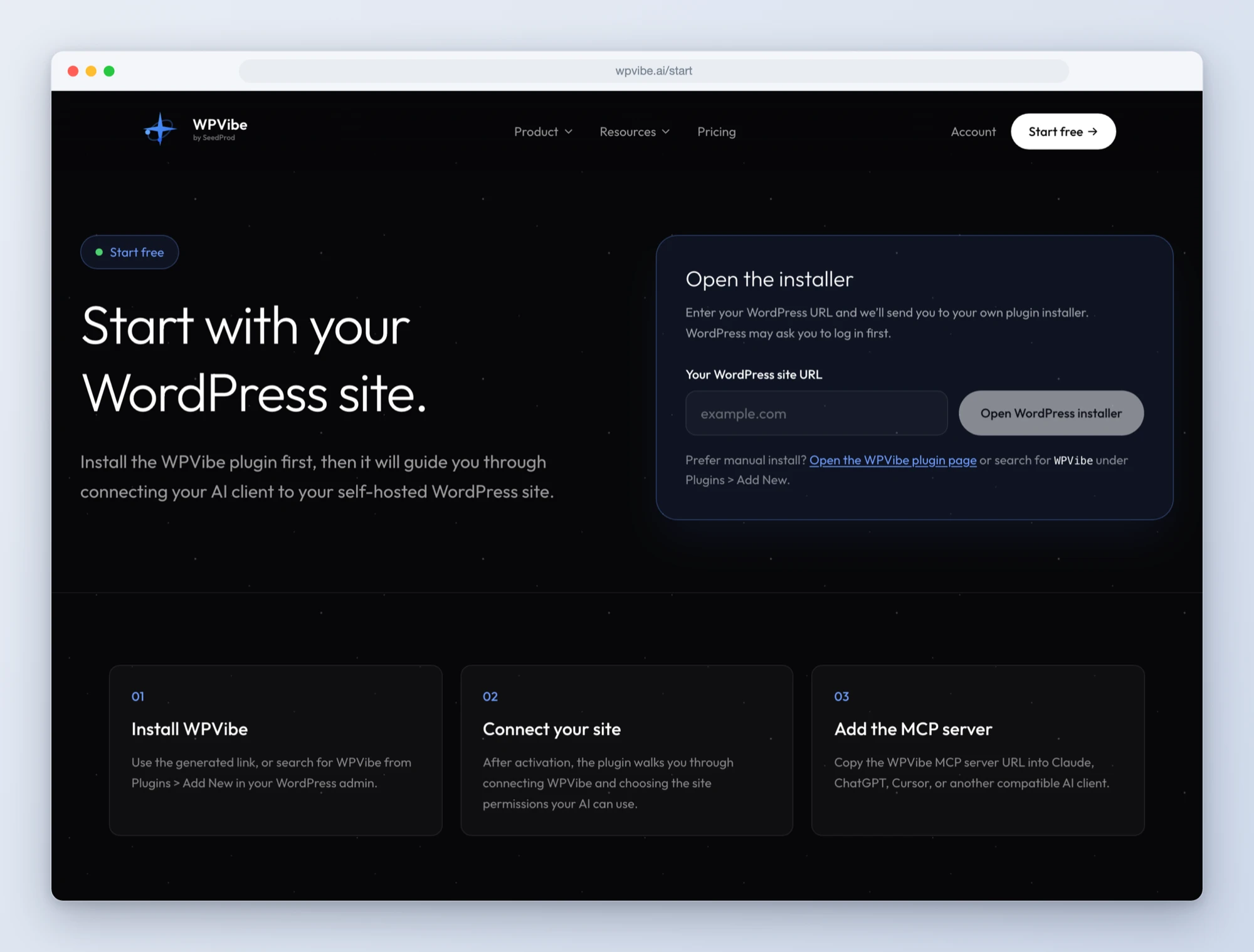
Go to wpvibe.ai/start, enter your site address, and follow the installer. It installs the free WPVibe plugin from WordPress.org and opens a one-click authorization screen in your wp-admin. Approve it and your site is connected to your WPVibe account.
Step 2: Add WPVibe as an MCP server in Cursor
The fastest way is to let Cursor do it. Open a new agent chat and paste:
Set up the WPVibe MCP server for this client. The server URL is https://mcp.wpvibe.ai/mcp. Use Cursor's native way of adding a remote MCP server with OAuth sign-in. Then reload the MCP servers and start the WPVibe sign-in.To do it by hand instead: open Cursor Settings, go to the MCP section (labelled Tools & MCP or MCP depending on your version), choose to add a new MCP server, and add this entry to the config it opens:
{
  "mcpServers": {
    "wpvibe": {
      "url": "https://mcp.wpvibe.ai/mcp"
    }
  }
}
Save the file. Put the same entry in a project’s .cursor/mcp.json if you only want WPVibe available in that project, or in the global config to have it everywhere.
Step 3: Sign in
Back in the MCP settings, the WPVibe server shows a login prompt. Click it and a browser tab opens the WPVibe sign-in: enter your email, then type the 6-digit code from the email you receive. The code is in the subject line. When the tab closes, Cursor lists the WPVibe tools under the server.
Step 4: Try it
Use WPVibe to list my connected sites. If none are connected, help me connect one.Cursor lists the site from step 1. From here the useful pattern is code and site together: “Add a testimonials section to the front page template, then check the live homepage renders it,” or “Which plugins on this site need updates? Update the safe ones.” For site-wide jobs, pick the strongest model your plan offers so the agent plans the steps instead of stopping early.
What Cursor can do once it is connected
- Edit theme and plugin files on the live site in a draft, preview privately, and publish when you approve.
- Read the rendered page or a screenshot to verify a change, instead of guessing.
- Run allowlisted WP-CLI commands: plugin updates, cache flushes, search-replace with a dry run.
- Everything in the cookbook: schema markup, sitewide analytics, copying pages between sites.
Safe by default
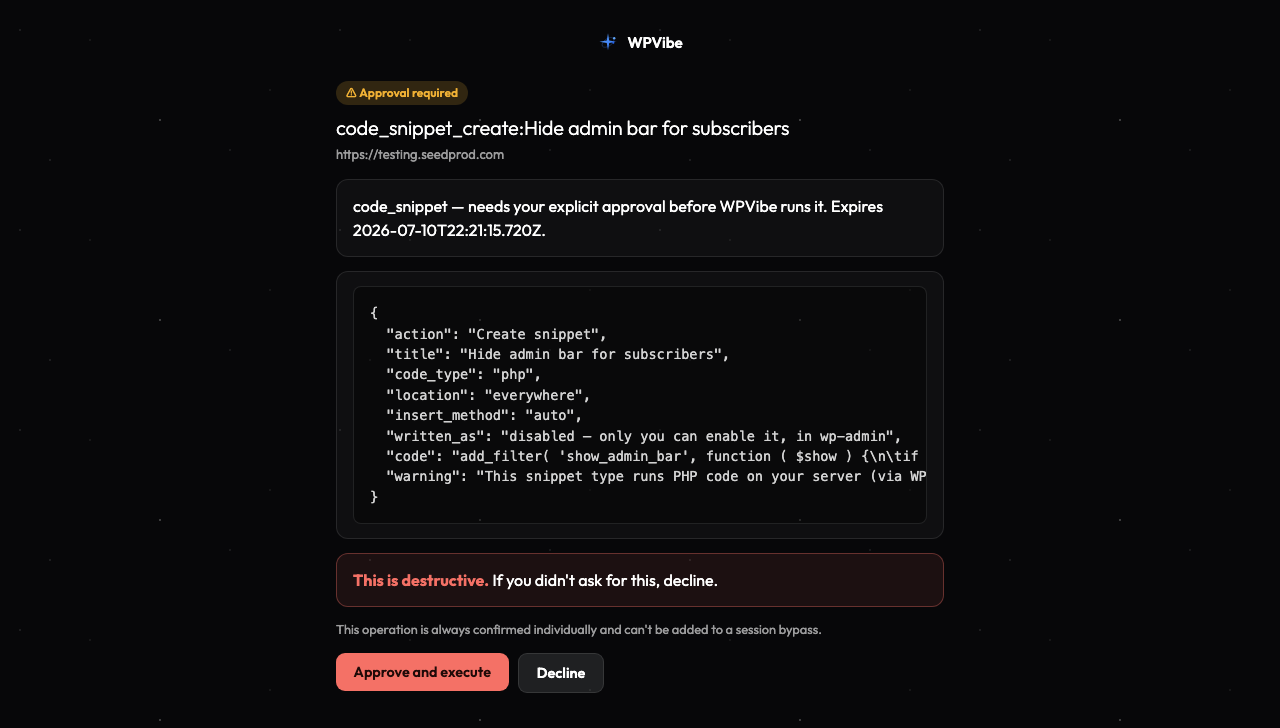
Cursor works as the WordPress user you authorized and cannot exceed that user’s permissions. Theme changes happen in a draft with a private preview and an explicit publish. Bulk or destructive operations show a dry run and wait for your approval in the browser. Deleted content goes to the trash, not away. You can disconnect a site, or remove the server entry, at any time. More on the security page.
Frequently asked questions
Does Cursor need a local copy of the site?
No. WPVibe talks to the live site over HTTPS through the plugin. If you also have the theme checked out locally, Cursor can work on both: edit locally, push, then verify on the live site through WPVibe.
Is it free?
Yes. The WPVibe free plan includes every tool, unlimited connected sites, and a daily allowance of actions. Paid plans raise the allowance. You use your own Cursor subscription; WPVibe does not run the model.
The server shows an error or never asks me to sign in
Check the entry uses url, not command, and that there is only one WPVibe entry across your project and global configs. Then reload MCP servers. The connection troubleshooting guide covers the rest, and support is a message away.