Your AI Just Learned BackWPup
Your backup plugin runs every night, so nobody looks at it. Then a host move stops WordPress’s scheduler from firing, or the backup folder stops being writable, and every run since has ended with an error. Nothing on the site looks different until the day an update breaks something and the newest good copy is months old. Even a backup marked completed can be missing a part: BackWPup logs the error and carries on. Finding that out means reading a log full of steps and file paths, and that is the part that gets put off.
BackWPup, on 400,000+ sites by WordPress.org’s count, backs up your database and files on a schedule to a folder on the server or to cloud storage. It also gives AI assistants abilities to list its backup jobs, start and cancel a backup, and read its backup history and logs. WPVibe now has a verified BackWPup page and four tested recipes, so the AI you already use can check that your backups really ran, take a full backup before an update, tell you why one failed, and stop one that is stuck.
What you can ask for
Each of these is a copy-paste prompt built on calls we ran against a live BackWPup install before publishing it:
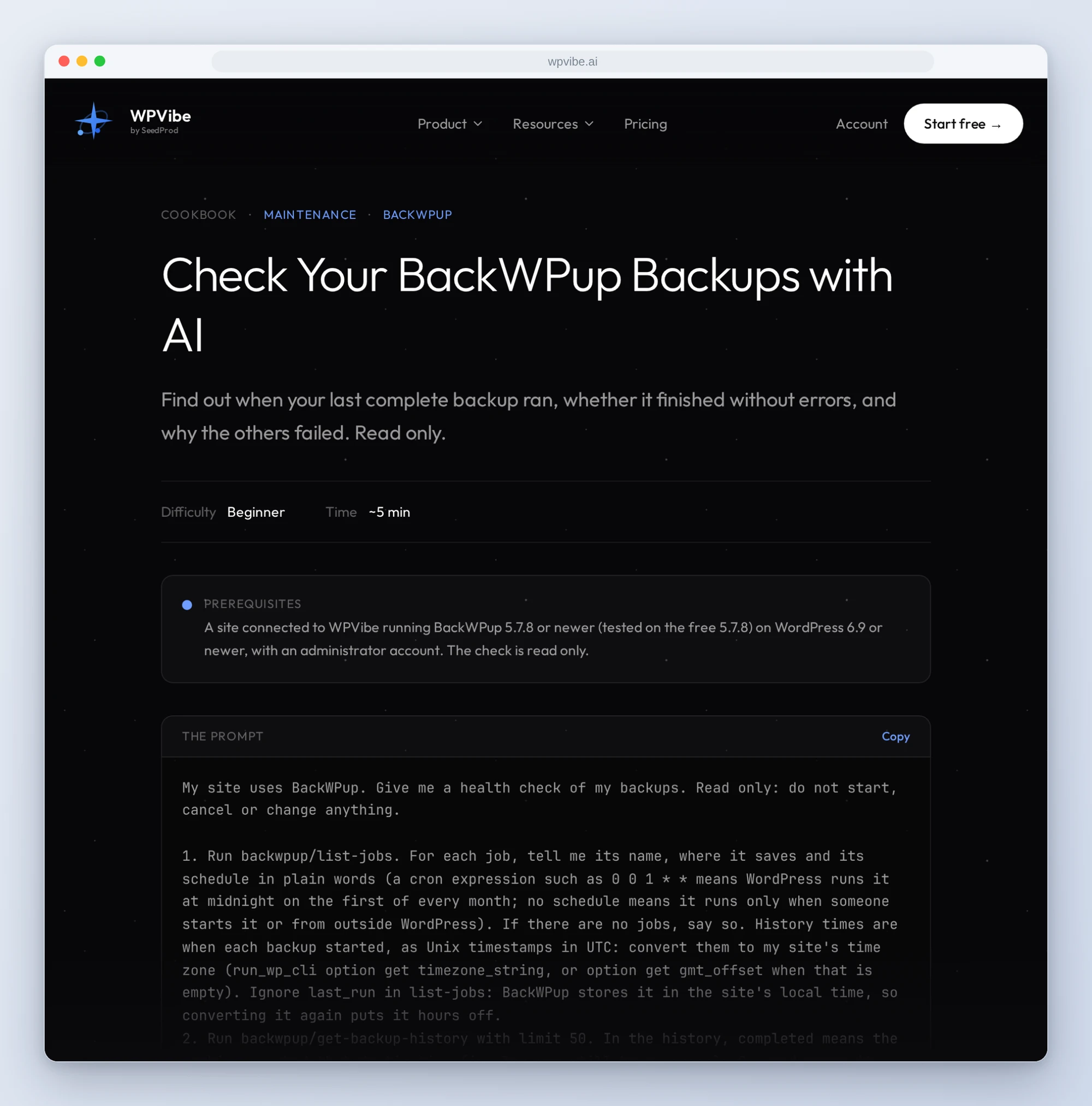
- Check your BackWPup backups: which jobs run on a schedule and whether they really fire, how recent your newest database and files copies are, whether their logs are free of errors, and what went wrong with the rest. Read only.
- Back up your site before an update: a full backup started on your yes, followed until it ends (or you’re told where it stands) and checked for errors, before the AI touches a plugin, theme or WordPress
- Find out why a backup failed: the log read for you, where it stopped, each error in plain words, and the fix to make in BackWPup. Read only.
- Stop a stuck backup: whether a running backup is still moving, and a stop only on your yes, so the next one can run
In practice it sounds like this. You are about to update WooCommerce, so you paste the before-an-update recipe. The AI checks that no backup is already running, tells you it will start BackWPup’s Backup Now, which saves the database tables, the site files and a list of installed plugins, and waits for your yes. It starts the backup once, then checks the history every so often and tells you the step and progress until it ends (on a very long backup, it tells you where it is and asks you to check back). It reads the log, and if there is an error it quotes it, explains it and stops. If the log is clean, it gives you the file name, the size and how long it took, then waits for you to say go before the update. A full backup of our 2.4 GB test site took about seven minutes.
Who this is for
- Site owners who set up BackWPup once and never looked again. Find out in one answer whether your newest database and files copies are recent and clean.
- Anyone about to update a plugin, theme or WordPress. Get a finished, error-free backup first, without opening BackWPup and watching it run.
- Anyone who got a BackWPup error email. Have the log read and the cause named in plain words.
- Agencies looking after many sites. A plain-language backup check per site, without clicking through every BackWPup screen.
How to get started
Step 1: Install or update BackWPup. The recipes need BackWPup 5.7.8 or newer on WordPress 6.9 or newer, with an administrator account. The free version is enough.
Step 2: Install WPVibe and connect the AI you already use. WPVibe is an MCP server that connects the AI you already use to your WordPress site. Install the free WPVibe plugin from WordPress.org. Its settings screen has buttons to add it to Claude or ChatGPT, plus a server address for other AI apps. Sign in with a free WPVibe account when your AI asks, then paste the connect line from the same screen into your AI, open the link it replies with while logged in to your WordPress site, and approve. No passwords ever go in the chat.
Step 3: Start with the backup check. It only reads, so it is the safe first run, and it tells you how recent your newest good copy really is.
Why these are worth trusting
We installed BackWPup 5.7.8, the free version, on a test site that already runs WooCommerce and LifterLMS. Six abilities register, and WPVibe can reach five of them (the sixth, a docs overview, is not exposed over REST). All five ran through WPVibe: we listed jobs, ran full backups, cancelled one mid-run, forced one to fail, and read the history and logs after each. We wrote down what would have sent an AI the wrong way, from our tests and from BackWPup’s code:
- “Could not start” can be wrong. Starting a backup checks after one second, so our first run answered that it could not start while the backup ran and completed. The recipes follow the history, not the answer, and never start a second one.
- Completed doesn’t mean every part made it. A part that fails is logged as an error and the job carries on, so the recipes read the log of your newest completed backups too.
- Aborted usually means cancelled, but not always. After a cancel, a failed run of the same job can show aborted too. Only the log tells them apart, so that is what the recipes read.
- The job list can look empty. It leaves out temporary jobs, and on a fresh install the first job BackWPup’s setup creates was one of them.
- Times can be hours off. The history is in UTC and the job list’s last run is in the site’s local time, so the recipes convert one and ignore the other.
- Backup Now stays on the same server. It saves to BackWPup’s folder on the site and keeps the newest 15. That helps when an update goes wrong, not when the server is lost, so the recipe lets you name a cloud-storage job you’ve already set up in BackWPup instead.
- Some things stay in BackWPup. The AI can start, follow and cancel backups and read their logs. Restoring, downloading or deleting a backup, and creating jobs or changing schedules, stay in BackWPup. Starting and cancelling run without an approval page, so the recipes ask for your yes in the chat first.
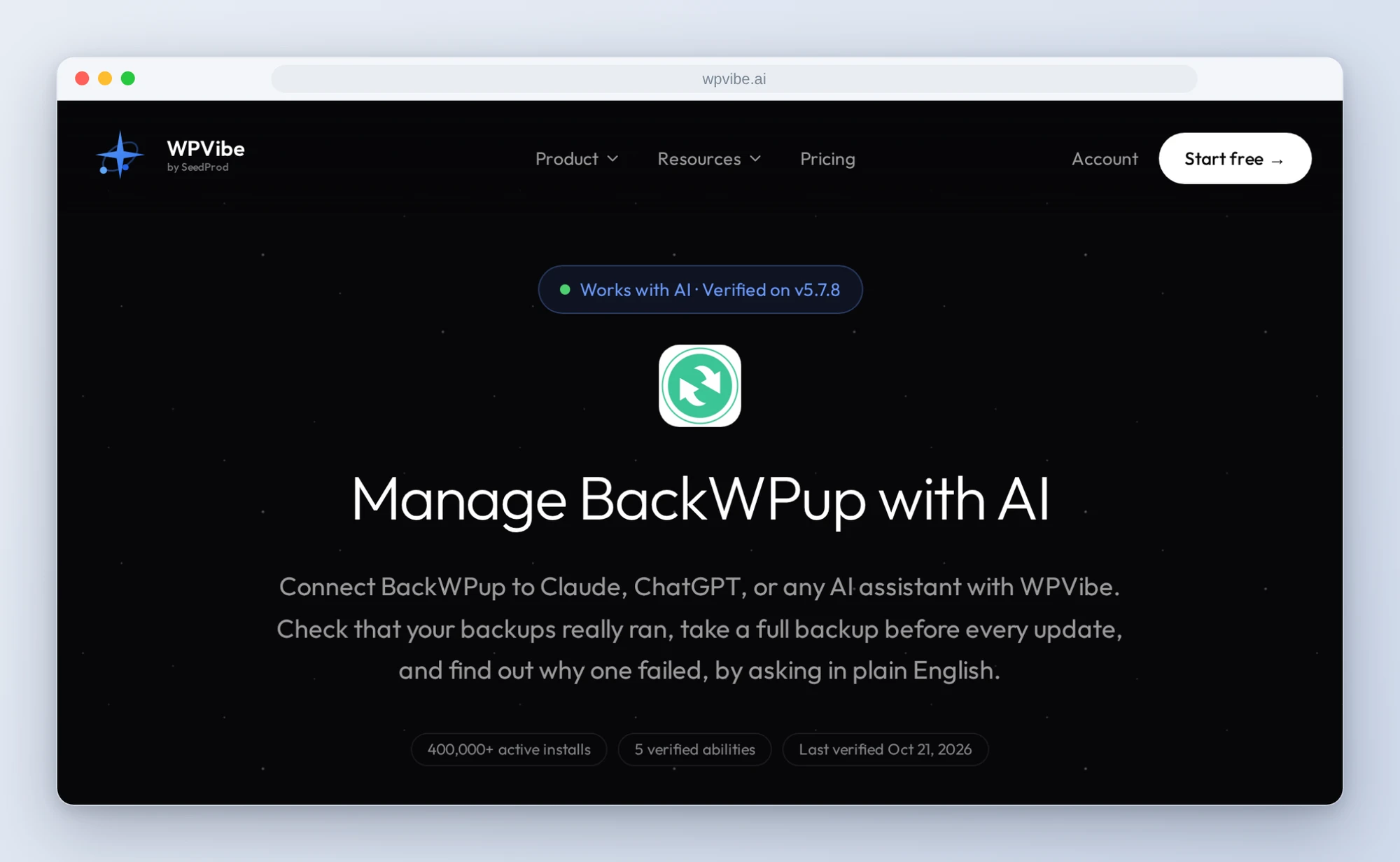
The BackWPup page has every ability we verified and the gotchas we found. If you only try one, make it the backup check. It is the one that tells you whether the copy you are counting on is really there.
John and the WPVibe team
P.S. WPVibe is free to start and works with the Claude or ChatGPT account you already have, so there is no second AI subscription to buy. Connect your site and ask your AI when your last good backup ran.