WPVibe 1.16: Update Every Site From Chat, and Big Jobs That Actually Finish
If you look after more than two or three WordPress sites, you know the routine. Log into the site manager. Click “update all.” Then open every site in a new tab to see whether anything broke, because the manager can’t tell you.
That routine costs you a separate dashboard, a separate plugin on every site, a per-site bill, and one more login. And the thing it does most, the update run, is the thing it’s least honest about. It says “updated” and leaves the checking to you.
Here’s what bothered me while we built this. The AI you already talk to every day knows how to run an update. It just never had a way to reach all of your sites at once, or to keep working after you closed the tab.
Now it does.
What’s new in WPVibe 1.16
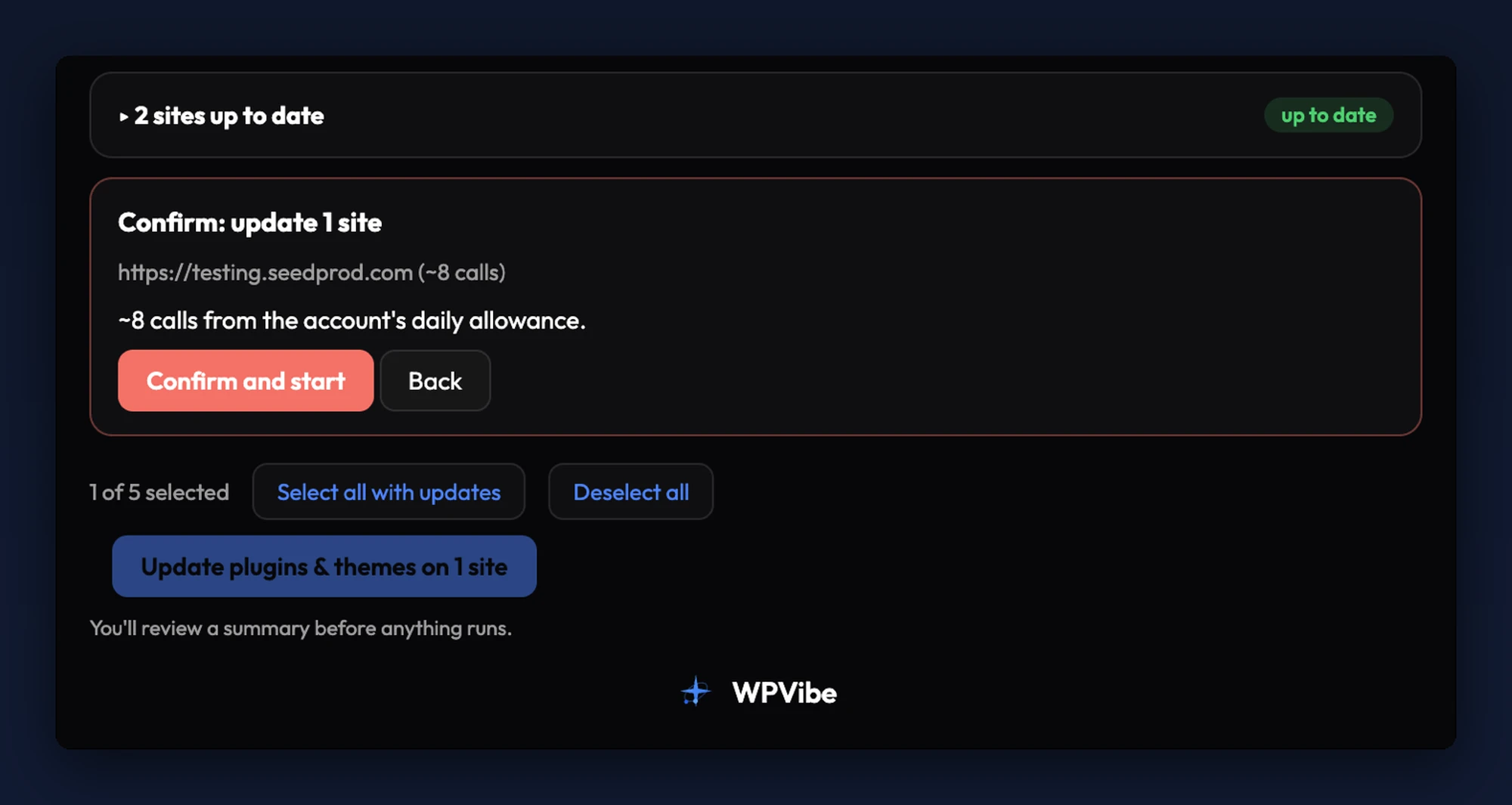
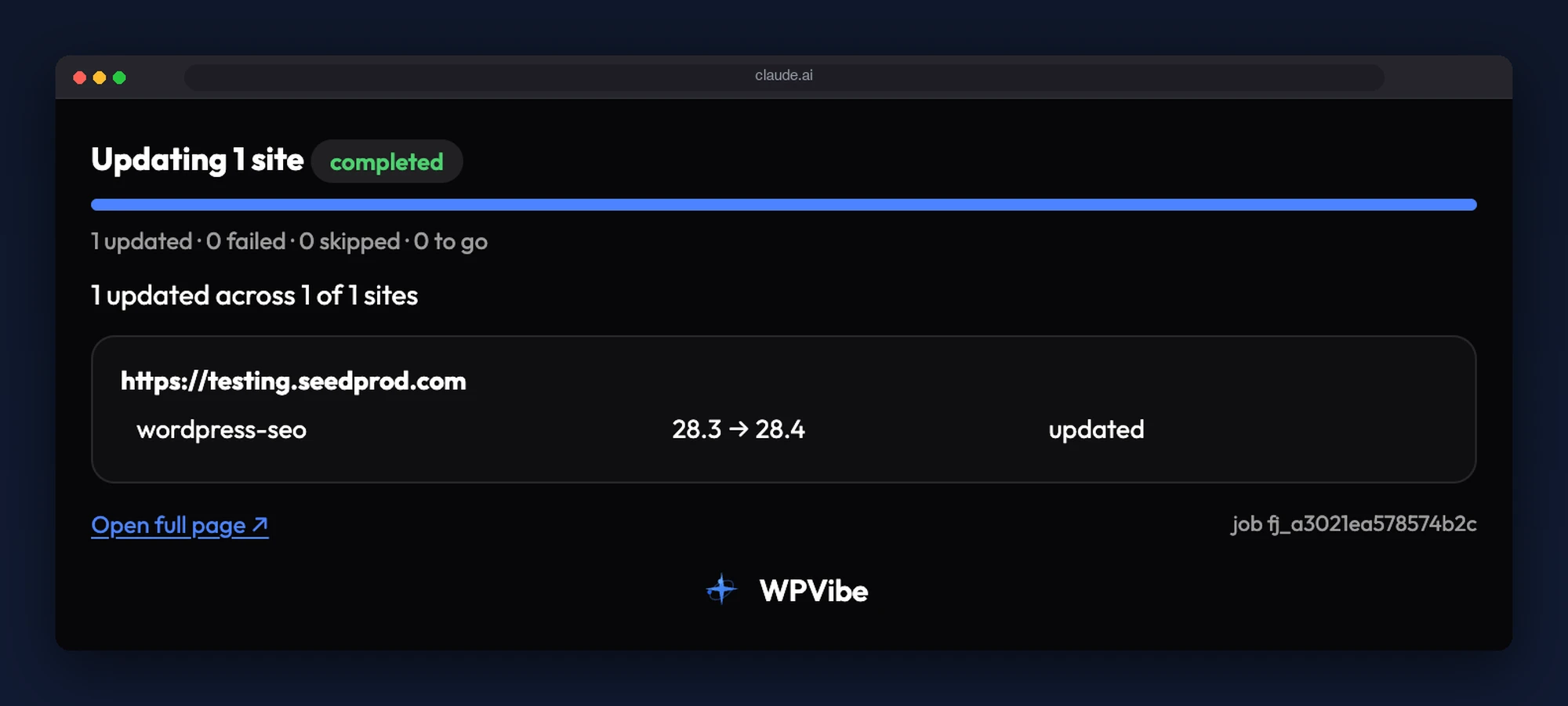
Fleet updates from one panel. Ask your AI what updates are available across your sites and WPVibe renders a live roster right in the chat: every connected site, every pending plugin, theme, and core update, with the version numbers. Tick the sites you want, confirm the plan and its cost, and a background job takes it from there. You watch the progress in the same panel, and when it finishes, your AI summarizes the outcome and flags anything that needs attention.
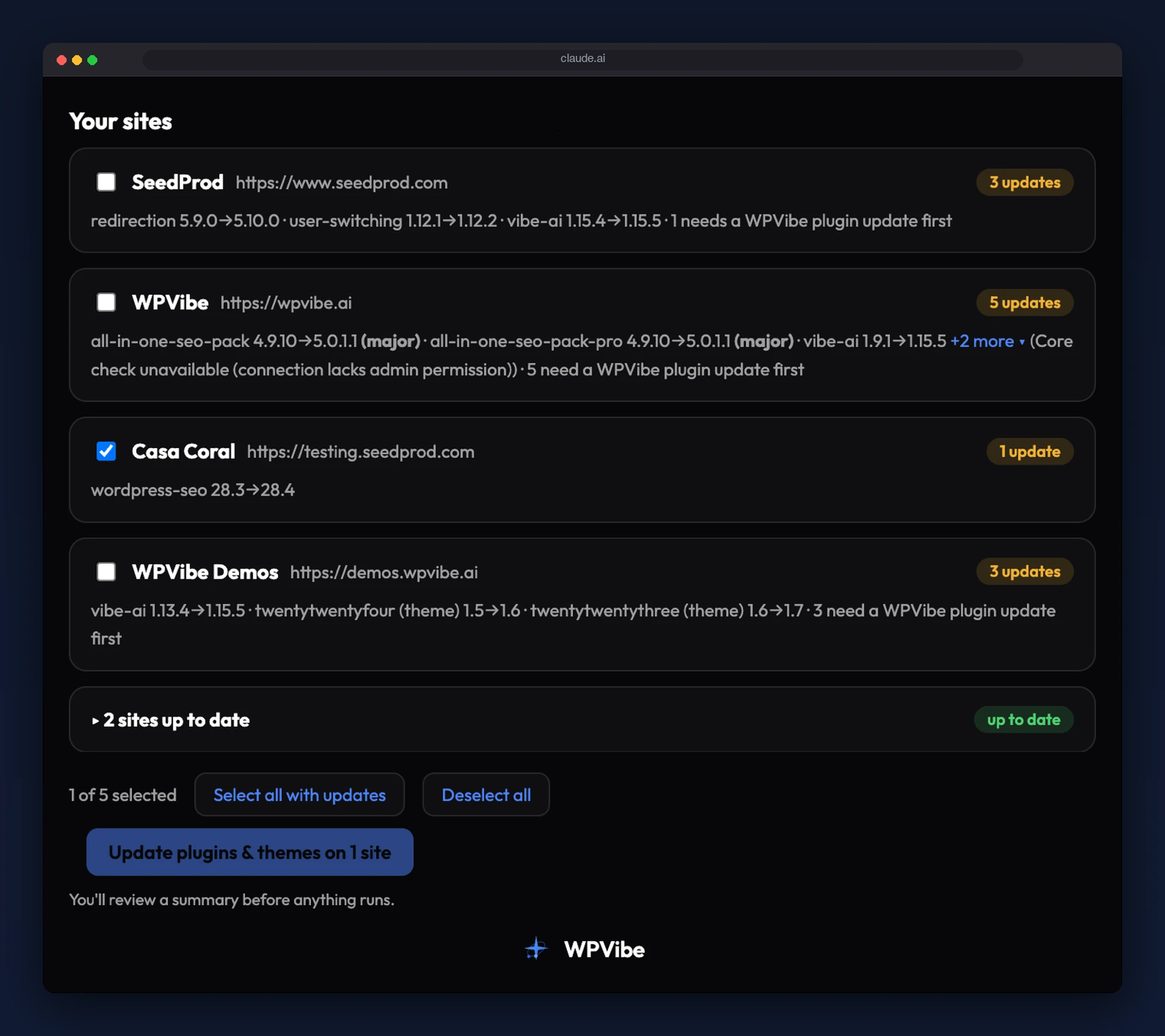
Every site gets checked, before and after. Before each update, WPVibe rechecks the site, so it never applies a version that changed between review and execution. After each update, it verifies the new version actually landed. If a site fails, that site stops and the job moves on. One broken site doesn’t take the rest of your fleet down with it.
Core is opt-in, and it waits for you. Plugins and themes run by default. WordPress core does not. You include it explicitly, and even then the job pauses for your approval in the browser before touching core, because core can’t be rolled back from inside WPVibe. Everything else keeps going while it waits.
Jobs that survive the tab, the turn, and the daily allowance. Close the chat. The job keeps running. Hit your daily allowance mid-way, and the job parks and resumes when it resets. That’s the difference between a chat assistant and something you can hand real maintenance to.
Built on MCP Tasks, ahead of the clients. MCP is the open standard that connects assistants like Claude and ChatGPT to tools like WPVibe. Until now it only covered work that fits in one request: ask, wait, get an answer. Tasks is the new part of the standard for work that doesn’t. A tool hands back a task, the assistant can check on it, gets told when it needs your input, and collects the result later, even in a different conversation. WPVibe’s fleet jobs use the exact states and shape the Tasks spec defines. Today your assistant follows a job through the panel and a status link. When Claude and ChatGPT adopt Tasks natively, the same jobs show up as first-class tasks in your assistant, with nothing to change on your end.
Big commands that used to time out now finish. A live search-replace across a large database, or a mutating query you’ve approved, used to die at the host’s execution limit with no record of what happened. In 1.16, approved long-running commands run in the background on the site itself and write their outcome to a receipt your AI polls. Same for bulk cleanup: deleting hundreds of spam comments, trashed posts, or users now runs as a chunked job with a receipt per chunk, instead of one giant call that never returns.
WPVibe updates itself. Tell your AI to update WPVibe and it schedules the update to run out of band, the same model WordPress core uses, so the connection serving your request is never the one replacing its own files. Where available, WordPress’s automatic updater handles it with its post-update fatal check and rollback. You can also enroll WPVibe, or any plugin, in WordPress auto-updates from chat.
Version pinning. A new --expect-version flag on plugin and theme updates refuses to run if the available version isn’t the one you named. It closes the gap where a newer release lands between you reviewing the plan and the update executing.
Comment moderation from chat. Approve, unapprove, spam, trash, reply, and delete comments without opening wp-admin. Permanent deletes pause for approval.
Theme updates across the board. theme update --all with --exclude and --dry-run, plus multiple theme slugs in one command, matching what the plugin update family already did.
Hardening. The approval-only routes now verify a per-operation proof signed by WPVibe with a key provisioned per site, so an approved operation can only be executed by the approval flow that showed it to you. Raw SQL that writes to a protected identity table is refused at submission instead of after a human approves it, and the refusal names the table. Publishing a draft theme whose functions.php fatals now rolls back to the theme the site was actually running.
What this is, and what it isn’t
WPVibe now takes over the update run, which is the part of a site manager most people open it for. It does not do backups or uptime monitoring. Keep those. What changes is that the updates, the checks, the approvals, and the summary all happen in the conversation you’re already having, and they finish whether or not you stay in the room. If a site should show a maintenance page while the work happens, that is another thing you can ask for.
How to run your first fleet update
Step 1: Connect your sites. Each site needs the free WPVibe plugin and a one-click connection. If your sites are already connected, skip ahead.
Step 2: Ask. In Claude or ChatGPT, say: “Show me what updates are available across all my WordPress sites.” The roster appears in the chat.
Step 3: Pick and confirm. Check the sites you want. Leave core out or include it with one click. Confirm the plan.
Step 4: Let it run. Watch the progress, or close the tab. Your AI reports back when it’s done.
If your assistant can’t render the panel, WPVibe gives you a read-only link instead, along with the exact sentence to paste back into the chat to start the same job.
Who this is for
- Agencies and freelancers who run monthly maintenance across client sites and want the update run to happen in one conversation with a receipt per site.
- Solo owners with a handful of sites who have never wanted a separate management dashboard and now don’t need one.
- Anyone who has watched a search-replace die at the timeout and had to guess how far it got.
A note on what it will and won’t do without asking
Plugin and theme updates run on your say-so from the panel. Core waits for a second, explicit approval. Permanent deletes and mutating SQL pause for approval. Nothing in a fleet job touches your site until you’ve seen the plan and its cost. That’s the deal WPVibe has always made, and the fleet runner keeps it.
Get it
Update the WPVibe plugin to 1.16 on each site, or let your AI do it, and the fleet panel is waiting in your next chat.
Start here if you haven’t connected a site yet.
The WPVibe plugin is free on WordPress.org.
Thanks for running your sites with us.
John and the WPVibe team
P.S. Theme and core updates in a fleet job need plugin 1.16 on the site. The roster tells you which sites still need the plugin update, and WPVibe can update itself, so that’s a one-line ask.