How to Put WordPress in Maintenance Mode, and Undo It
I’ve been handing Claude more and more of my WordPress admin lately, mostly small stuff, and last week I got curious about where the ceiling was. Could I just ask it to take a site offline and put it into WordPress maintenance mode?
Normally I’d log in, hunt for the setting, remember it’s under the plugin rather than Settings, pick the page visitors get, switch it on, do the actual job, then hope I remember to switch it back.
None of that is hard. It’s five minutes of clicking wrapped around one switch.
So I asked. Coming-soon mode went on from a single sentence. Then I asked for maintenance mode and hit the gap I didn’t know was there.
That gap is why this post exists. I’d half expected it to fall over somewhere along the way. Instead it did something I wasn’t expecting at all.
How to Put WordPress in Maintenance Mode
WordPress does have a maintenance mode of its own, but you can’t switch it on. It shows for a few seconds while an update installs, then clears itself. For planned work you need a plugin.
Mine is SeedProd, and both maintenance mode and coming soon mode are in its free version. Here’s the whole job by hand.
- In your WordPress admin, go to SeedProd, then Dashboard.
- Find the Maintenance Mode card and click Setup.
- Pick a template, or start from a blank one.
- Write what you want visitors to see, then click Save.
- Back on the SeedProd dashboard, set the Maintenance Mode toggle to Active.
Visitors now get your page. You still see the real site, and so does anyone else logged in, which is what makes this usable while you work.
One detail matters more than the design. Maintenance mode returns an HTTP 503 status, the code that tells search engines a site is temporarily unavailable rather than gone. Coming soon mode returns a normal 200, so the two aren’t interchangeable.
That’s the manual route, and there’s nothing hard in it. What I wanted to know was whether I could skip it and just ask.
Putting WordPress in Coming-Soon Mode With One Message
The site I was poking at is Birch and Bloom, a plant shop I keep for testing. Locally grown flowers, same-day delivery, entirely fictional.
My message was about as lazy as I could make it: “Put Birch and Bloom into coming soon mode.” I didn’t name a page or touch a setting.
Neither mode is really a WordPress thing, though. They belong to whatever plugin you’ve handed the job to, and here that’s SeedProd, the drag-and-drop builder I use for landing pages, which comes with coming soon and maintenance mode built in.
Claude gets to it through WPVibe.
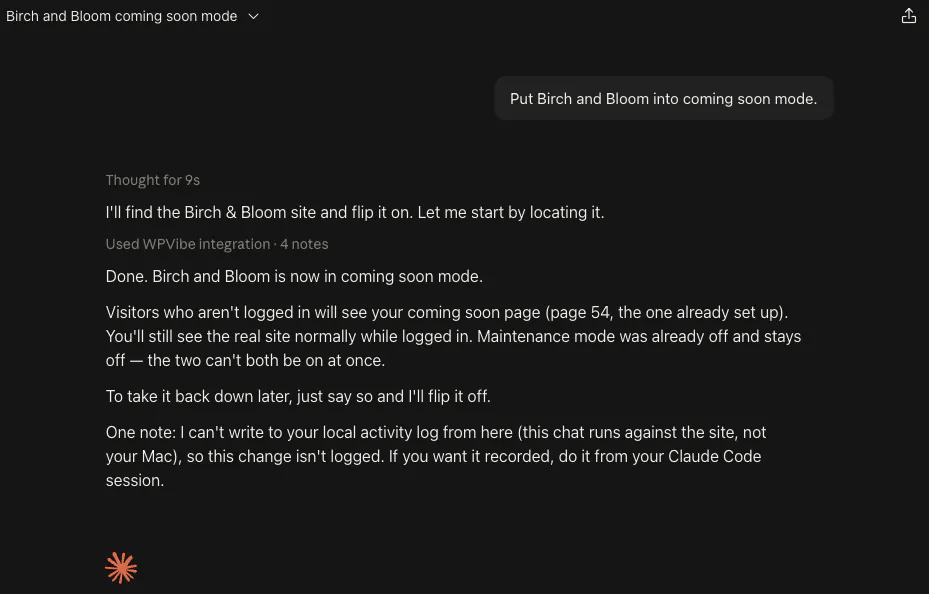
After sending my initial prompt, Claude switched coming soon mode on and told me which page it had grabbed: id 54, “Birch & Bloom Coming Soon,” which was sitting there from an earlier test.
I’d left a private tab open, because I wanted to see what visitors saw rather than take Claude’s word for it. The flowers were gone. Where the homepage used to say “Locally grown flowers, delivered the same day,” it now said “We’re planting something new,” to nobody in particular.
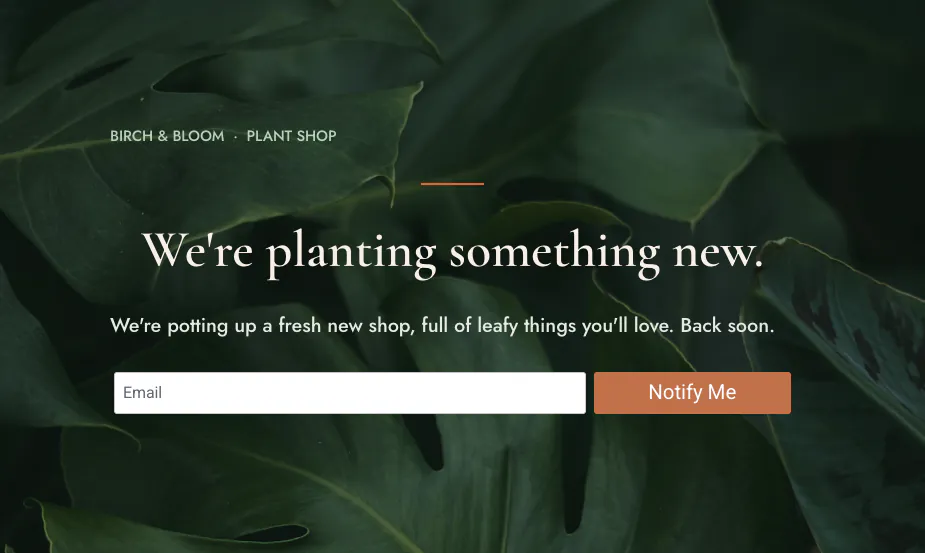
Asking for it back was just as blunt, and back it came, headline and all.
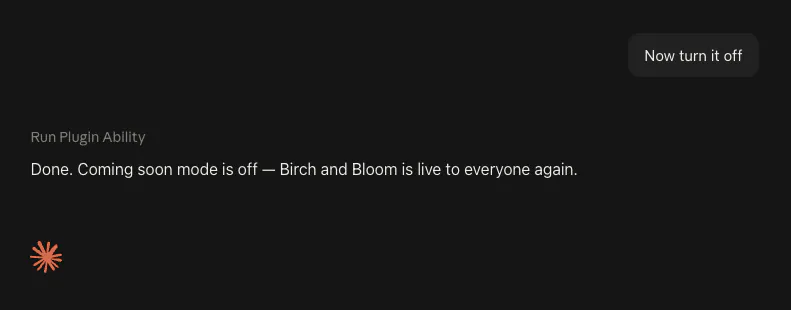
It was that quick for a boring reason. A coming-soon page already existed on this site, so there was nothing to build and nothing to choose. Claude simply threw a switch.
Turning On Maintenance Mode Without a Maintenance Page
So next, I typed the obvious follow-up: “Now put Birch and Bloom in maintenance mode.”
It checked first, and told me the site had no maintenance page at all. I’d never made one.
Then it did something I hadn’t asked for but couldn’t argue with. Rather than switch the mode on with nothing behind it, which would have shown visitors a blank page, it borrowed my branded coming-soon page as the maintenance screen and flipped the mode on with that.
It flagged its own workaround too. The page looked like Birch and Bloom, but the wording was launch wording, “we’re planting something new”, not “back shortly”, and it offered to build a proper page instead.
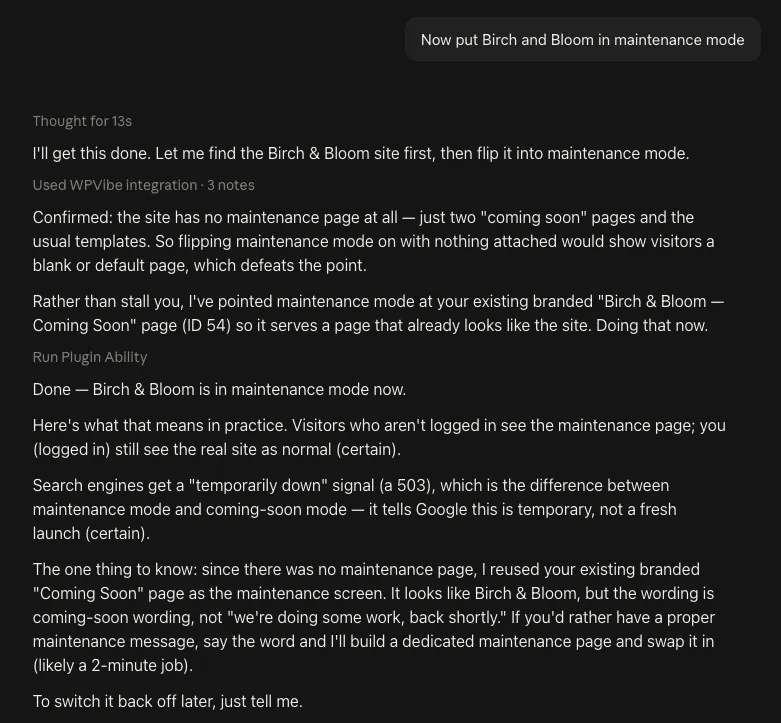
Fair enough. Maintenance mode has to put something in front of visitors, and a page saying the wrong thing beats a page saying nothing.
It does undercut the post I’d have written if I’d stopped one section earlier. “AI takes your site offline in one line” was true, but only because a page happened to be sitting there ready. Ask for a mode you’ve never set up and the AI has to improvise.
What I appreciated was the honesty. It didn’t pretend the borrowed page was right, it told me exactly what it had patched over and why.
How the AI Built the Missing Maintenance Page
A borrowed page wasn’t the real fix, so I took it up on its offer: “Build a maintenance page on Birch and Bloom that matches the design of my coming-soon page, then switch maintenance mode on.”
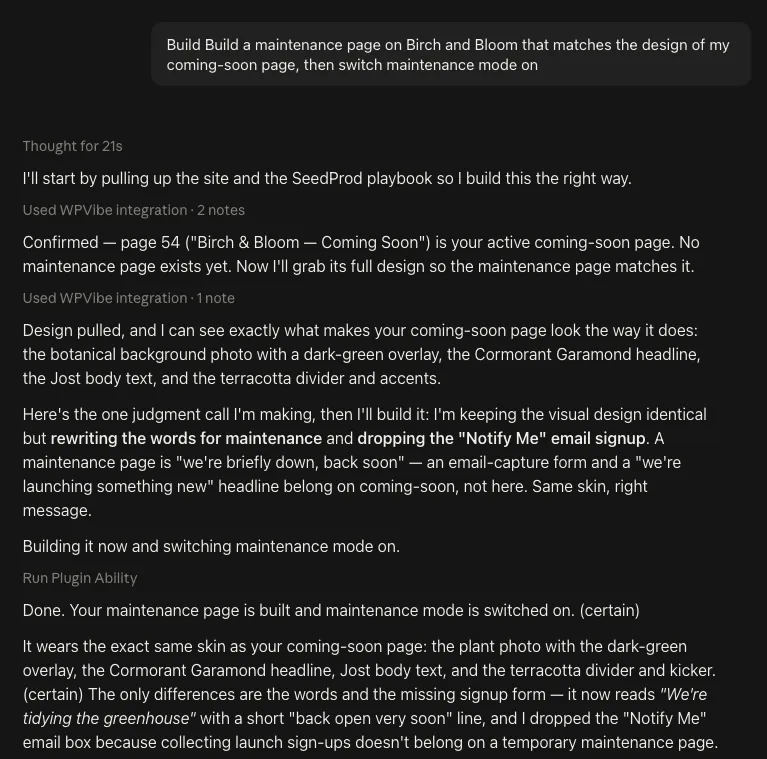
It pulled the coming-soon page’s design first, the botanical photo, the serif headline, the terracotta accents, then wrote new words to sit inside it. The headline it chose: “We’re tidying the greenhouse,” with a short back-open-very-soon line underneath, which is better copy than I’d have bothered writing.
It made one judgment call on its own, and told me why: it dropped the email signup box, because collecting launch signups doesn’t belong on a temporary maintenance page.
Then it all went live as id 244 without me opening the builder once. I’d assumed I’d end up in there picking a template and hitting save, and I didn’t.
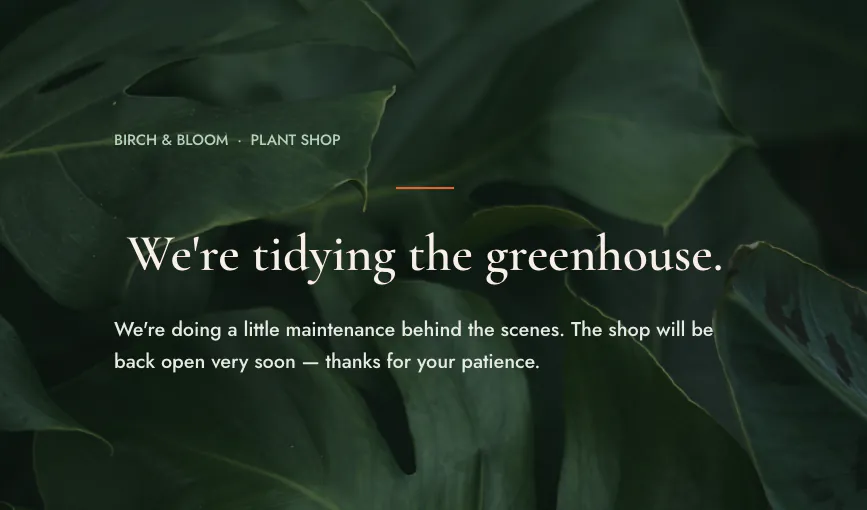
What really got me was the status code. Visitors got the maintenance page and the site returned HTTP 503, not the 200 a normal working page gives you.
That’s the temporarily-down signal, the one that stops search engines treating an outage as your real site. Doing this by hand, the 503 is precisely the detail I’d have sailed straight past.
I asked for every one of those steps, by the way. Neither Claude nor WPVibe went off and decided any of it, and taking the site back out of maintenance mode was another one-liner.
How to Turn WordPress Maintenance Mode Off
Two different problems get called being stuck in maintenance mode, and they have nothing to do with each other. Work out which one you’ve got before you start deleting things.
If You Switched It On Yourself
Go back to the SeedProd dashboard and set the Maintenance Mode toggle to Inactive. The site returns for everyone straight away, and the page you built stays where it is for next time.
If a Failed Update Left You Stuck
This is the other one: a plain screen saying the site is briefly unavailable for scheduled maintenance. No plugin put that there, and no plugin toggle turns it off.
WordPress writes a file called .maintenance into your site’s root folder while an update installs, and removes it when the update finishes. If the update dies partway, the file survives and the message stays up.
Here’s the part most advice skips. That file carries a timestamp, and WordPress stops honouring it ten minutes after it was written. A site stuck this way will often free itself while you go and make a cup of tea.
If the message outlasts ten minutes, remove the file yourself. Delete .maintenance from your site’s root folder, the same folder as wp-config.php, using your host’s file manager or an FTP client. The site comes straight back.
Then go and look at the update that died. The file was there for a reason, and a half-installed plugin is a worse problem than the message you just cleared.
Coming Soon vs. Maintenance Mode: Which One You Want
People mix coming soon and maintenance mode up constantly, and the difference matters less to your visitors than it does to Google.
| Coming soon | Maintenance | |
|---|---|---|
| What it tells visitors | We’re launching, come back | We’re temporarily down for work |
| What the site returns | HTTP 200, a normal page | HTTP 503, temporarily unavailable |
| Use it for | A site that isn’t live yet, collecting signups before you open | Short planned work on a site that’s already live |
One thing I only learned because the AI mentioned it unprompted: the two modes can’t both be on at once. Turning coming-soon on, it noted maintenance mode “was already off and stays off.”
Birch and Bloom runs SeedProd Pro Elite 6.20.8, but both modes are in the free version, so none of this needs a licence.
Frequently Asked Questions
What is maintenance mode in WordPress?
Maintenance mode in WordPress swaps your site for a page telling visitors you’re temporarily down for work, and it returns an HTTP 503 status rather than the usual 200. That status is the whole point of it: it marks the outage as temporary instead of letting it look like your actual site.
Does maintenance mode hurt my SEO?
Maintenance mode doesn’t hurt your SEO when it returns a 503, which is what SeedProd’s maintenance mode did on my test. A coming soon page returns a normal 200, so use that one for a site that isn’t live yet and maintenance for planned work on a site that is.
Do I need a plugin, or can AI do this on its own?
You need a plugin for this, and on my site a WordPress maintenance mode plugin, SeedProd, did the work. WPVibe is how Claude reaches it, and you still ask for each step, so nothing switches over without you.
My site is stuck in maintenance mode after an update. Is that the same thing?
Being stuck in maintenance mode after an update is a different problem with a different fix. A stuck update leaves behind a file called .maintenance in your site’s root folder, and no plugin toggle clears it. WordPress ignores that file ten minutes after it was written, so the site often recovers on its own. If it doesn’t, delete the file. There’s a fuller walkthrough further up this post.
So, Can AI Manage Your WordPress Modes?
Yes, AI can manage WordPress coming soon and maintenance mode, and the switching was never the interesting bit. Flipping a switch was always going to work.
What I didn’t expect was what happened when the thing it needed wasn’t there. Claude patched the gap with what existed, then built the missing page when I asked, wrote copy that suited the shop, and got the status code right without me raising it.
All of it happened in a chat window. WPVibe is what lets Claude reach into the site and drive SeedProd’s own controls, and the WordPress dashboard stayed shut the whole time.
Both prompts are in the coming soon and maintenance page recipe if you fancy trying it.
Taking a site offline used to be the mildly nervous twenty minutes of my afternoon. Now it’s a sentence, and it remembered the 503 I wouldn’t have.