Your AI Can Now Debug Your Code Snippets, Not Just Write Them
Every WordPress site that has been around for a while has a drawer full of code snippets. A tracking script for a tool you cancelled. Two copies of the same webhook, one on and one off. Something called Untitled Snippet from 2024. They run on every page load, and when one of them breaks, the way most people find it is to switch them off one at a time on a live site and reload the page.
Earlier this year we taught WPVibe to write snippets safely: your AI writes the code, you approve the exact text, and it is saved in WPCode switched off. That solved half the problem. Your AI could write a snippet. It could not see the ones you already had, or tell you which one was failing.
WPCode 2.3 closes that gap. It now tells AI assistants what it knows, using the WordPress Abilities API: every snippet and whether it is running, which ones have thrown an error, the error itself with the line number and the page that triggered it, what is in the WPCode library, and whether safe mode is on. So today WPVibe ships four tested WPCode recipes and a verified Works with AI page. All four work with the free version of WPCode.
What you can ask for
Every one of these is a copy-paste prompt we ran against a live WPCode install before publishing it:
- Find the snippet that is breaking your site, with the exact error, the line, the page that triggered it, and a proposed fix
- Audit your snippets and get a plain-English inventory of what runs, what is off, what fails, and what nobody remembers adding
- Check the WPCode library first, so your AI does not write custom code for something that already has a tested snippet
- Add a snippet and confirm it runs clean: written, approved by you, saved off, then checked for errors after you turn it on
Picture the message from a client: the sale banner has stopped showing. You ask your AI which snippet is failing. It comes back with a name, a call to a function that does not exist, line 5, and the page where it happened. It shows you the broken line and a corrected version. You approve the fix, switch the snippet back on, and ask it to check again. Clean.
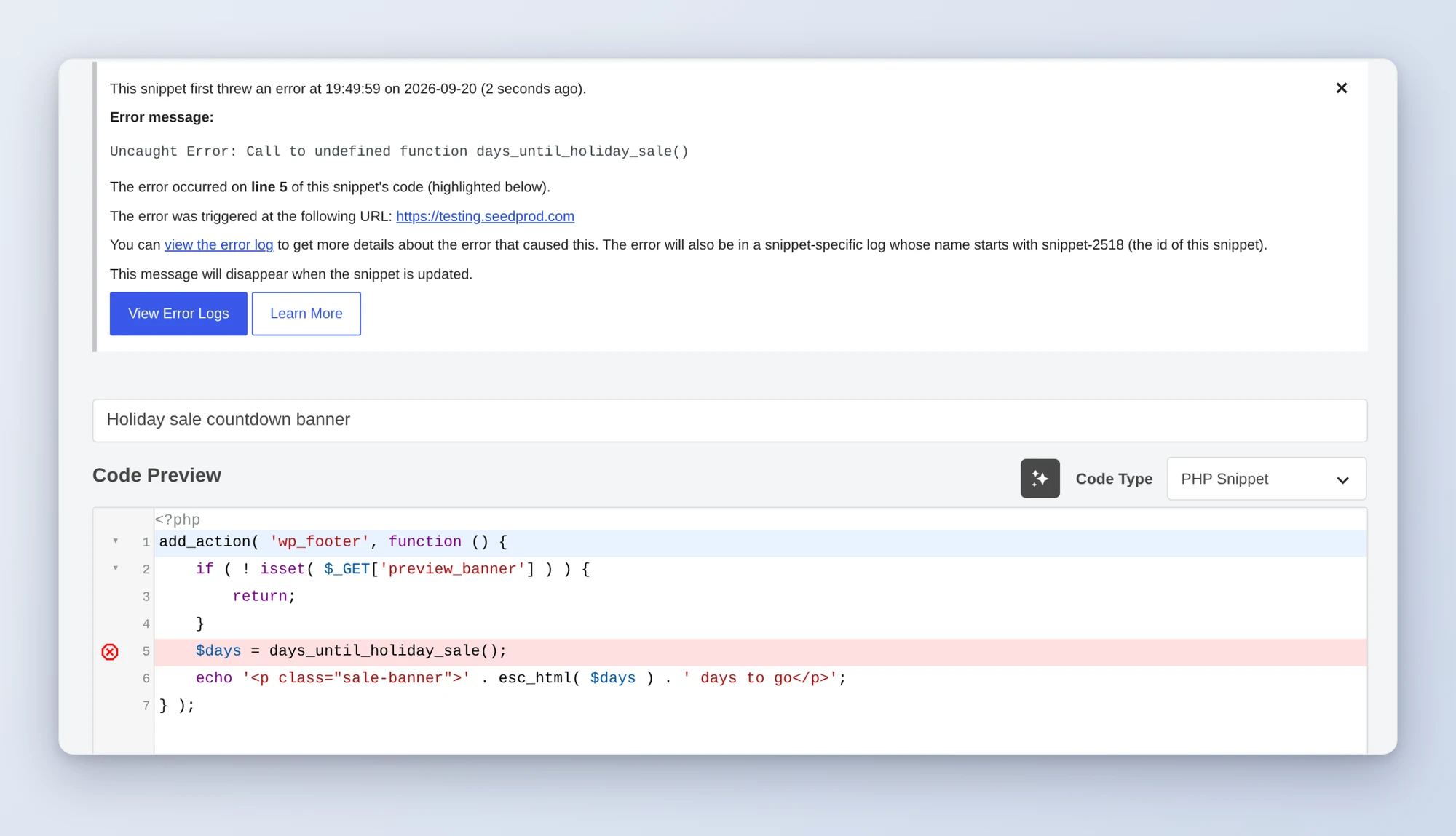
That screen is what WPCode shows you in wp-admin. The same details are now what your AI reads, which is why it can name the line instead of guessing.
Who this is for
- Site owners with a drawer full of snippets. You did not write most of them and you are not sure which ones still matter.
- Freelancers and agencies inheriting a site. The audit is the first thing to run on a site somebody else built.
- Anyone who has pasted code from a tutorial. The function that exists on the tutorial’s site and not on yours is the most common way a snippet fails.
How to get started
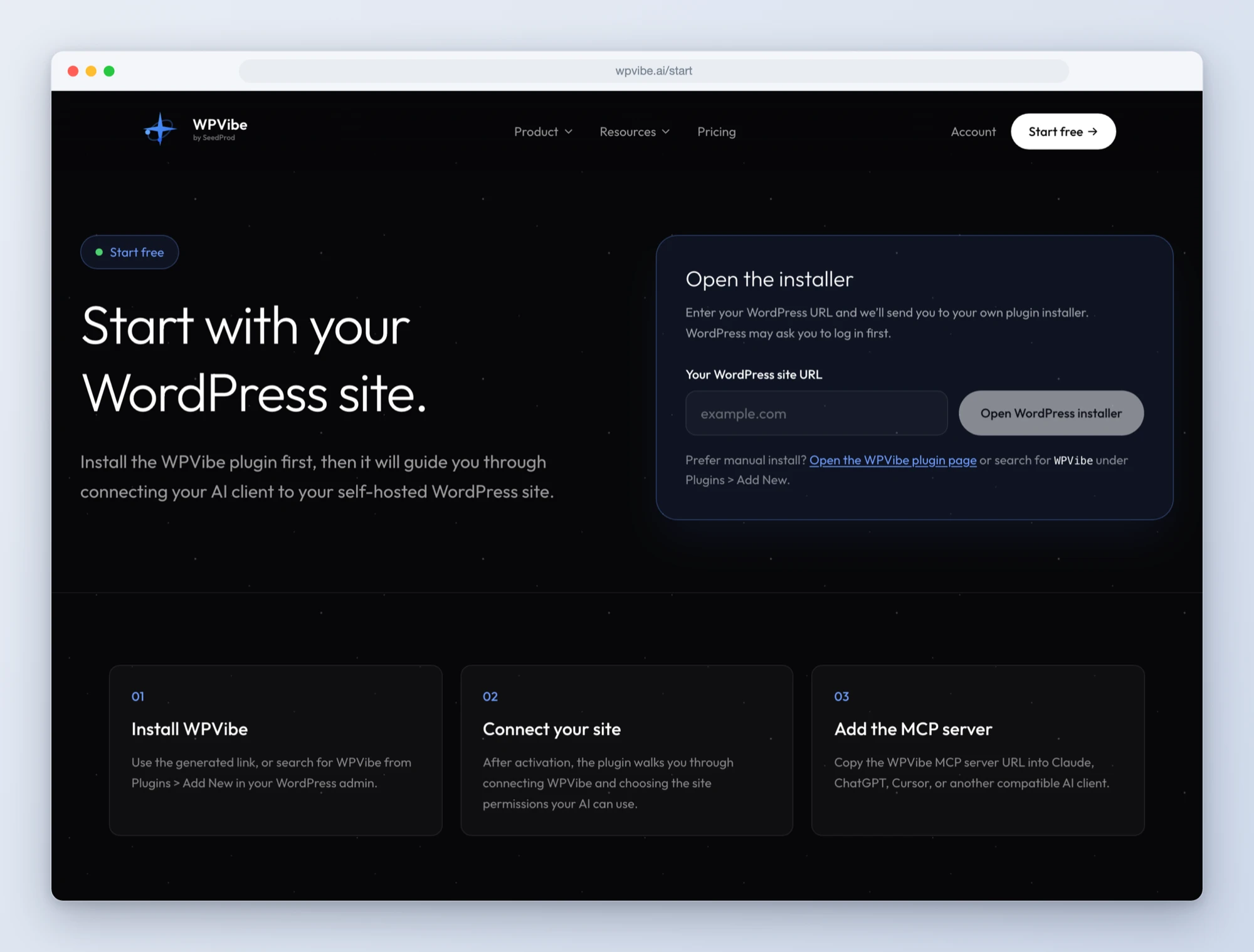
Step 1: Install the free WPVibe plugin
Add the WPVibe plugin to the site running WPCode, and make sure WPCode is on 2.3 or newer and WordPress is on 6.9 or newer. The free version of WPCode is all you need.
Step 2: Connect the AI you already use
Claude, ChatGPT, Cursor and others. One click to authorize, about thirty seconds, and no passwords ever go in the chat.
Step 3: Ask for what you want
Open a WPCode recipe, paste the prompt, fill in your own details. Start with the audit. It is read-only, so there is nothing to undo, and it tells you whether anything is failing right now.
Why these are worth trusting
To test a recipe about broken snippets, you need a broken snippet. So we built one that fails the way real ones do: it calls a function that does not exist, inside a hook, and only on one page. Then we asked for the failing snippet. WPCode’s abilities returned the right snippet, the right error, line 5, and the URL we had used to trigger it.
They also returned something we did not expect. The snippet was flagged with an error and still marked active. Because the failure happened inside a hook and not when the snippet loaded, WPCode had caught the error and kept the snippet running, so it would keep failing on that page. That is the most important case to catch, and the recipe now puts any snippet that is failing and still running at the top of the list.
Two smaller things shaped the prompts. The snippet list does not include the code, so the recipes read a snippet’s body with a separate read-only lookup before they explain it. And the library search returns titles and descriptions, not code, so when the library has what you need, your AI tells you the snippet’s name and you install it yourself in two clicks. It does not write a copy.
Reading is theirs. Writing is gated. The switch is yours.
Credit to the WPCode team for where they drew the line. Every ability they shipped is read-only. An AI can see your snippets and their errors, and it cannot change one through WPCode’s abilities at all.
Writing goes through WPVibe, and it works the way it did before. You see the exact code, the type, and where it will run in an approval screen. Nothing is written until you approve. The snippet is saved switched off, and an edit to a PHP snippet switches it off again. Your AI cannot enable or disable a snippet, ever. That toggle is yours, and WPCode runs its own check when you flip it.
One honest limitation: because your AI cannot flip the switch, fixing a broken snippet is a conversation and not a single command. It finds the problem and writes the fix. You approve it and turn it on. It checks the result. We think that is the right trade for code that runs on every page of your site.
All four recipes live on the WPCode page, along with every ability and the gotchas we found. If you have more than a handful of snippets, start with the audit. It takes a minute, changes nothing, and shows you everything that is running on every page load.
John and the WPVibe team
P.S. WPVibe is free to start and works with the AI plan you are already paying for, so there is no second AI subscription to buy. Connect your site and try the first recipe.