WPVibe Now Builds With Bricks
Bricks people are particular, and they have earned the right to be. They chose a builder that outputs clean markup, keeps layouts fast, and gives them control most page builders hide. So when a general-purpose AI offers to “help” with a Bricks page, they know better: Bricks stores layouts in its own serialized format, and anything that touches that data casually corrupts the page outright. The safe answer has been to keep AI away from Bricks entirely.
We built a better answer. WPVibe now speaks Bricks, natively.
Real Bricks pages, through Bricks’ own pipeline
When WPVibe builds or edits a page, it writes through a dedicated save path that runs Bricks’ own element security checks and generates the page CSS the same way the builder does, external file mode included. Open the result in the Bricks editor and everything is there: sections, containers, real elements with real design settings, each piece individually editable, exactly as if you had built it by hand.
Here is what that unlocks:
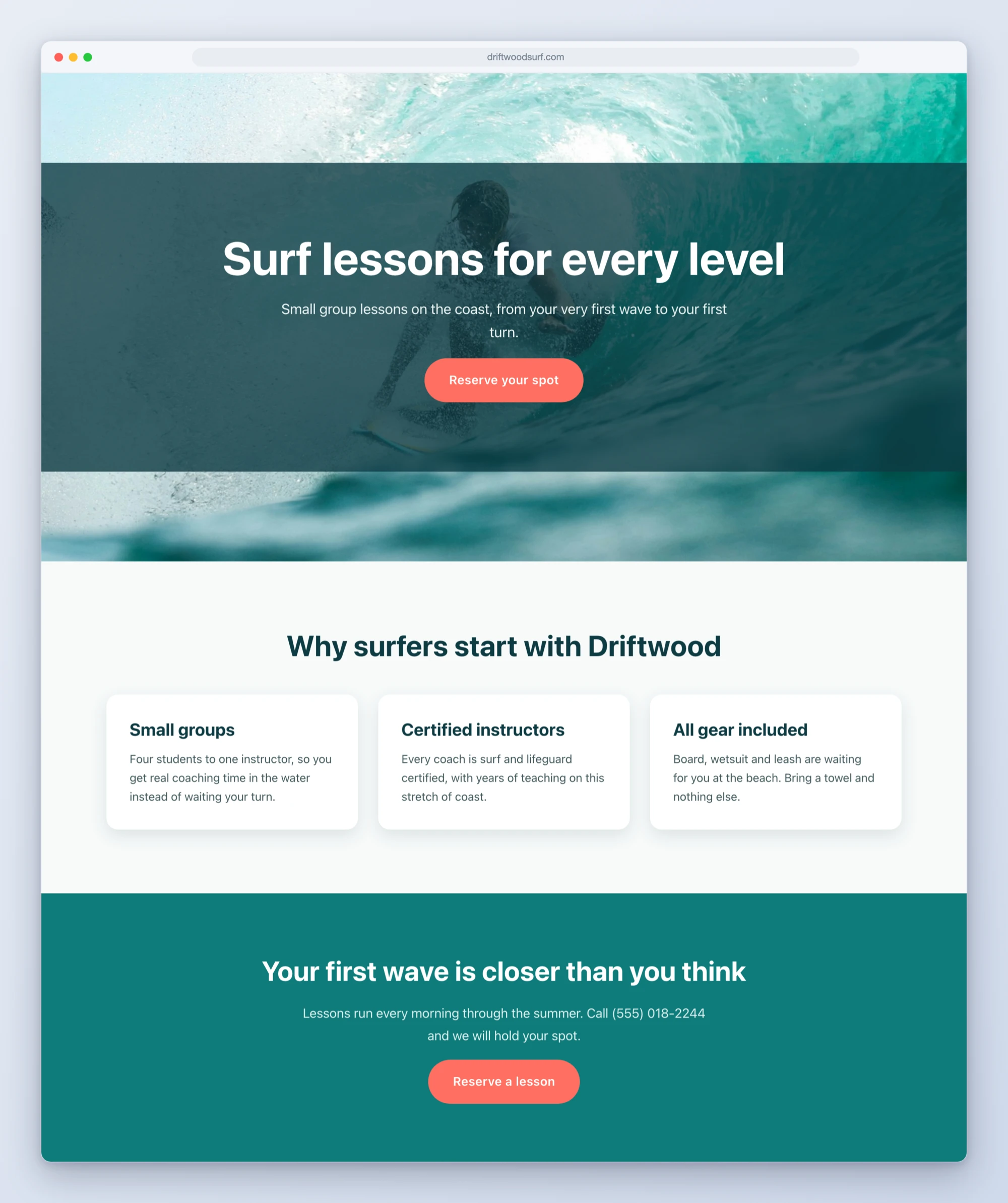
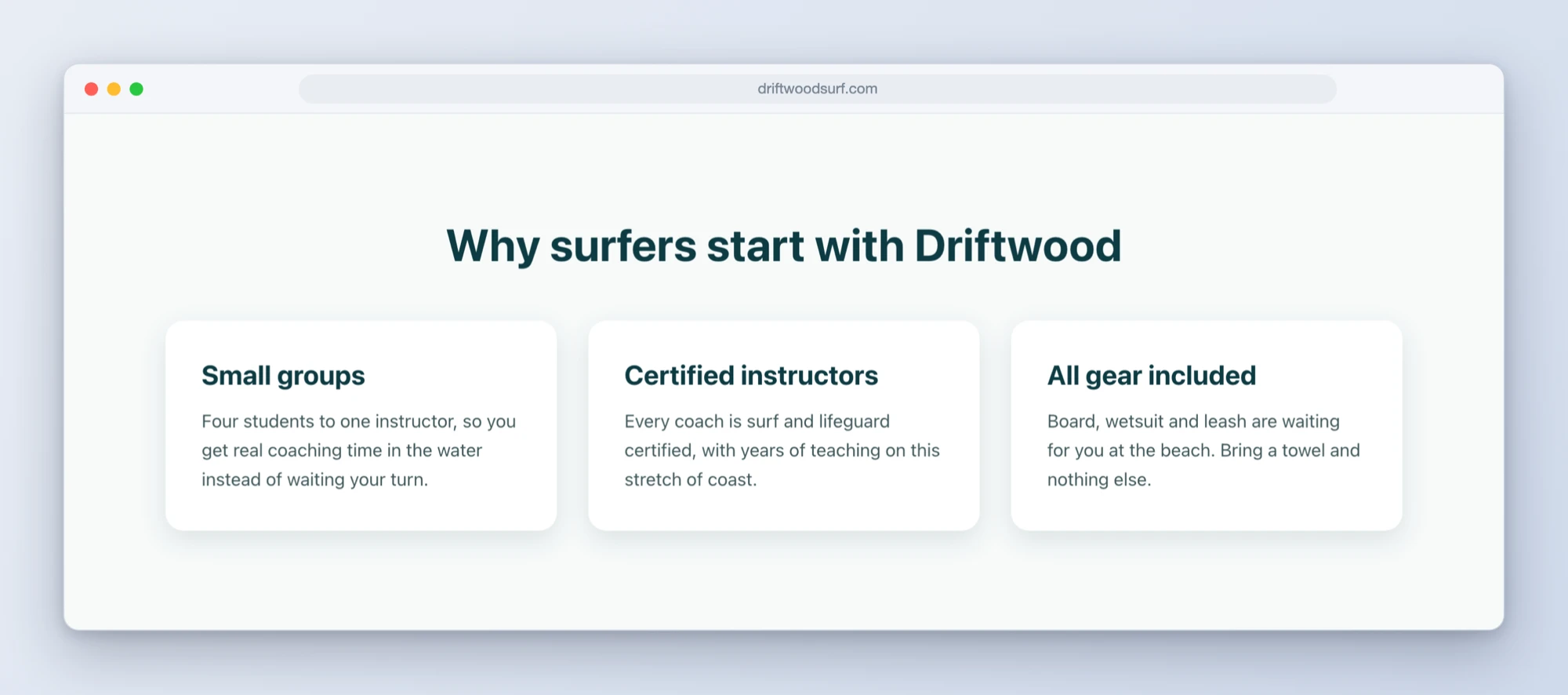
- Full pages from a conversation. “Build a landing page with a photo hero, three feature cards, and a call to action” comes back as a draft you can preview in the builder and publish when you like.
- Your actual elements. WPVibe reads the element list from your install, so it builds with what your site really has. A misspelled element name is rejected on the spot, along with the list of elements your site actually supports, instead of saving as a broken page.
- Edits without the builder open. Change a headline, a price, a button label. WPVibe reads the existing layout, changes only what you asked, and keeps every element ID stable so your custom styling stays attached. If text you asked about is not on the page, it says so instead of guessing.
- Restyling that lands in the right panels. Hover states, phone-size overrides, and brand colors are written as real Bricks design settings, not injected CSS, so every change shows up in the builder’s own style panels afterward. And because Bricks silently ignores settings it does not recognize, WPVibe verifies each change actually compiled into the page’s CSS before reporting done.
Three recipes to start from
We shipped three tested cookbook recipes alongside this release, each one a copy-paste prompt:
- Build a Bricks landing page with AI
- Edit an existing Bricks page with AI
- Restyle Bricks elements with AI
How to get started
Step 1: Update the WPVibe plugin. Bricks support ships in the latest release on WordPress.org.
Step 2: Connect your site. About 30 seconds at wpvibe.ai/start, on any host.
Step 3: Ask for a page. Drafts first, always: nothing touches your live site until you have seen it in the builder.
Step 4: Polish wherever you prefer. Keep going in chat, or open Bricks and adjust by hand. It is a normal Bricks page either way.
Tested against the real thing
Builder integrations rot fast, so this one is exercised against a live Bricks install, building and verifying real pages end to end, with the site deliberately set to external-file CSS mode because that is where sloppy integrations fall apart. Before shipping, we turned AI agents loose on it with no documentation and told them to build and restyle pages using nothing but the prompts above. Where they stumbled, we fixed the product. One example: a design setting with the wrong shape used to save cleanly and just never render; now the workflow checks the compiled CSS and flags exactly which style did not land.
One honest scope note: WPVibe builds and edits Bricks page content. Headers, footers, and template conditions live in Bricks templates, and for those it hands you the right edit link rather than pretending.
If you run a Bricks site, start with the page you have been putting off. Everyone has one.
Thanks for building with us.
John and the WPVibe team
P.S. Bricks support is free, like every WPVibe feature. Connect at wpvibe.ai/start, or install the WPVibe plugin from WordPress.org.