Your AI Just Learned Smash Balloon
An Instagram feed on a website gets set up once and then forgotten. That is fine until the day it quietly stops showing new posts, and nobody notices for a month because nothing on the page looks broken. Or the day you redesign the site and the feed is still wearing last year’s colors. Fixing either means a trip through the Feed Builder, the customizer, and several settings screens you last opened when you installed the plugin.
Smash Balloon’s Instagram Feed Pro 6.14.0 now describes what it can do to AI assistants through the WordPress Abilities API. Thirteen operations: list and read your feeds, check your connected accounts, create a feed, restyle it, highlight posts, and tune how feeds refresh and load. The plugin itself says what each one does and which settings stay off-limits, so the AI works from the plugin’s own descriptions instead of guessing.
So we built on it. Today WPVibe ships five tested Instagram Feed recipes and a verified Works with AI page, which means the AI you already use can look after your Instagram feed when you ask it to.
What you can ask for
Each of these is a copy-paste prompt we ran against a live Instagram Feed Pro install before publishing it:
- Add your Instagram feed to a page: the AI checks which accounts are connected, builds the feed from a template with your columns and post count, and places it where you say
- Match the feed to your design: your theme’s colors or exact hex values, columns, header and buttons, with the old values written into the chat first
- Find out why your feed stopped updating: connected accounts, error flags, token expiry and the refresh schedule in one read-only pass
- Spotlight your best posts: switch to the highlight layout and enlarge posts by hashtag or every Nth post
- Load the stylesheet only where feeds appear: each loading option explained in plain English before anything changes
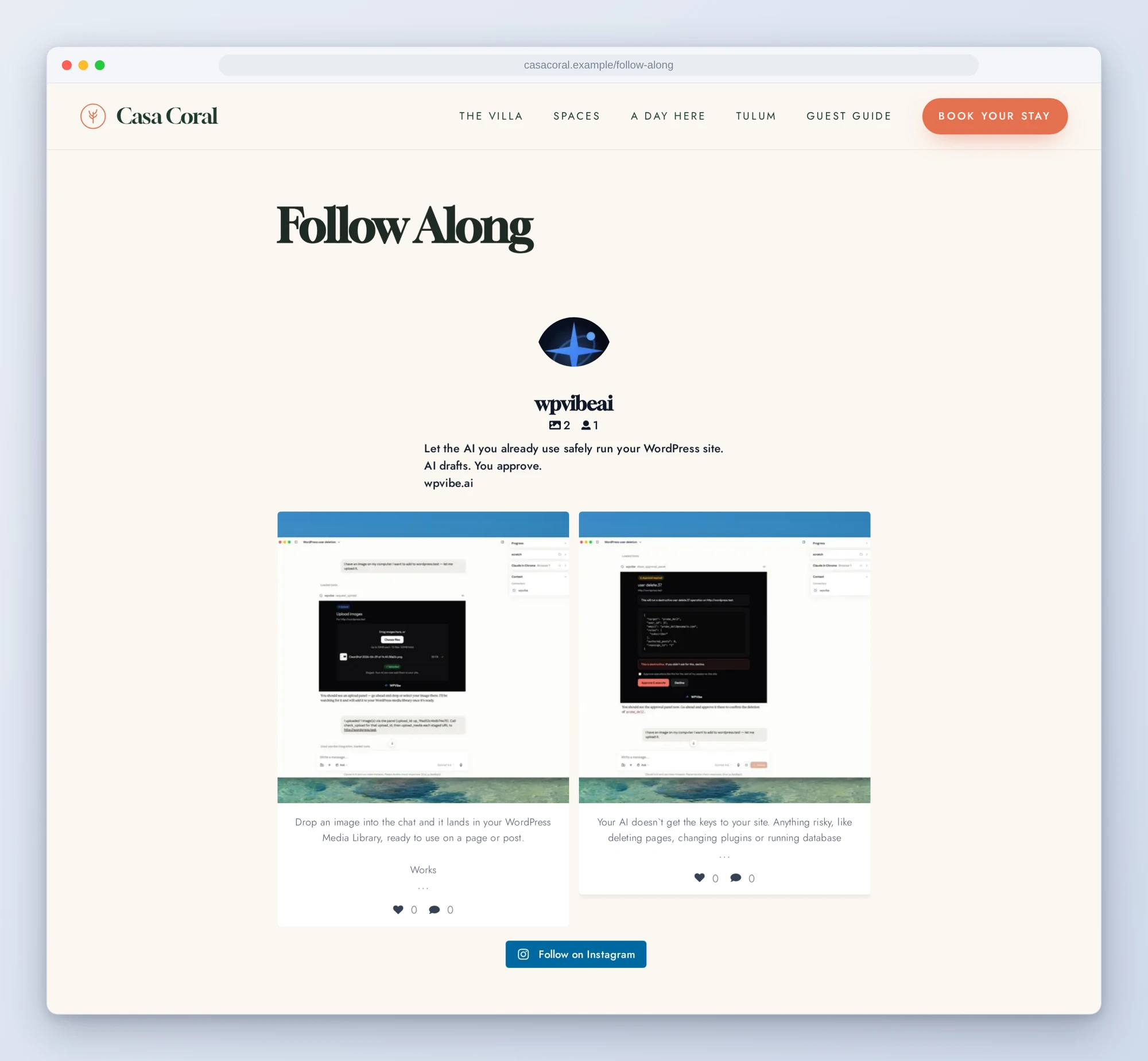
In practice it sounds like this. You paste the recipe with your details: the homepage, two columns, captions on, a Follow button. Following the recipe, the AI confirms which account is connected, creates the feed, gets its shortcode back, and puts it on the page. If the page is already live, the recipe has it show you where the feed will go and wait for your yes. The feed below was created through WPVibe on our test site:
Who this is for
- Small businesses whose Instagram is their best marketing. The cafe, the salon, the rental villa. The feed should be on the site, current, and look like it belongs there.
- Anyone whose feed went stale and does not know why. An expired connection, an account error, or a refresh schedule nobody remembers setting. The diagnosis recipe gets you the answer in one pass.
- Agencies running feeds on many client sites. Restyling a feed after a redesign becomes a sentence, and the design recipe keeps the old values in the chat in case the client liked them better.
How to get started
Step 1: Update Instagram Feed Pro and install WPVibe
Update to Instagram Feed Pro 6.14.0 or newer, on WordPress 6.9 or newer. Then go to Instagram Feed > Settings, and on the General tab use the AI Agents box to install the free WPVibe plugin in one click. AI Agents comes with every Instagram Feed Pro plan and the All Access Bundle. The free Instagram Feed plugin does not include it. Your site address needs to start with https://.
Step 2: Connect the AI you already use
Claude, ChatGPT, Cursor and others. Sign in to a free WPVibe account, then approve the connection in your WordPress admin. No passwords ever go in the chat.
Step 3: Turn on MCP Write Access when you want changes
Your AI can read your feeds and settings as soon as the plugin is active. To let it create or change anything, turn on MCP Write Access under Instagram Feed > Settings > General. You can turn it off again any time. Then open a recipe, paste the prompt, and fill in your details.
Why these are worth trusting
We installed Instagram Feed Pro 6.14.0 on a test site, connected a real Instagram Business account, and ran all thirteen abilities through WPVibe before publishing a single recipe. Then we checked the result in a browser, not in the settings. A feed’s images and highlight sizes are filled in by its script after the page loads, so the raw HTML is no proof the feed looks right. The page is.
Then we wrote down what would have sent an AI the wrong way. A working Business account can report its connection type as “personal”, and an expiry date of 2037-12-30 means the connection has no expiry date at all. Read naively, both look like the reason a feed went stale, and neither is. The diagnosis recipe knows that, and flags what actually matters: an account whose type is Personal or Basic, which Instagram stopped supporting in December 2024. Feed changes apply to the live feed straight away with no draft, so every recipe that changes an existing feed or setting reads the current values into the chat first and waits for your yes.
How Smash Balloon built it
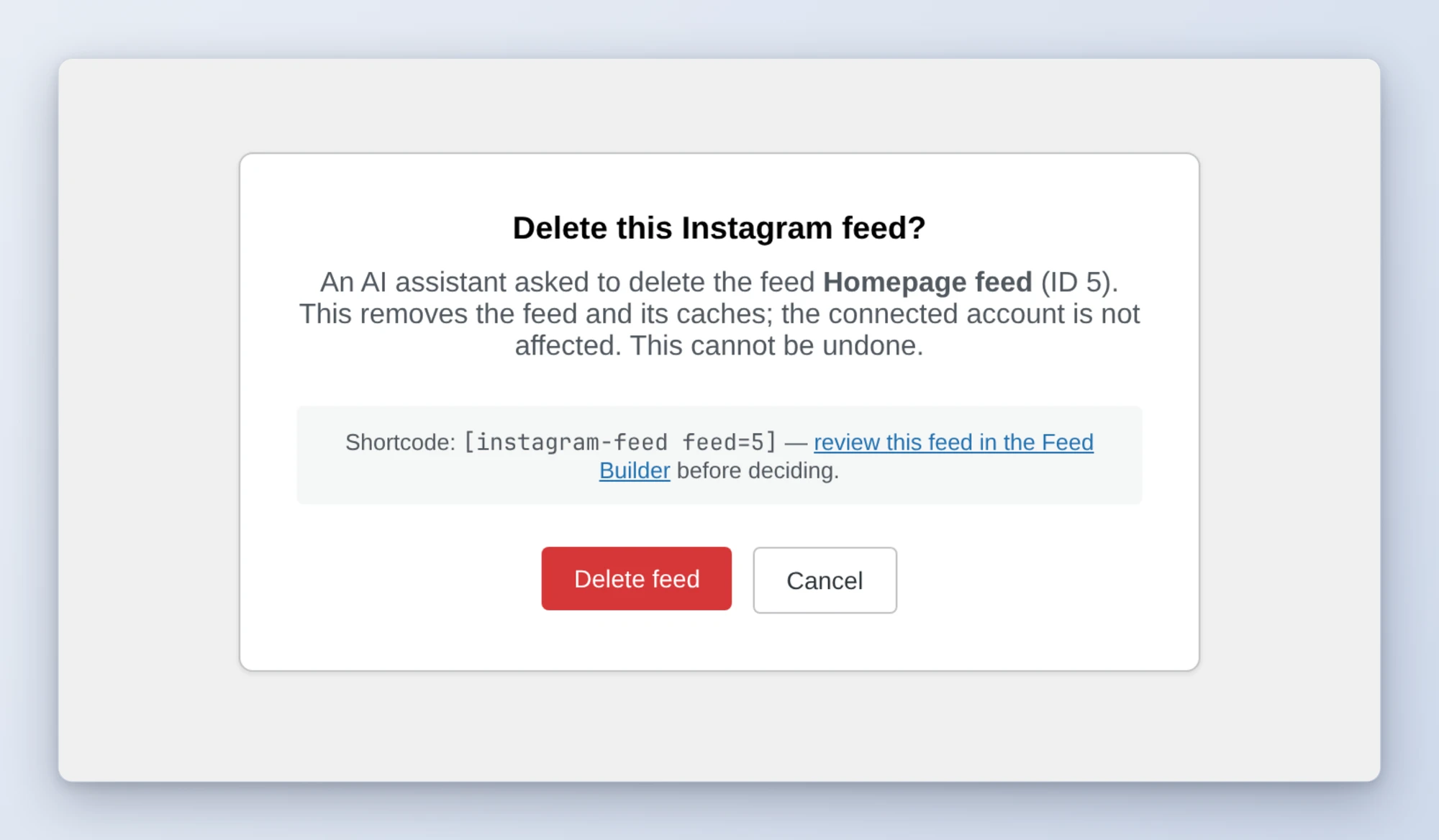
Credit where it is due: Smash Balloon built these abilities with your accounts in mind. AI writes stay off until you switch them on. Instagram Feed’s abilities never return an access token; the plugin leaves them out of everything it sends back. GDPR mode is read-only to the AI. Connecting an Instagram account happens in your own browser, through a link that works once and expires after 15 minutes. And the AI cannot delete a feed at all. It can only ask, and you get a page that names the feed and its shortcode and waits for your click:
WPVibe adds its own layer for the rest of your WordPress site and asks for your approval before deletions and other changes it can’t undo. Smash Balloon has written up the feature from their side, with a setup walkthrough: Manage Your Instagram Feed by Asking ChatGPT or Claude.
All five recipes live on the Smash Balloon page, along with every ability and the gotchas we found. If you already have a feed on your site, start with the diagnosis. It changes nothing and tells you whether your feed is healthy.
John and the WPVibe team
P.S. WPVibe is free to start and works with the Claude or ChatGPT account you already have, so there is no second AI subscription to buy. Connect your site and try the first recipe.