Hit Your Daily Limit Mid-Project? Now You Can Reset It
You’re three pages into a site rebuild. Your AI has the layout right, the copy is nearly there, and then WPVibe tells it you’ve hit your daily limit.
WPVibe’s limit runs on a rolling 24-hour window, so waiting does work. Your oldest calls age out and room comes back on its own. But “come back in a few hours” is a lousy answer in the middle of a project.
That’s why I’m excited to announce banked usage resets.
A banked reset clears your rolling 24-hour usage count, so you start fresh with your full daily allowance right away. It sits in your account until you decide to use it.
And to kick things off, every WPVibe account now has one, on us.
What’s new
- One reset, on us. Every WPVibe account that exists today has one banked reset waiting on its account page. Free accounts included.
- You pick the moment. A reset stays in your bank for 90 days from the day it’s granted, and your account page shows the expiry date.
- Two ways to use it. Click Use reset on your account page, or tell your AI “use my reset”.
- Your AI knows you have one. If you hit the limit while holding a reset, the limit message says so, and your AI can offer to use it.
- Using it costs nothing. The reset tool doesn’t count against your usage, and it works even after you’ve hit the limit.
- Room for three. Your bank holds up to three resets at a time.
- A double click spends one. If the button gets clicked twice, or your AI retries, you still only use one reset.
How to use it
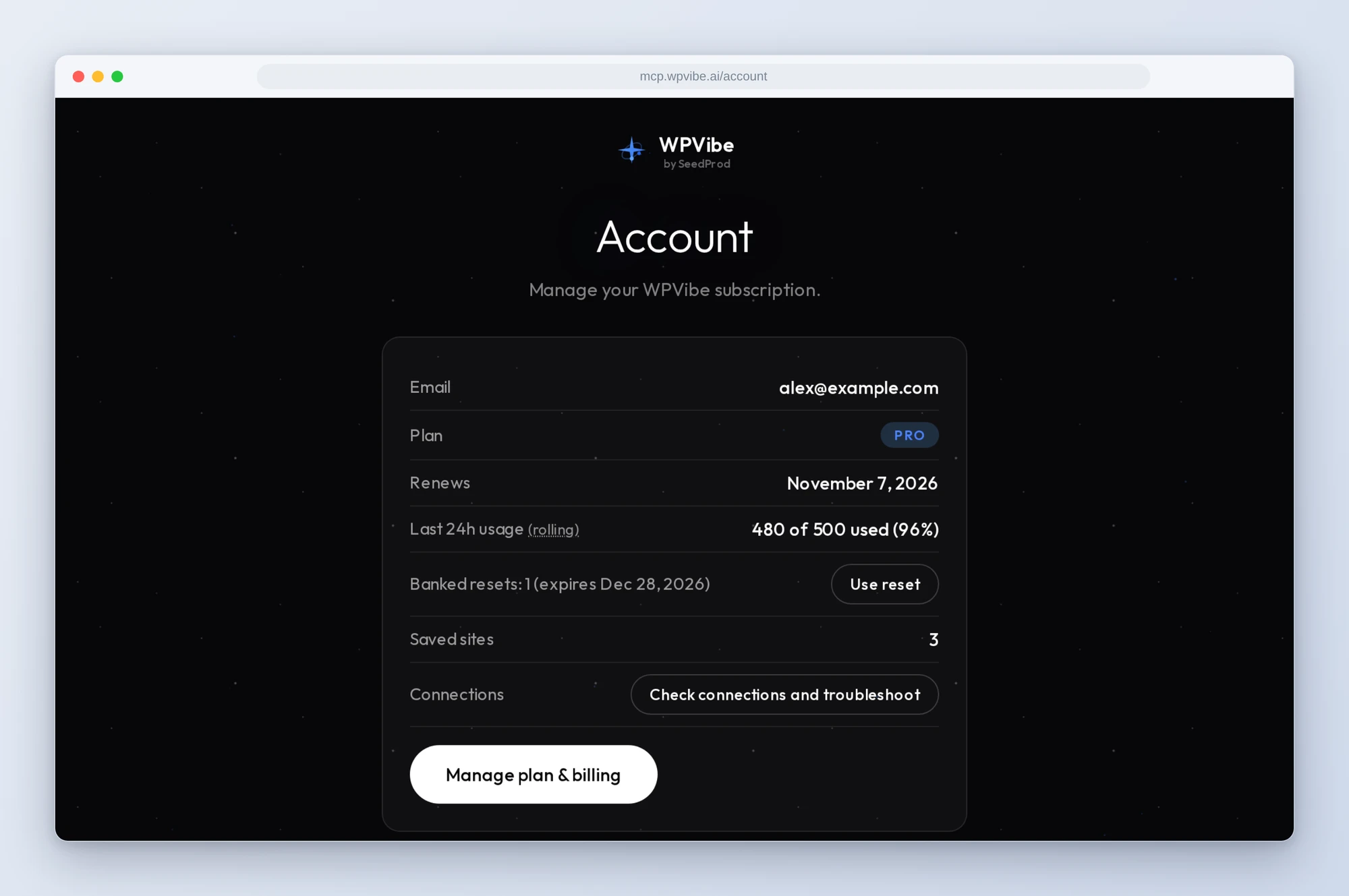
From your account page. Sign in at mcp.wpvibe.ai/account. Under your last 24 hours of usage you’ll see “Banked resets: 1” with a Use reset button. Click it and your usage count clears.
From your AI. Say “use my reset” to Claude, ChatGPT, or whichever AI you use with WPVibe. It calls WPVibe’s use_usage_reset tool, which clears the count on your own account and nobody else’s, and then it can retry whatever got blocked.
When it’s worth using
A reset clears your count once. It doesn’t raise your limit, so it’s worth saving for a day that needs it:
- Big build days. A new site, a theme rebuild, or a batch of pages where you already know you’ll run long.
- Hitting the limit mid-project. Your AI is halfway through something, and waiting a few hours means losing the thread.
- A deadline. A launch tomorrow morning, or a client waiting on changes today.
If you hit the limit at the end of your day, you may not need it. The rolling window hands room back as your oldest calls age out, so there may be room again by the time you sit back down.
It works on every plan
Free, Pro, Power, Agency and Scale all use the same rolling 24-hour window, and a reset works the same way on each. It clears your count and you get your plan’s full daily allowance back. It doesn’t change your plan or your limit.
If you’re hitting the limit every day rather than once in a while, a bigger plan is the steadier fix. Upgrades take effect immediately.
From here on, the bank is also how we’ll hand out extra room, for things like launches and holidays, or to make up for it if WPVibe has an outage.
Need more than a reset?
On a paid plan, a Scale Day gives you 10,000 calls for the next 24 hours, for launch days, migrations or a big rebuild. Add it from your account page (look for “Add a Scale Day”). It starts when you buy it, and unused calls don’t carry over. If you find yourself needing one every week, the next plan up is the better deal.
Try it today
Already using WPVibe? Your reset is on your account page, ready when you need it. New to WPVibe? Connect your site in about two minutes, free, or get the WPVibe plugin from WordPress.org.
Thanks,
John Turner
Founder, WPVibe
P.S. Your reset is good for 90 days, so there’s no rush. Save it for the day your AI is on a roll.