WPVibe 1.9: Recipes Picked for Your Site, Right on Your Dashboard

Here is a strange thing about WPVibe: everything it does happens somewhere else. You ask Claude or ChatGPT, your site changes, and wp-admin, the one screen every WordPress owner still opens every day, never says a word about any of it.
That bothered us. If an AI is running parts of your site, the place you manage your site should show it.
So as of WPVibe 1.9, it does. Update the plugin (most sites already have it through auto-updates), open your WordPress dashboard, and you will find a small WPVibe widget doing three jobs.
It shows you what your AI actually did
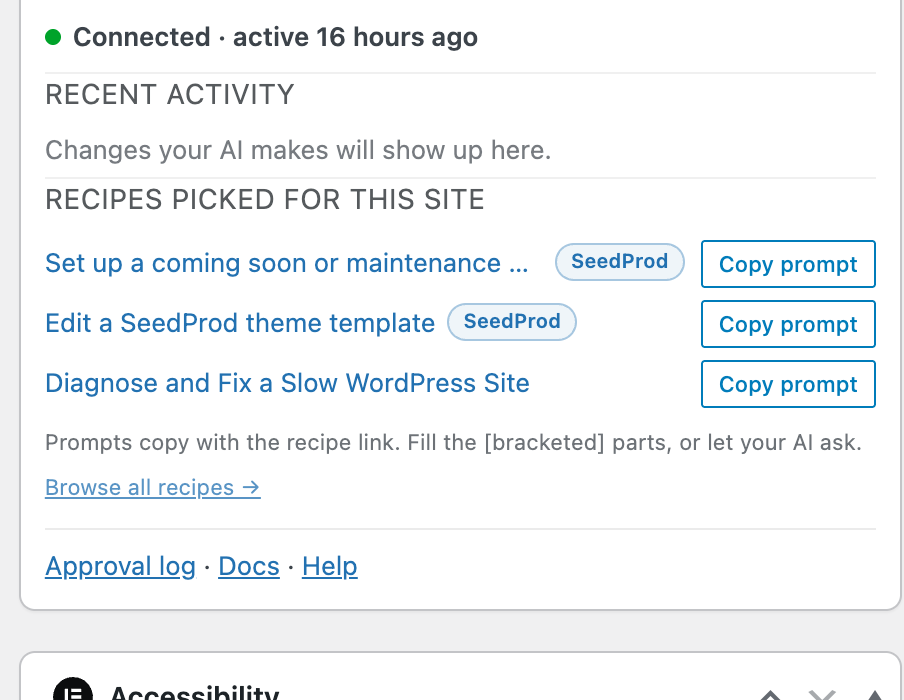
The top of the widget is a live connection status and a short list of the most recent changes your AI made: a post updated, a menu rebuilt, theme CSS edited, each with a timestamp. The full record with previews and approvals stays in the Approval Log, one click away.
This is the part we care about most. An AI plugin asks for a lot of trust, and trust should not require taking our word for anything. The receipts are on the first screen you look at.
It suggests recipes picked for your site
Below the activity list is a section called Recipes picked for this site, and it means that literally. The widget looks at which plugins your site actually runs and picks matching recipes from the WPVibe cookbook. A WooCommerce store sees store recipes with a WooCommerce badge. A site running WPForms sees form recipes. A LifterLMS site sees course recipes.
Every recipe comes with a Copy prompt button. The prompt it copies is the exact tested prompt from the cookbook, and it carries a link to the full recipe so your AI can follow every step. Paste it into Claude, ChatGPT, or any AI connected to WPVibe and it goes to work.
And because someone will reasonably ask: the widget does this without sending anything about your site anywhere. It fetches one small public recipe list from wpvibe.ai (the same list for everyone, nothing identifying attached) and does all the matching on your own server. It is the same pattern WordPress core uses for its Events and News widget. Your plugin list never leaves your site.
It gets your site connected if it is not yet
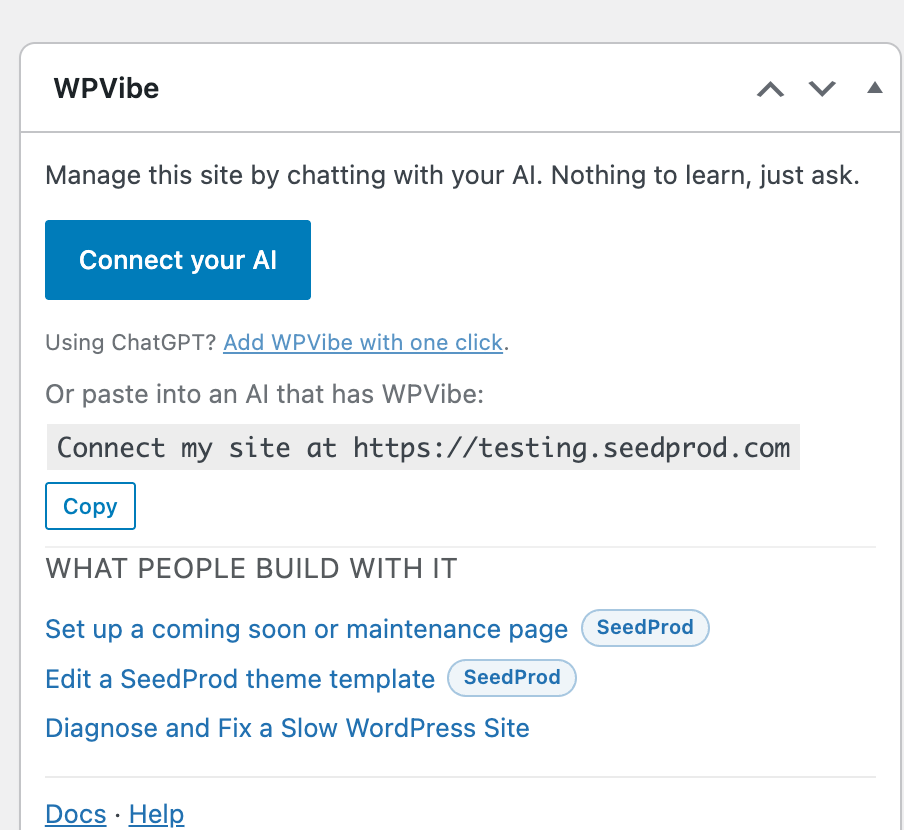
If you installed the plugin but never connected an AI, the widget is the fastest path to fixing that. It gives you a connect button, a one-click option for ChatGPT, and the one-line prompt that links your site to any AI that has WPVibe. That first connection takes about a minute, and it is free.
What to try first
The recipes rotate daily, but a few favorites you might see:
- Run a security audit and fix what it finds: a full read of your site’s security posture, with fixes you approve one by one.
- Set up a coming soon page: on sites running SeedProd, the AI builds it for you.
- Find and fix broken links site-wide: the chore nobody does manually, done in one ask.
If the widget never shows a recipe for the thing you need, the cookbook now has a Request a recipe path. Ask for it, and we build and test it.
How to get it
There is no setup. If you run the WPVibe plugin, version 1.9 reached your site through the normal update channel, and the widget is already on your dashboard. If you do not run it yet, install the WPVibe plugin from WordPress.org, connect your AI, and the dashboard takes care of the rest.
Go take a look at your dashboard. It finally has something to say.
John and the WPVibe team
P.S. Like everything in WPVibe, the widget and every recipe it suggests are free. If you are new here, wpvibe.ai/start is the one-minute version of getting going.