Your AI Just Learned Disable Comments

Most business sites never wanted comments. WordPress turns them on by default, spam piles up on old posts, pages and image attachments, and closing them one post at a time never quite finishes the job. On a WooCommerce store there is a catch: product reviews are comments too, so the quick fix that turns comments off everywhere can take your reviews down with the spam.
Disable Comments, the free plugin from WPDeveloper that WordPress.org counts on 1 million+ sites, is the usual answer. Since version 2.9 it also registers three abilities for AI assistants: one reports where comments are off, one turns them off or back on, and one deletes existing comments.
So we tested them. Today WPVibe ships a verified Disable Comments page and three tested recipes, which means the AI you already use can switch comments off where you choose, clear out the old ones and tell you why a post is open or closed.
What you can ask for
Each of these is a copy-paste prompt whose steps we ran against a live Disable Comments install before publishing it:
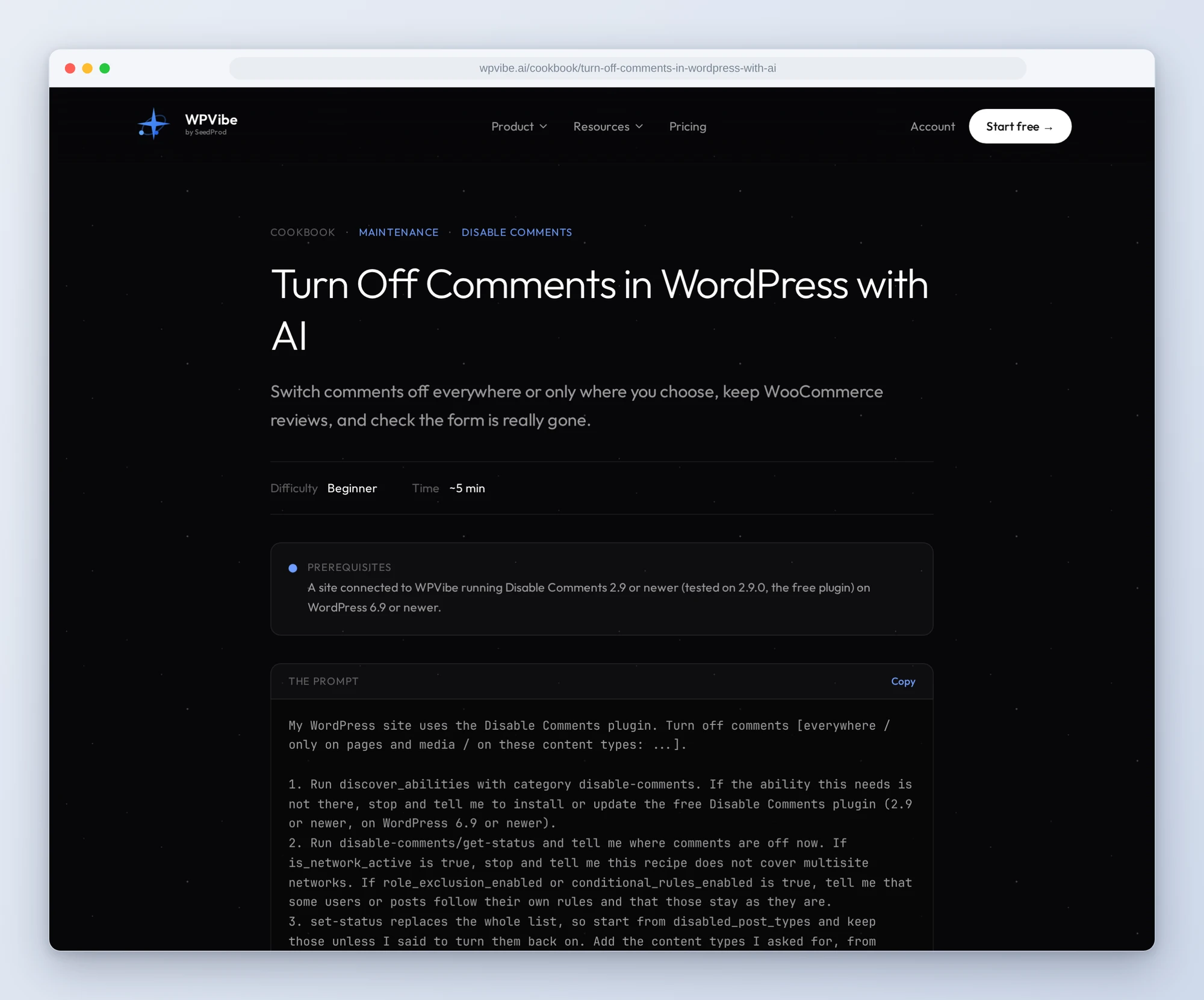
- Turn off comments in WordPress: everywhere or only on the content types you name, with product reviews left alone on a store unless you say they should go, the comment form checked on a real page afterward, and the previous setting kept so you can undo it
- Delete old comments by post type: a count by content type and kind first, a backup, your yes and your approval, then the same count again so you can see nothing else changed
- Find out why visitors can’t comment on a post: the post’s own setting, WordPress’s discussion settings, Disable Comments’ rules and the page itself, checked in order, with nothing changed
In practice it sounds like this. You paste the first recipe and say “pages and media”. Following it, the AI reads where comments are off today, adds pages and media to that list, and on a store keeps products off it so reviews keep working. It shows you the list and waits. On your yes it switches comments off, fetches one of those pages to confirm the comment form is gone, and tells you the previous setting in case you want it back.
Who this is for
- Business sites that never wanted comments. One conversation turns them off where you don’t want them, and the AI checks the form is really gone.
- WooCommerce stores. Comments go, reviews stay, and old comments are deleted without touching order notes.
- Anyone cleaning up an old site. Years of spam and pingbacks on attachments and old posts, counted before they go and counted again after.
How to get started
Step 1: Install or update Disable Comments. You need Disable Comments 2.9 or newer (the free plugin) on WordPress 6.9 or newer. Its abilities register on their own; there is no setting to turn on.
Step 2: Install WPVibe and connect the AI you already use. Install the free WPVibe plugin from WordPress.org. Its settings screen has buttons to add it to Claude or ChatGPT, plus a server address for other AI apps. Sign in with a free WPVibe account when your AI asks, then paste the connect line from the same screen into your AI and open the link it replies with while logged in to your WordPress site. No passwords ever go in the chat.
Step 3: Start with turning comments off. Open the recipe, paste the prompt and say where you want comments off.
Why these are worth trusting
We installed Disable Comments 2.9.0 on a test WooCommerce store with comments, spam, a pingback, product reviews and 200 order notes, and ran all three abilities. Two ran through WPVibe. The third deletes comments, so WPVibe stopped every call for approval in the browser, and we ran it directly on the test site. Then we wrote down what would have sent an AI the wrong way:
- “Everywhere” means every row. Deleting comments everywhere deletes every row in the comments table, not just comments. On our test store that took all 200 WooCommerce order notes. The recipe deletes by content type only, which left the order notes and reviews alone.
- Turning comments off everywhere turns off reviews too. It also blocks reading comments through the REST API, for the admin and the AI as well, unless your role is exempt. The turn-off recipe lists the content types instead and leaves products out unless you ask.
- Off means hidden, not deleted. Existing comments stay in the database, hidden unless Disable Comments is set to show them, and come back if comments are turned on again. Deleting them is the second recipe.
- The list replaces, it doesn’t add. When the AI sets where comments are off, the list it sends replaces the current one, so the recipe starts from what is already off and keeps it.
- Every delete stops for your approval. WPVibe asks for your approval in the browser before any delete runs, the dry-run count included, unless approvals are off for your site or you approved it for the session. Turning comments off or on does not stop, which is why the recipe shows you the list and waits for your yes.
Credit to WPDeveloper
WPDeveloper built these abilities into the free plugin and made them careful by design. Turning comments off only runs when the AI explicitly confirms it, and the result hands back the previous setting, so undoing it is one call. Deleting asks for confirmation too, and a delete that doesn’t say otherwise only counts. If you already use WPVibe, there is no second connection to set up: the same abilities come through WPVibe, next to everything else the AI can do on your site.
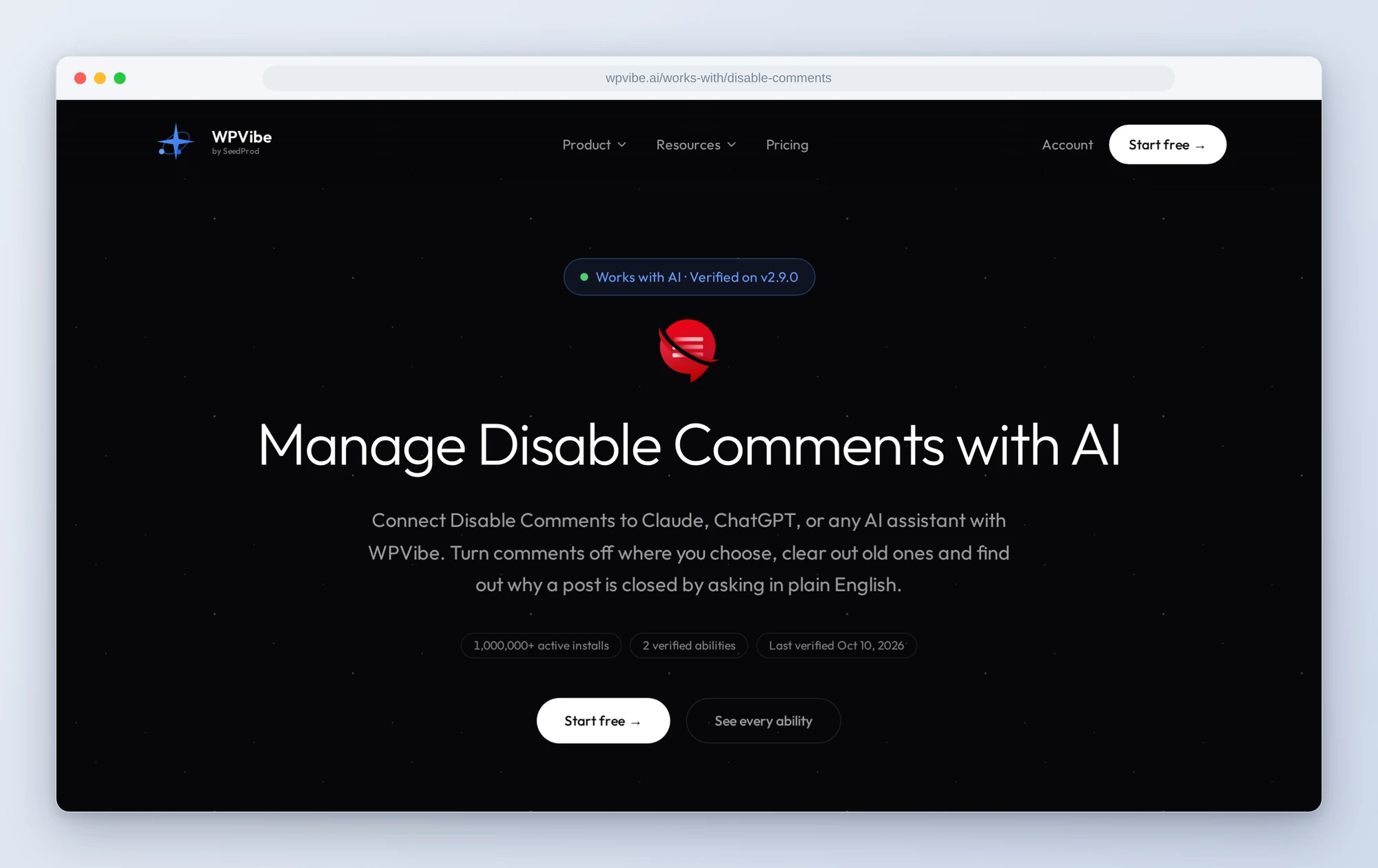
All three recipes live on the Disable Comments page, along with the abilities we verified and the gotchas we found. If you only try one, make it turning comments off. It shows you the plan, keeps your reviews and tells you how to undo it.
John and the WPVibe team
P.S. WPVibe is free to start and works with the Claude or ChatGPT account you already have, so there is no second AI subscription to buy. Connect your site and turn the comments off.