Why AI Can Run Some WordPress Plugins and Not Others
You ask your AI assistant to add a form, or rewrite a title, or flip your WordPress site into maintenance mode. It comes back and tells you it can’t.
Two completely different things cause that, and only one of them is yours to fix. Either the plugin you’re using has never built AI a way in of its own, or it built one and shipped it locked, with the key sitting somewhere nobody mentioned.
I found that out the slow way. Back in July, I researched 25 WordPress plugins to see if they work with AI and only 6 did.
But I knew things were likely to change, so last week, on a fresh site, I installed those plugins again and asked Claude what it could see.
Instead of six, nine plugins now work with AI assistants. But what I hadn’t understood in July is that four more of them have finished AI support sitting there doing nothing at all, and not one of them tells you it’s there.
So this is me reinstalling 25 plugins and reading what they actually do, so you can skip to checking your own.
What’s on this page:
- What “works with AI” actually means
- The 9 plugins that work when you install them
- The plugins with no AI setting to switch on yet
- The 4 that ship AI support switched off
- How to check AI support on your own site
- Off by default is fine. Undocumented isn’t
- Frequently asked questions
- Would I check all 25 again
What “Works With AI” Actually Means
Everything you do to a WordPress plugin, you do by clicking. Tabs, dropdowns, a save button at the bottom of a long form. Claude and other AI assistants can’t click any of it.
So for an assistant to work a plugin properly, the plugin has to build a second entrance around the back and put labels on what’s behind it. In my test, some plugins did that work. Most haven’t gotten around to it.
WordPress handed everyone a shared format for those labels in version 6.9, back in December 2025, and tidied it up in 7.1 last month. So if your site runs anything older than WordPress 6.9, none of this works, whatever your plugins say about AI.
That leaves any plugin you own in one of three states right now. It already works with AI, AI has no way in of its own yet, or it has one and somebody left it switched off. I’ll get into the details about those next, in that order.
9 WordPress Plugins That Work with AI When You Install Them
Nine of the 25 WordPress plugins I tested answered Claude the moment they were activated, with 57 commands between them.
In July it was seven plugins and 42 commands, so the working set picked up two plugins and fifteen commands in three months.
| Plugin | What an ai assistant can do with it | Anything to switch on? |
|---|---|---|
| WordPress itself (3) | Read your site details, your environment info and your user profile | No |
| AIOSEO (13) | Read and rewrite a post’s SEO title, description and keyphrase, find posts with SEO gaps, read and edit robots.txt rules | No. Settings are read-only |
| SeedProd (11) | List and save pages, flip coming soon and maintenance mode, read and save global CSS, import a theme | No |
| WPForms (8) | Read your forms, their fields and their stats | Yes, for anything that changes a form |
| WooCommerce (7) | Query products and orders, create and update a product, add a note to an order | No |
| Sugar Calendar (6) | Read events and calendars. No command for creating one yet, so it can’t run your calendar for you | No |
| WPCode (5) | List snippets, spot snippet errors, read the logs, search the library. No command for creating or running a snippet yet | No |
| Duplicator (3) | List your backups, start one, check how it’s going | No |
| WP Mail SMTP (1) | Read the email debug log. That’s all of it, for now | No |
Duplicator is the plugin I’d highlight, because in June it could do nothing whatsoever and I had it down as a dead end. Now it lists your backups, starts one and tells you how it’s going, and there’s no setting to find first.
Install it, activate it, ask.
That’s worth holding on to, because four other plugins I tested need a setting changed before they’ll do anything at all. Duplicator shows that’s each plugin’s own decision, not something WordPress makes them do.
The Plugins With No AI Setting to Switch On Yet
Sixteen of the 25 WordPress plugins I tested gave Claude nothing back at all. Three of those are the locked ones I’ll come to next, which leaves thirteen with no AI setting anywhere to find.
Here they are:
- UserFeedback
- Easy Digital Downloads
- Charitable
- Envira Gallery
- Smash Balloon
- Uncanny Automator
- WPConsent
- Redirection
- Contact Form 7
- UpdraftPlus
- Site Kit by Google
- Jetpack
- MonsterInsights
You can stop hunting through settings screens for these thirteen, because there’s no option you’ve overlooked. There simply is no option.
That doesn’t mean your AI can’t touch them, though, and this is the part I’d have gotten wrong myself. None of these thirteen publishes any AI commands, but WPVibe works through your site’s own REST API, so an assistant can often drive a plugin that has no AI features whatsoever.
Redirection is sitting on that list, and I had Claude install it, set it up and build seven redirects from scratch. I wrote that one up in how to set up a 301 redirect by hand or with AI.
A few of them really are out of reach. Some keep their data somewhere an assistant can’t get to, and others want a Google or WordPress.com login that an AI connection has no way to hand over.
None of it is permanent either, and I’ve got the receipts for that. Duplicator could do nothing in June and runs backups now, Sugar Calendar went from zero to six commands, and Advanced Custom Fields (ACF) building field groups, which I wrote down three months ago as impossible, is possible today.
Jetpack is the one that still nags at me. It ships AI code and registers nothing at all, and I couldn’t figure out why. I’m not a developer so I’m not going to pretend I know.
4 Plugins Ship AI Support That Does Nothing
This is the group I had no idea about in July, and it’s why this is a guide rather than another count. Four plugins arrive with finished AI support that does nothing on your site until somebody acts.
Nobody has been into the settings and switched it off. That’s how they turn up.
They’re locked at four different depths, which is the part that got me. One is a toggle, one waits for a setup wizard, one wants code, and one has nothing you can change at all.
WPForms: One Toggle, and It’s Easy to Find
Ask WPForms to build you a form and you get a flat refusal: “Form write abilities are disabled.” Nothing in that sentence tells you where to go next. That’s the only thing wrong with it.
Four of its eight commands only read things, and those four work from the moment you install it. The other four, the ones that change a form, wait behind a real toggle in WPForms’ own settings.
It’s under WPForms, then Tools, then the AI MCP tab, and it reads “Enable MCP Write Access”.
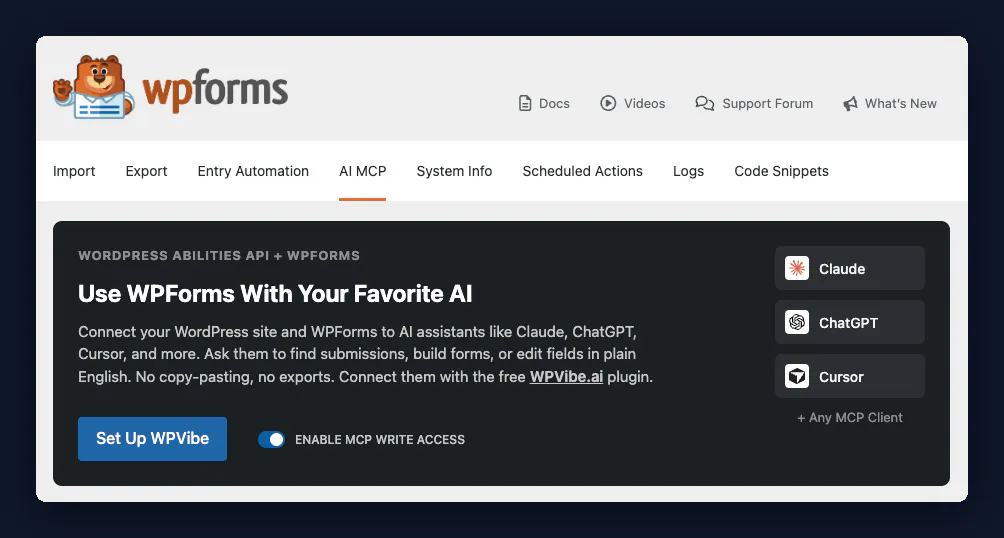
Of the four locked plugins, WPForms handles it best, and it’s how I’d want the other three to do it. Off by default is fine when the switch is somewhere a person might plausibly look.
Rank Math: 27 Commands, Hidden Until Setup
I installed Rank Math, activated it, asked Claude what it could see, and got nothing back at all. There are 27 commands in there. None of them load until you’ve finished its setup wizard.
They sit there the whole time, and I checked it both ways around to be sure. Before I finished the wizard, Claude could see 57 commands on the site and not one of them came from Rank Math.
After I finished it, Claude could see 84, and 27 of those were Rank Math’s. Then I undid the setup, and the total dropped back to 57 with nothing from Rank Math again.
Credit where it’s due, though. Once it’s unlocked, Rank Math has the biggest set of any plugin I tested, including commands that change settings, the homepage SEO and the sitemap. I confirmed all 27 were there, but I didn’t run any of them, so take that as a list I’ve seen rather than something I’ve driven.
What makes this worse than a toggle is that nothing tells you. Rank Math’s own documentation says the wizard is optional and an account is needed only to use the API, and nothing in it mentions that skipping it leaves 27 commands unloaded.
ACF: No Admin Switch, So You Add Code
ACF can build field groups through AI now, which I wrote down in June as the one thing it couldn’t do. It has six commands, three that read and three that write, covering field groups, custom post types and custom taxonomies.
I ran the one that lists field groups just to be certain they were live rather than names on a list. They’re live.
Getting there is the awkward part. There’s no screen anywhere in the plugin that turns them on, so doing it means putting code on your site. ACF’s own notes say so outright: its AI support works “when explicitly enabled via the enable_acf_ai feature flag”.
To be fair on the detail, ACF does have AI settings in the dashboard. Every field group carries an ACF AI tab that controls access to that group.
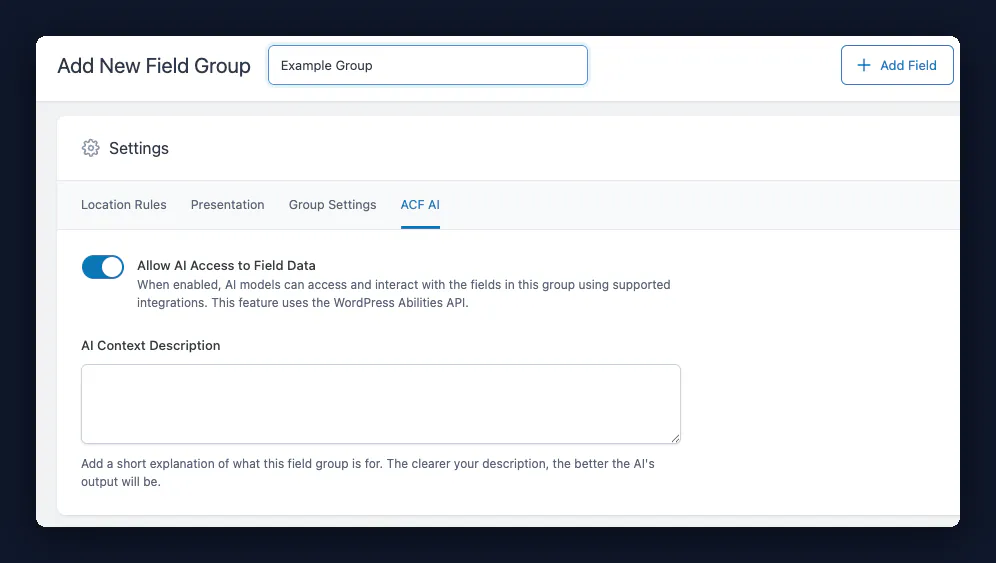
It’s the global on and off that lives in code only. On my lab the six commands weren’t there until a one-line snippet switched them on.
So if you’re not comfortable putting code on your site, ACF’s AI support stays out of reach. Nothing in the plugin even hints there’s a way in.
Elementor: Nothing You Can Switch On Yet
I got Elementor wrong the first time I tested its AI capabilities, so I went back and did it properly. A fresh site, Elementor 4.2.4 and Elementor Pro 4.2.2, and nothing else installed on it.
Claude could see three commands on that site. All three of them belonged to WordPress itself, and not a single one came from Elementor.
The reason is a piece of supporting code called the MCP Adapter. Elementor’s AI module needs it to start up, and Elementor doesn’t include it in either the free plugin or Pro. I checked both.
There’s a hidden experiment for this as well, declared off, and it doesn’t appear on the Experiments screen at all unless you add a line to wp-config.php first. I turned it on anyway and re-checked. Still zero. That’s the test that killed my original explanation.
So if you’ve gone looking for elementor mcp and found notes saying the feature exists, it does exist, in code. On a normal Elementor site there’s nothing you can change today to make it answer.
None of that stops an assistant editing your Elementor pages, to be clear. Through WPVibe it works on them via your site’s REST API, which doesn’t go anywhere near Elementor’s AI module. What’s missing is Elementor telling an assistant what it can do.
I’d call that unfinished rather than shut. The missing piece is a developer package that plugins are meant to bundle themselves, and WordPress’s own guidance describes the exact approach Elementor took. So this looks like a plugin caught mid-build.
Elementor isn’t behind on AI either, to be fair to them. It ships a separate AI module aimed at its own editor, and that one is switched on and working. Different feature, different audience.
How to Check AI Support on Your Own Site with One Question
I nearly published the wrong answer about Rank Math, and that mistake is worth more to you than the finding. I asked Claude for Rank Math’s commands by the plugin’s name and got nothing back. An empty answer looks exactly like a plugin with no AI support at all. It has 27.
Three of the plugins I looked at file their commands under a name that isn’t the plugin’s name: Rank Math, AIOSEO and ACF. With ACF it was unmistakable, because I’d just watched six commands appear on the site and asking for them by “acf” still came back empty.
So ask broadly and read the answer yourself. A plugin directory can tell you a command exists somewhere. It can’t tell you whether it’s running on your site.
- Connect your AI assistant to your site. WPVibe is what I use for that, and asking is the whole point of it.
- Ask it to list every ability it can see, grouped by plugin.
- Read that list against what each of your plugins claims it can do.
That comparison is where your answer is. If a plugin advertises AI support and nothing from it turns up in the list, it’s one of the locked ones, and a minute of reading tells you which of the three states each of your plugins is in.
Off by Default Is Fine. Undocumented Isn’t
Before I complain, the security argument deserves a fair hearing, because it’s a good one. There are plugins on wordpress.org whose whole job is connecting AI to WordPress, and they treat off-by-default as a feature worth advertising. You pick which commands to allow, you set who’s allowed to use them, and you get a log of what was done.
One of them goes further and keeps WooCommerce’s commands behind a warning, because orders hold customer data. That’s a fair position and I’m not arguing with it.
The lock isn’t the problem.
The problem is that not one of these four plugins tells the owner the door is there, and the key sits somewhere different in all four. A toggle, a setup wizard, a line of code, and nothing at all.
WordPress isn’t asking for it either. The 7.1 release notes record no requirement for plugins to ship their commands switched off, so every lock I found is a decision that plugin’s own team made.
Nobody should have to read source code to find out what their own site can do. One line in a settings screen reading “AI access: off, and here’s the switch” would fix the whole thing.
Frequently Asked Questions
Does WordPress have MCP built in?
Not MCP itself. WordPress 6.9 added the Abilities API in December 2025, which is the shared way a plugin describes what it can do, and 7.1 improved it in August 2026. Connecting an AI client to those abilities is a separate piece, and that’s the job a remote MCP server like WPVibe does.
Is connecting AI to WordPress safe?
It’s as safe as the credential you hand over, which in my case is a standard WordPress application password. That one credential can do whatever the commands on your site allow, which is exactly why several plugins ship their AI support switched off. That’s a security decision rather than an oversight, and my complaint is about it being undocumented, not about it existing.
Can AI edit my Elementor pages?
Yes, just not through Elementor’s own AI support. Connected through WPVibe, an assistant edits your pages via your site’s REST API, and that works on Elementor content today. What Elementor hasn’t finished shipping is its own set of AI commands: tested on September 16, 2026 with Elementor 4.2.4 and Elementor Pro 4.2.2, it contributed none at all, and there’s no setting a site owner can change to alter that.
Does my plugin need updating for this?
Often, yes. Two of the 25 went from zero commands to a working set between June and September 2026, so an update is the usual reason the answer changes. It won’t help with the four that ship their AI support switched off, because those need a setting rather than a version.
Would I Check All 25 Again
Yes, and sooner than I’d like. The totals moved twice in three months, two plugins went from nothing to working, and one thing I had written down as impossible in June is possible today.
Which answers the question in the title, even if it isn’t a tidy answer. The plugin is only half of it. The rest comes down to your own site, and what’s actually switched on there this week.
Everything here is a snapshot from September 16, 2026, on WordPress 7.1, with all 25 plugins installed fresh and free versions of everything except SeedProd. If you want to run the same check on yours, WPVibe is what connects your AI assistant to your site, and you can get started with it for free.