What AI Can Actually Do With Your Elementor Site
If your site runs on Elementor, its new MCP sounds like a real time saver. You ask your AI to change a heading or a color, and you never open the editor.
That’s only half true. Elementor MCP can build new pages and change your site-wide colors. But as things stand, it can’t edit anything made with Elementor’s classic widgets, and on my test site that was every page.
I found this out by having my AI assistant, Claude, try all 27 of Elementor’s AI commands. Where Elementor said no, WPVibe made the edit instead. Along the way, my AI also hit a catch with live pages that’s worth knowing about.
What’s on this page:
- What Elementor MCP is, and how to switch it on
- What Elementor MCP builds and restyles
- Elementor MCP can’t edit classic widgets
- A published edit that didn’t show up
- What WPVibe can do with Elementor
- What your AI can do, job by job
- Frequently asked questions
- Would I let AI loose on my Elementor site?
What Elementor MCP Is, and How to Switch It On
Elementor MCP is the part of Elementor that lets AI tools like Claude work on your site. MCP itself is the standard that connects the two, which I explain in WordPress MCP, Explained Without the Jargon.
It comes switched off. To turn it on, go to Elementor, then Elementor MCP in your WordPress dashboard, and click Enable MCP access.
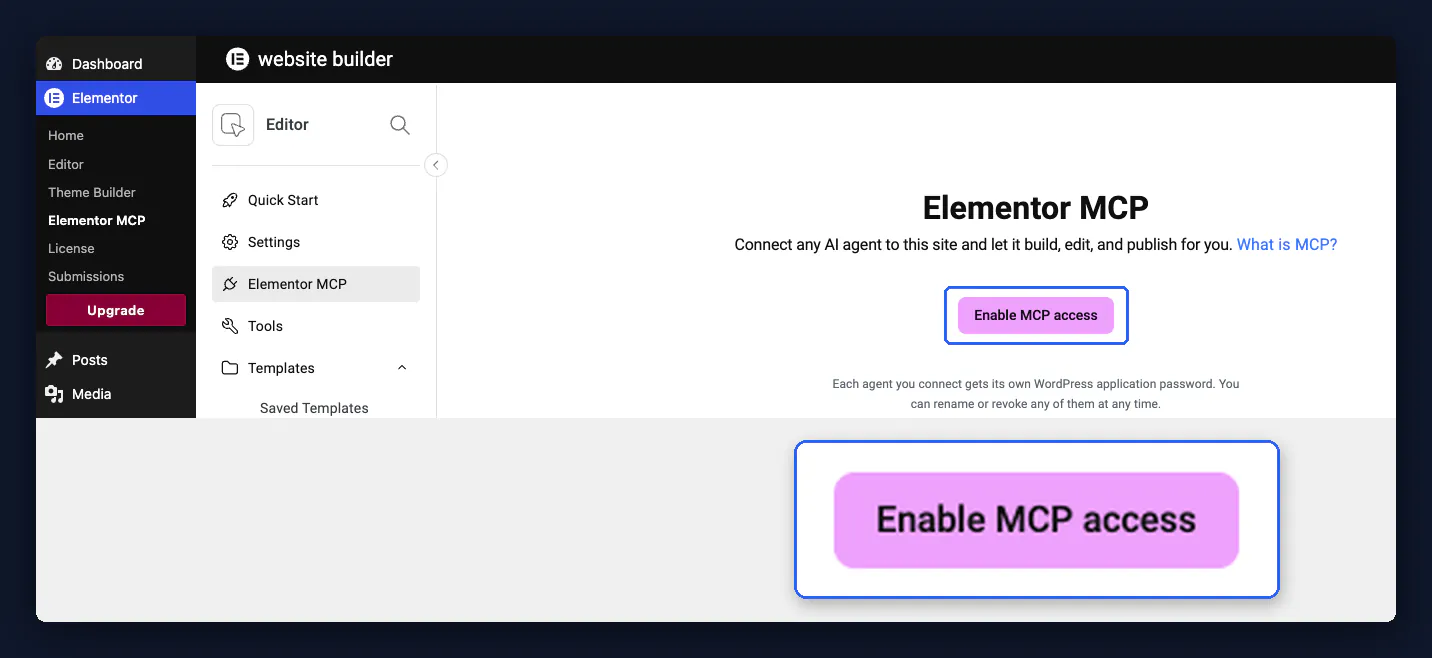
Before that click, my AI could see no Elementor commands at all. After it, there were 27, the actions Elementor lets an AI run on your site.
You don’t need WPVibe to use it, because Elementor’s own setup creates an application password and writes a prompt for you to paste into your AI tool. My AI used WPVibe, which connects AI assistants to WordPress, so it could take another route whenever Elementor said no.
Elementor now has two kinds of building blocks, and Elementor MCP treats them very differently. Classic widgets (V3) are the older kind. New-style elements (V4, which Elementor calls atomic elements) came with Elementor 4.
New sites have used the new-style elements by default since April 2026. If your site is older and you never switched them on, your pages are almost certainly classic widgets.
What Elementor MCP Builds and Restyles
The first thing I had my AI try was building a brand-new page. Elementor MCP made the page as a draft and added a heading. When my AI asked it to publish, the page went live with the heading showing, both times it tried.
Starting as a draft is on purpose. Elementor’s MCP page says “Every generation lands as a draft, and nothing goes live until you review and publish it.”
When I tested it, site-wide styles worked too, in three ways.
- Color variables. A variable is one saved color you can use anywhere. My AI made one, used it on a new-style heading, then changed the color. The live site updated without any page being saved again.
- Default heading styles. You can give every heading of one level, like every H2, a default look. It worked on the new-style H2s. The three classic H2s on my homepage didn’t change, which matches what Elementor says.
- Brand settings. These are the site-wide brand colors and text color that classic Elementor sites use. My AI changed the text color, then the main brand color. Both showed on the live homepage straight away, and the other settings stayed the same.
Brand settings are the one I’d point a classic site at, because they aren’t widgets. If you try it, ask your AI to read your current brand colors first, then send the whole set back with your change. My AI didn’t test sending just one color, and that might wipe the others from the list.
Elementor MCP Can’t Edit Classic Widgets
My test site’s homepage is built entirely from classic widgets, like headings, text, buttons and images. My AI could list every one of them through Elementor MCP. But it only saw what type each one was, not the words inside.
So I asked Claude myself for a tiny change in the hero, turning “roasting since 2019” into “roasting since 2018”. Elementor refused with this message: “Legacy V3 element cannot be modified through this MCP. Edit V3 elements directly in the Elementor editor.” My AI had hit the same wall in both earlier test runs.
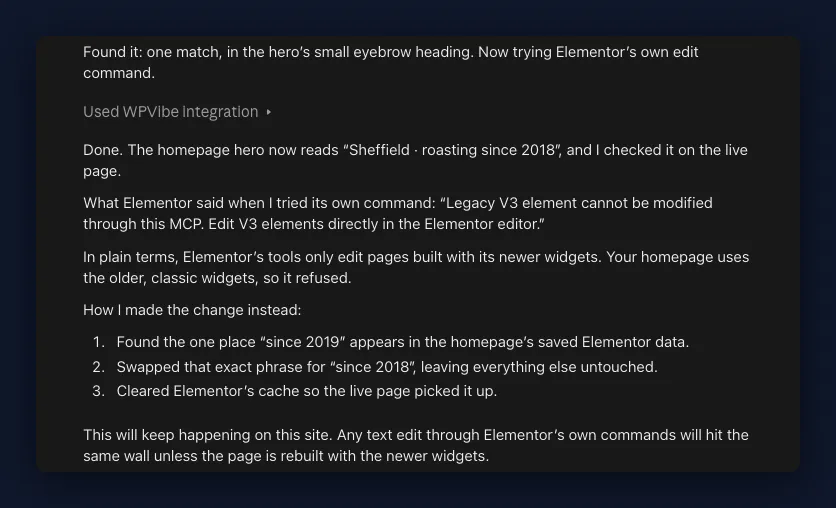
That’s about the smallest job you could give an AI, and it didn’t get past the first step.
To be fair to Elementor, it says this itself. Its MCP page says editing existing sites works “only if they were built with atomic elements and layouts (V4)”. It also says support for classic widgets is coming soon.
So if your pages are classic widgets, Elementor MCP can’t edit them yet. It can still build you new pages.
Elementor isn’t the only plugin with limits like this, and I looked at others in why AI can run some WordPress plugins and not others.
A Published Edit Didn’t Show Up on the Live Page
Elementor MCP has one catch on pages that are already live. When my AI edited one and published the change, the live page could keep showing the old version until the cache was cleared.
Here’s how it went. The page had a new-style heading that said “version one”.
- My AI changed the heading to “version two”. Elementor said the edit was fine.
- The live page still said “version one”. That part is expected, and it’s a good thing, because Elementor holds changes to a live page until you publish them.
- My AI published the page. Elementor said it was published.
- The live page still said “version one”, even 30 seconds later.
- WPVibe cleared Elementor’s cache. Only then did the live page show “version two”.
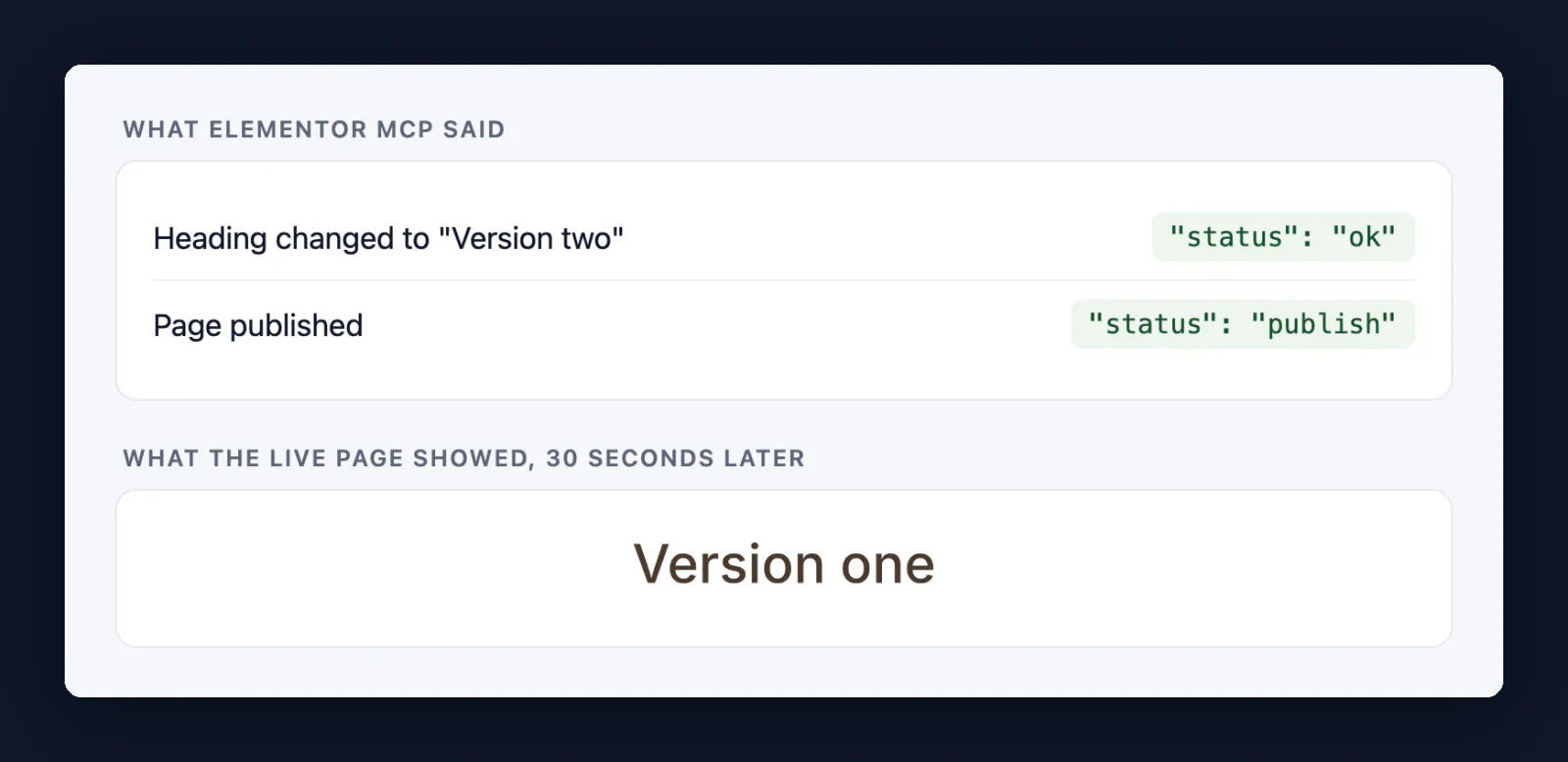
That’s the part I’d have missed if I’d only been reading the chat. Elementor said “ok”, then “published”, and I’d have taken that as done.
Every time it happened, the live page had been loaded between the edit and the publish, like in step 2. The one time my AI skipped that check, the edit went live straight away.
On a real site, any visitor could load the page in that gap. Why it happens is beyond me, and I’d rather not guess.
So after any AI edit to a live Elementor page, open the page in a private window. If it still shows the old version, ask your AI to clear Elementor’s cache. Elementor’s 27 commands can’t do that, so you need another route, like WPVibe.
What WPVibe Can Do With Elementor
Elementor MCP left my test site with two problems. It couldn’t change the classic heading on my homepage, and an edit to a live page didn’t show until the cache was cleared.
WPVibe sorted out both. When Elementor refused the heading, my AI made the same change through WPVibe, and the live homepage showed “roasting since 2018” straight away, in both runs.
It did that by editing the page’s Elementor content itself, instead of going through Elementor’s commands. And WPVibe’s cache clear is what fixed the stale live page.
If you want to go further, WPVibe also builds full Elementor pages, plus headers and footers on Elementor Pro. Our launch post, WPVibe Now Speaks Elementor, v4 Included, covers that, though I didn’t retest it here.
For ready-made prompts, the WPVibe cookbook has Elementor recipes like Edit an Existing Elementor Page with AI, which works on a draft copy first. We’ve also covered add-ons such as ElementsKit and Premium Addons for Elementor.
In all of this, your AI plans the job and WPVibe makes the changes on the site. The full list is on WPVibe’s Elementor page.
What Your AI Can Do in Elementor, Job by Job
Here are Elementor’s own commands next to WPVibe’s direct edits. “Not tested” means my AI didn’t try it.
| Job | Elementor’s own commands | WPVibe editing the page directly |
|---|---|---|
| Build a new page | Yes, as a draft | Yes (from our launch post, not retested) |
| Change text in a classic widget | No, it refuses | Yes, live straight away |
| Change a new-style element on a live page | Yes, but check the live page | Not tested |
| Change the site’s brand colors | Yes, live straight away | Not tested |
| Site-wide styles for new-style elements | Yes | Not tested |
| Clear Elementor’s cache | No command for it | Yes |
Frequently Asked Questions
Is Elementor MCP free?
Elementor MCP is free to connect, Elementor says. A Pro plan unlocks more, like Pro widgets, components, and headers and footers. Every command in my test ran on free Elementor.
Which AI tools work with Elementor MCP?
The AI tools Elementor says work best with Elementor MCP are Claude Code, Claude Desktop, Codex and Cursor. It also connects to any other MCP-compatible tool. If you use WPVibe, its settings screen in WordPress has buttons for Claude or ChatGPT, plus a server address for other AI apps.
Do I need WPVibe to use Elementor MCP?
You don’t need WPVibe to use Elementor MCP, because Elementor’s own setup connects your AI tool. WPVibe helps when your pages are built from classic widgets, or when the job goes beyond Elementor.
Is Elementor MCP the same as Angie?
Elementor MCP isn’t the same as Angie. Angie is Elementor’s separate AI plugin, free on WordPress.org. Elementor’s MCP page marks a few features “Requires Angie”, but everything in my test ran without it. If you’re weighing Angie up, see how WPVibe compares as an Angie alternative.
Would I Let AI Loose on My Elementor Site?
Yes, I’d let AI loose on my Elementor site, with limits. I’d use Elementor MCP for new pages and site-wide rebrands. That’s what it’s good at, and it keeps new work as a draft until I say so.
For the pages I already have, which are all classic widgets, I’d use WPVibe. And whichever route made the change, I’d check the live page in a private window before calling it done.
If you want to try this on your own site, you can connect Claude to WordPress with WPVibe.