Which WordPress Contact Form Plugins Work With AI

You ask your AI assistant to add a phone number field to your contact form. Sometimes it just does it, sometimes it tells you it can’t, and every so often it tells you it’s done when nothing has changed at all.
Which of those you get comes down to the form plugin you’re using. The roundups won’t tell you either, because they’re comparing features and price, and when they do mention AI, they mean a feature inside the plugin that writes you a starting form.
I found out about the third one the annoying way. Back in June I asked my AI to rename a form in Contact Form 7, it said done, and the old name was still sitting there.
So this time I picked the seven most-installed standalone contact form plugins on WordPress.org and had my AI assistant, Claude, run the same small job on every one, three times over. Five of them work with AI now, but four of those five keep it switched off until you go into their settings and turn it on.
Here’s which is which, where each switch lives, and the one check I’d make after any change your AI makes to a form.
What’s on this page
- What it means for a contact form to work with AI
- 7 contact form plugins, tested with AI
- Why 4 ship with AI switched off, and where each switch is
- What your AI can do with your forms once it’s on
- Do Contact Form 7 and Forminator work with AI?
- Check your form, not what your AI says
- Which contact form plugin to pick for AI
- Frequently asked questions
- How to get your AI working on your contact form
What It Means for a Contact Form to Work With AI
When I say a contact form plugin works with AI, I mean the assistant you already use, like Claude or ChatGPT, can build, change and read your forms for you. It reaches your site through a connector that uses MCP (Model Context Protocol), the standard AI apps use to plug into other tools, and mine is WPVibe.
Whether your AI can do anything depends on what the plugin hands it. Plugins can publish AI commands, which are actions an assistant is allowed to run, like creating a form or adding a field, and I explain how they work in my plain-English guide to WordPress MCP.
No commands doesn’t always mean no way in, to be fair. My AI has reached plugins with none before, through WordPress’s REST API, the standard route WordPress gives apps, which is how it set up my redirects in Redirection, a plugin for pointing old links at new pages.
7 WordPress Contact Form Plugins, Tested With AI
I gave every plugin the same job, so the results would line up. I had my AI, connected to my test site through WPVibe, build a contact form with name, email and message fields (all required) and a Send message button, then rename it and add a phone number field.
Then came the part I cared about most. Instead of trusting whatever the plugin said back, my AI read the database to see what had actually saved.
Every plugin started as a fresh install with its AI switch off, and the whole job ran three times from the same clean site. All three runs came out the same, and this is where things stood in October 2026.
| Plugin | Sites using it | Works with your AI? | What you switch on first | What saved |
|---|---|---|---|---|
| Contact Form 7 | 10,000,000+ | No AI commands yet | Nothing to switch on | Nothing, though it replied that it had |
| WPForms | 5,000,000+ | Yes | Editing (reading works straight away) | Everything* |
| Fluent Forms | 800,000+ | Yes | All AI access, with one switch | Some of it, and it replied that the phone field had saved when it hadn’t |
| Forminator | 600,000+ | No AI commands yet | Nothing to switch on | Nothing to try |
| Ninja Forms | 500,000+ | Yes | Nothing, it’s on from install | Everything |
| SureForms | 500,000+ | Yes | All AI access, after installing WordPress’s MCP Adapter plugin, which it asks for | Everything, saved as a draft |
| Formidable | 300,000+ | Yes | All AI access, with one switch | Everything |
*WPForms Lite has no phone field, because that’s in the paid version, and it said so. A plain text field labeled Phone saved fine.
I stuck to standalone form plugins, so form tools built into a page builder or a block plugin, like MetForm or Otter Blocks, aren’t in the table.
If your AI can’t use your form plugin, the switch column is where I’d look first. Ninja Forms was the only one that let my AI build and edit a form straight after install, and the other four that work all needed AI turning on first.
Why 4 of These Contact Form Plugins Ship With AI Switched Off
WPForms, Formidable, Fluent Forms and SureForms all arrive with their AI commands switched off, and I think that’s the right call. A contact form is where your enquiries land, so I’d rather an AI couldn’t touch one until I’d said it could.
It does explain a lot of confusing “I can’t do that” replies, though. What helped is that when a switch was the reason my AI couldn’t act, WPVibe said so.
With WPForms, WPVibe named the exact switch and told my AI to offer to turn it on, but only after you’ve said yes. With Formidable and SureForms, my AI couldn’t see the plugin at all, so the most WPVibe could say was that the plugin might be keeping its commands behind one of its own settings.
WPForms: Reads Work, Edits Wait for You
Out of the box, WPForms lets your AI read your forms but not change them. My AI could list every form on the site, but the moment it tried to build one it got a flat “Form write abilities are disabled.”
The switch is easy enough to find once you know where it is. It’s under WPForms, then Tools, then the AI MCP tab, and it reads “Enable MCP Write Access”.
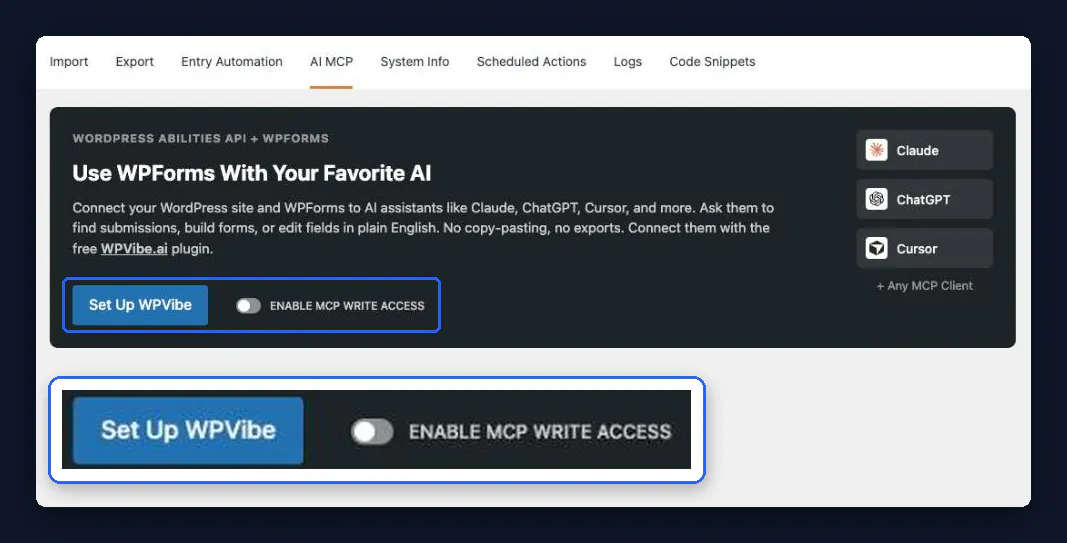
With that on, my AI built the form, renamed it and added the field, and all of it saved. Right next to the switch there’s also a Set Up WPVibe button, with the line “Connect them with the free WPVibe.ai plugin,” so the way to connect your AI is already on that screen.
The only snag was the phone field, which is a paid feature, so WPForms Lite doesn’t have one. It told my AI that straight, and a plain text field labeled Phone did the same job.
Here’s everything else your AI can do with WPForms, and WPVibe’s WPForms page has the ready-made prompts for it.
Formidable: Nothing Shows Until It’s On
With its switch off, Formidable is invisible to your AI. There were no Formidable commands for my AI to find, so it just got “Ability not found”, and nothing from Formidable hinted that a switch existed.
You’ll find it under Formidable, then Global Settings, then MCP, labeled “Enable the Formidable MCP server”. Turn it on, then click Update to save it.
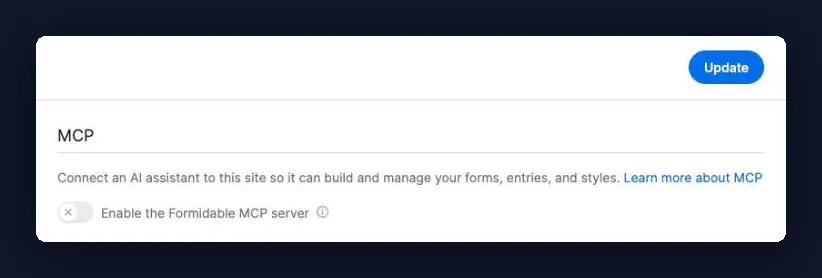
Once it was on, 28 commands showed up, and my AI built the form, renamed it and added a phone field in all three runs without a hitch, and this post covers what your AI can do with Formidable once it’s on.
Fluent Forms: A Preview Before Every Change
Fluent Forms double-checks everything. Every change my AI made had to be previewed first, then sent again with a confirm code that runs out after five minutes, so there’s a check built into every single edit.
Its switch is under Fluent Forms, then Global Settings, then MCP for AI Agents, labeled “Enable MCP Server”. The screen is upfront about it, too, saying it ships switched off and that anything that changes your data needs that preview step.
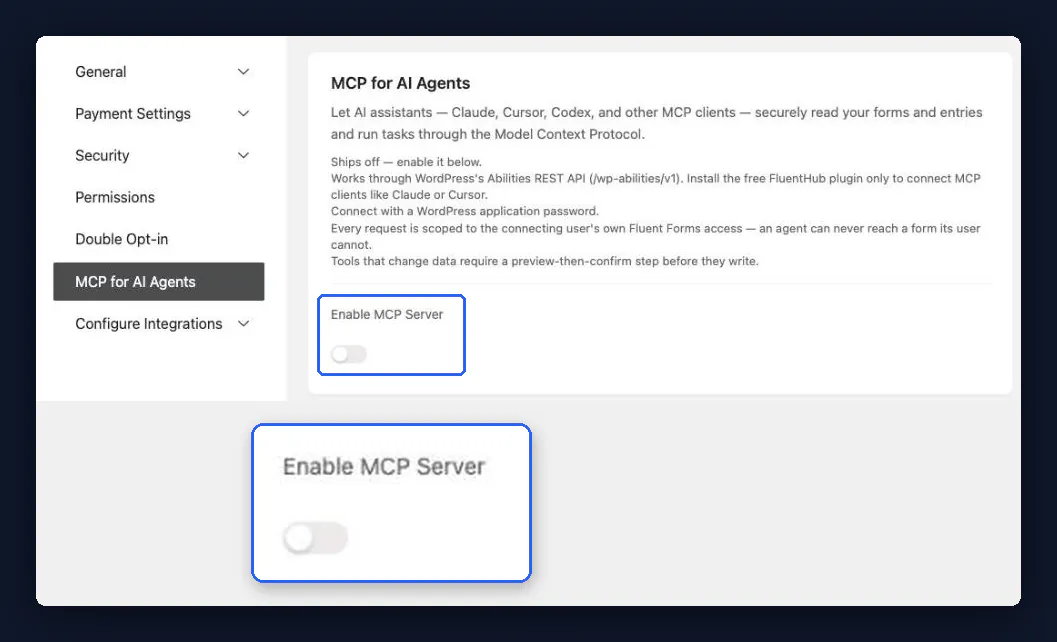
Once it’s on, your AI gets 20 commands, but there are a couple of gaps. Its build command only takes a field type and a label, so my AI couldn’t make any of the fields required, and none of the 20 can rename a form.
The phone field is the one I’d watch, because Fluent Forms said it had added it and it hadn’t. For everything else, this post covers the Fluent Forms jobs your AI can take on.
SureForms: Every New Form Starts as a Draft
SureForms takes the most setting up, but it plays safest with new forms. Every form your AI builds starts as a draft by default, and its build command tells the AI to “Confirm the form title, field list, and publish status with the user before creating.”
To get there, go to SureForms, then Settings, then MCP. On a fresh install you won’t see a switch at all, just a note saying “The MCP Adapter plugin is required to connect AI clients to your forms” and an Install & Activate MCP Adapter button.
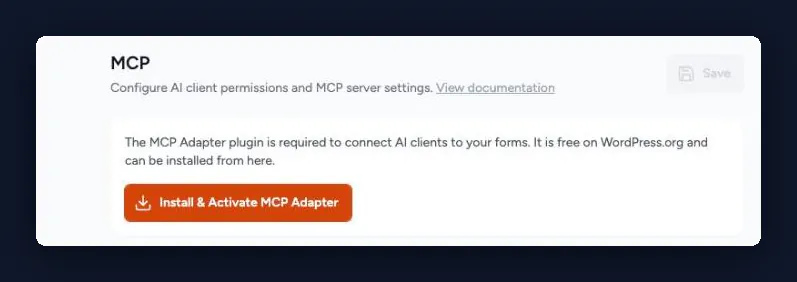
The MCP Adapter is WordPress’s own free MCP plugin. WPVibe doesn’t actually need it, but SureForms won’t show its switches until it’s installed, so click the button.
Then turn on “Enable Abilities”, which brings up “Enable Edit Abilities”. You want that one on too, because with it off the screen says “AI clients can only read your data.” Click Save and you’re set.
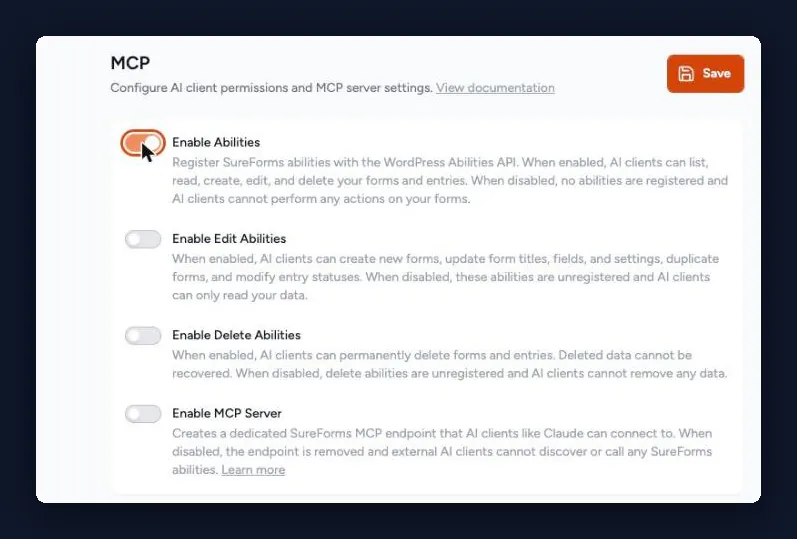
With both on, my AI built the form, renamed it and added a phone field, and the required fields and button text all came through. This post has the rest of what your AI can do with SureForms.
What Your AI Can Do With Your Forms Once It’s On
Getting a form built is the easy bit. The jobs that eat your time come afterward, like working out why form emails aren’t arriving, or sorting real enquiries from spam.
WPVibe has a tested recipe for each of these in the WPVibe cookbook, a library of ready-made prompts for WordPress jobs. They’re WPVibe’s own rather than part of my test, and each link below takes you to the recipe for that plugin.
| The job | Plugins with a recipe |
|---|---|
| Fix form emails that never arrive | WPForms, Fluent Forms, Formidable, SureForms |
| Sort entries into leads and spam | Fluent Forms, Formidable, Ninja Forms, SureForms. WPForms Pro has a recipe to find the leads worth calling back |
| Send an automatic reply | Fluent Forms, Formidable, Ninja Forms, SureForms |
| Get a monthly report on your entries | Fluent Forms, Formidable, Ninja Forms, SureForms |
| Build a form from a description | WPForms, Formidable, Ninja Forms, SureForms |
| Switch from Contact Form 7 and swap every embed | WPForms |
One thing to know if you’re on Fluent Forms. WPVibe’s Fluent Forms post says its recipes need no setting at all, because they go through Fluent Forms’ own REST API, the one its admin screens run on, rather than its AI commands.
If I were picking one to start with, it’d be the email fix. Form emails fail silently, so a visitor gets a thank-you message and you never hear a thing.
Your AI checks whether each form’s email is switched on, where it goes, and whether a mail plugin is set up, then tells you what it found before it changes anything. In the WPForms version, WPVibe only installs the free WP Mail SMTP plugin once you’ve said yes.
Do Contact Form 7 and Forminator Work With AI?
No, Contact Form 7 and Forminator don’t publish any AI commands yet, so your AI has no built-in way to build or edit their forms. That was the picture in October 2026, and it’s a list that keeps changing, as I found when I looked into why AI can run some plugins and not others.
Contact Form 7 is the one from my June rename, which came up when I tested 25 WordPress plugins with AI. This time it did the same again on version 6.1.7, saving nothing while replying with the new title and fields.
Forminator didn’t get even that far, because my AI couldn’t find any way to build or edit a form in it. There’s nothing in the cookbook for Forminator yet.
On Contact Form 7, there’s a recipe to send each new submission to Zapier, Make or n8n, through a separate free plugin. If you’d rather move, the switch-to-WPForms recipe has your AI swap every embed once WPForms’ importer has moved the forms.
Here’s the whole switch on my test site, start to finish.
Check Your Form, Not What Your AI Says
Two of the seven plugins told my AI a change had saved when it hadn’t. Contact Form 7 did it with the rename, and Fluent Forms did it with the phone field.
With Fluent Forms there was one small clue. The preview before the change showed no new field, then Fluent Forms replied that the fields for Contact Us were updated, and the form still had just its three original fields.
To be fair to Fluent Forms, its own instructions list phone as a field it supports, and I don’t know why it dropped. A text field labeled Phone saved fine every time.
My AI can only go on what the plugin tells it, and the same goes for WPVibe. It caught both of these because reading the database was part of my test, and you don’t need to go that far yourself.
Just open the form, or its preview, after any change your AI makes and have a look. It takes about ten seconds, and it would have caught both.
Which WordPress Contact Form Plugin to Pick for AI
Which one suits you mostly comes down to how much you want your AI doing before you’ve said yes.
- Ninja Forms if you want your AI working on forms the moment it’s installed.
- WPForms if you want your AI reading forms straight away, and editing only once you allow it.
- Fluent Forms if you want a preview before every single change.
- SureForms if you want every new form kept as a draft until you publish it.
- Formidable if you want AI completely out of sight until you switch it on.
- Contact Form 7 or Forminator if your forms are already set up and you don’t want AI near them.
If you need a phone field on a free plan, Ninja Forms, Formidable and SureForms all saved one in their free versions. WPForms Lite doesn’t have one.
Frequently Asked Questions (FAQ)
Which WordPress contact form plugin is best for AI?
Which WordPress contact form plugin is best for AI depends on how much you want your AI to do before you say yes. Ninja Forms works from install, and WPForms, Fluent Forms, SureForms and Formidable work once you switch AI on. This test didn’t compare them on anything else.
Does Gravity Forms work with AI?
Whether Gravity Forms works with AI wasn’t part of this test. It’s paid-only and isn’t on WordPress.org, and the test covered the most-installed form plugins listed there.
What about forms in page builders and block plugins, like MetForm or Otter Blocks?
Forms built into page builders and block plugins, like MetForm or Otter Blocks, aren’t in the table, because it covers standalone form plugins only. MetForm wasn’t tested. The WPVibe cookbook does have Otter Blocks recipes, including one to fix Otter Blocks form emails that never arrive.
Can AI move my forms from Contact Form 7 to WPForms?
Moving your forms from Contact Form 7 to WPForms is a job AI can help with. WPForms’ own importer moves the forms, and WPVibe’s switch-to-WPForms recipe has your AI swap every embed on your site, one page at a time. It’s a WPVibe recipe, and it wasn’t part of my test.
Does a form built by AI get spam protection?
A form built by AI in WPForms doesn’t get spam protection switched on, and an AI can’t switch it on for you. When my AI built one in this test, no spam protection setting was saved, so turn it on yourself in the form builder before the form goes live.
How to Get Your AI Working on Your Contact Form
If you want to hand your contact forms over to your AI, this is the order I’d go in.
- Find your form plugin in the table near the top.
- If it’s WPForms, Formidable, Fluent Forms or SureForms, switch AI on in its settings (Fluent Forms’ recipes work without it).
- Hand over one job first, using its recipe. The email fix is a good first pick.
- Open the form afterward and check the change saved.
- On Contact Form 7, the switch-to-WPForms recipe is the way in.
If you want to try it on your own site, you can get started free with WPVibe. The free plan connects as many sites as you need, with 100 tool calls a day, and the first thing I’d ask your AI is why your form emails aren’t arriving.